
Docs › Your data
Datasets
A dataset is one table of data, usually one tab of a spreadsheet or one CSV file, that reports are built on. This guide covers uploading files, how column types are worked out, the Datasets page, viewing and editing rows, indexes, query editors, query and replay datasets, write-back (where saved edits go), connecting datasets to each other, row access filtering, and where your data is kept on each plan.
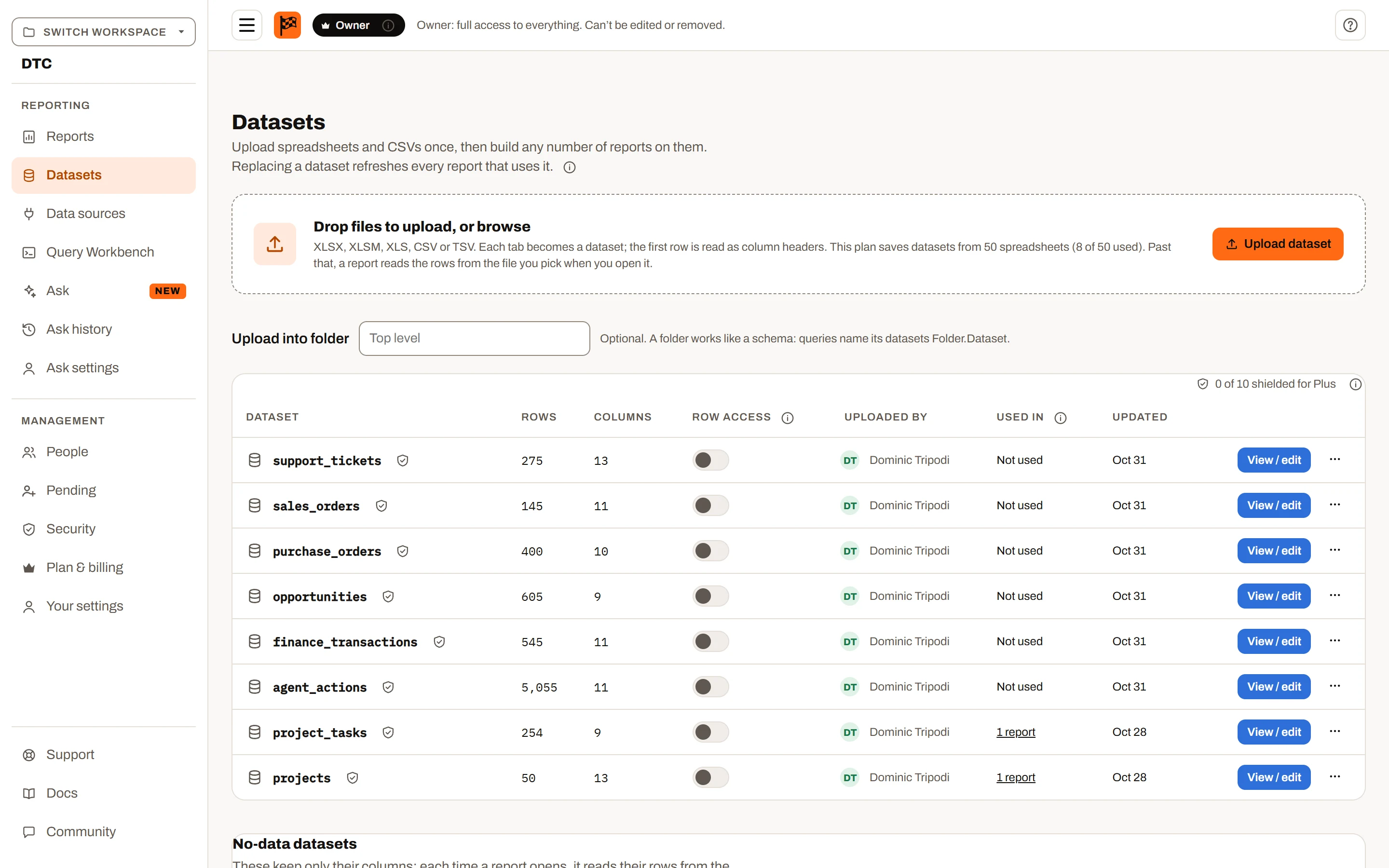
The Datasets page.
What a dataset is#
- Every tab of a workbook becomes its own dataset, named after the tab. A CSV or other text file has one tab, so it becomes one dataset named after the file (without the extension).
- A dataset has columns (taken from the header row) and rows (everything under the header).
- One dataset can be used by any number of reports. When a dataset's rows change, every report that uses it shows the new rows the next time it opens (or straight away, if it is already open; see Live updates).
- Datasets belong to a workspace, not to a person. Everyone in the workspace can see the list; what they can do with each dataset depends on their role and the plan (see Who can do what).
Where your data is kept (privacy)#
Where the rows live depends on the plan.
| Plan | What is saved on our servers | What stays on your computer |
|---|---|---|
| Free | Nothing. | Your file is read in your browser and never uploaded. Nothing is kept after you leave the page. |
| Mini | The dataset's name and its column names and types. | The rows. Each time a saved report opens you pick the file again; it is read in your browser and not uploaded. |
| Plus | Names, columns, and the rows of up to 10 datasets, plus every saved edit and its history. Datasets past that keep their columns only. | The rows of any dataset past the limit. |
| Ultimate | Names, columns, and the rows of up to 50 datasets, plus every saved edit and its history. Datasets past 50 keep their columns only. | The rows of any dataset past the limit. |
How it works behind the scenes:
- Spreadsheets are always opened and read in your browser. On Plus and Ultimate the rows are then sent to the workspace's storage, which keeps each workspace's data separate from every other workspace's.
- Exports (Export Excel, Export data, Report with data) are built in your browser and downloaded straight to your computer.
- On Plus and Ultimate, anyone who opens a report on a stored dataset receives only the rows they are allowed to see. If row access filtering limits them, the other rows are never sent to their browser.
Plan availability: see the table above. On Free, the Datasets page shows "This workspace's plan doesn't save datasets" and links to build a report from a file for the current session instead.
Supported files#
| Format | Notes |
|---|---|
| XLSX, XLSM | Modern Excel workbooks. Every visible tab is read. |
| XLS | Older Excel workbooks. Every visible tab is read. |
| CSV, TSV, TXT | Delimited text. The separator is detected automatically: comma, semicolon, tab or pipe ( | ). |
Rules when a file is read:
- Hidden tabs are skipped. Unhide a tab in Excel first if you need it.
- Tabs with no columns are skipped. If no tab has any columns, the upload stops with "file has no columns to read."
- The header row is the first row that has anything in it. Every row below it becomes a data row. Blank rows are skipped. If your sheet has a title or notes above the real headers, delete them first, or the title becomes the header row.
- Blank headers are named after their column letter, for example "Column C".
- Repeated headers get a number added: a second "Amount" becomes "Amount (2)", a third "Amount (3)".
- Spaces at the start and end of a header are removed.
- Formulas are read as their calculated result. Rich text and hyperlinks are read as their text. A cell showing an Excel error keeps the error text.
- Dates from Excel keep the date and time as shown in the sheet, with no time zone. A date column formatted as month and year (for example "mmm-yy", showing "Dec-25") is read as that month, not as the 1st of the month.
- Text files: a "CSV UTF-8" file saved by Excel is read correctly, and a first line of
sep=;(which Excel writes to name the separator) is honoured. Quoted values may contain separators, line breaks and doubled quotes. - A file with any other extension is refused: "file doesn't look like a spreadsheet. Save it as .xlsx or .csv and try again." A file that cannot be opened gives "We couldn't read file. Check it opens in Excel and try again."
How column types are worked out#
There are two kinds of type, and they are worked out separately.
In reports (what you see in the builder)#
Each time a dataset is loaded into a report, each column's type is worked out from its values. The first 500 non-blank values are checked:
- Number (shown as Σ) when at least 90% of them are numbers. Numbers can be totalled and averaged.
- Date (shown with a calendar icon) when at least 90% read as dates. If every one of those dates is a month only (such as "Dec-25" or "2025-12"), the column is treated as months.
- Text (shown as Abc) otherwise.
Dates are recognised in many forms ("1/1/25", "Jan 1, 2025", ISO dates, Excel dates), and every date in a date column is lined up to one form so it groups, sorts and filters as a date. Whether "01/02/2025" is 1 February or 2 January is worked out from the other dates in the column.
Changing a type: in the builder's Data pane, click a column. Its panel opens at the top of the Visual pane. For a number column, the Number / Category switch at its top right chooses between summed and grouped, sliced and filtered like text, which suits codes, years and IDs. Date and text columns cannot be switched. The choice is saved with the report, not with the dataset. The same panel lets you set a Column name (the header used on export) and an Alias (the label visuals show; never exported). A saved report still matches the column to the sheet's original header.
Sorting a column by another: a text or date column's panel has Sort by, which orders its values by another number or date column's: Month Name by Month Number, a stage by its step number. An axis, a matrix's rows and a Filter visual's list then run in that order, wherever they keep the column's own order (a chart sorted largest first still is). Each value takes the lowest sort-by value it has anywhere in the dataset, so filtering never reorders it, and a value with no sort-by value comes after the rest. Like the type, it is saved with the report.
Formatting a column: the same panel's Format sets how a number or date column shows, like Excel's Format Cells: General, Number (decimals, 1000 separator, negative style), Currency, Percentage or Scientific for numbers, and a date or date-and-time pattern (or a custom one) for dates. Unlike the type, the format is saved with the dataset, so every report on it shows the column the same way. It changes only how values look: sorting, filtering by value, formulas and exports keep the raw values. See Report builder for the rest of the Data pane.
On the server (stored datasets)#
When a dataset is saved to the workspace, each column is also given a stored type: number or date when every value in it fits, otherwise text. This keeps the server from ever refusing a row. Visuals do not depend on it, because the builder works out its own types again on load.
Things to know:
- In CSV and other text files every value arrives as text, so on the server their columns are stored as text, except dates written exactly as
YYYY-MM-DD(optionally with a time). This does not affect reports. - A stored column's type never changes on its own. The only exception is Add as snapshot, which turns a column to text when new values don't fit.
The Datasets page#
Open Datasets in the workspace menu. The page lists every dataset in the workspace, newest change first.
The Datasets page.
Folders#
A dataset can be filed in a folder, one level deep (folders don't nest). A folder works like a schema in SQL Server: in the Query Workbench the dataset Orders in the folder Sales is named Sales.Orders. Folder and name together are unique, ignoring case, so Sales.Orders and Archive.Orders can both exist; at the top level a name is unique among the other top-level datasets.
- A folder name is at most 64 characters and can't contain
.,[or]. Spaces around it are dropped, and a blank name means the top level. - To move a dataset, open the ⋯ menu on its row (or Actions on the dataset's own page) and choose Move to folder…. The "Move name to a folder" dialog suggests the existing folders; leave it blank for the top level. The page then says, for example, "Orders is now in Sales: queries name it Sales.Orders." The move is refused, with a message saying why, if that folder already has a dataset of the same name.
- New reports name a dataset in a folder with its folder (
Sales.Orders), so one report can useSales.OrdersandArchive.Orderstogether. Moving a dataset doesn't change reports that already use it: they keep the name they were saved with.
Copying a dataset#
A dataset's name can't be changed, because reports, replays, saved queries and formulas find it by name. To give a dataset a new name, copy it: open the ⋯ menu (or Actions on the dataset's own page), choose Copy…, and type the copy's name (it starts as "name copy"). The copy goes in the same folder, and a name already used there is refused.
- The copy holds the rows as they are at that moment, with the same columns, formats, calculated fields, indexes and row access.
- It's an upload: it isn't refreshed from the original's data source or query, and it has none of the original's connections, Summary Calculations or write actions.
- The original stays as it is, so everything that uses it keeps working. Once you've moved your reports and queries over to the copy, you can delete the original.
- You need edit access to the dataset with all of its rows in view, and room on your plan for another dataset with saved rows. A dataset read from its source each time (read-through) keeps no rows to copy, and one that row access on a connected dataset limits can't be copied, as the copy wouldn't be limited.
Uploading#
Drop files on the upload area, or click Upload dataset to browse. You can pick several files at once; they are uploaded one at a time, so each file's tabs arrive in order. While uploading, the area shows "Uploading names…".
To file the new datasets in a folder, type its name in Upload into folder under the upload area before you drop the files (existing folders are suggested). Leave it blank for the top level. Each tab's name must be unique in its folder, ignoring case; a tab whose name is already taken there is numbered instead (Sales 2, Sales 3).
When it finishes, a note says which datasets are ready, for example "Sales, Returns are ready to use." Extra wording explains when rows were not kept:
- On Mini: "(you'll choose the file when a report opens)".
- On Plus or Ultimate past the limit: "The data of names wasn't saved: this plan saves up to 10 datasets." (50 on Ultimate)
A Power BI template (.pbit) isn't a spreadsheet: upload it with Upload report on the Reports page instead. It becomes a dashboard, with a dataset for each table the report uses, and says where each table's rows came from so you can upload that spreadsheet here or read the database. See Import from Power BI.
The table#
| Column | What it shows |
|---|---|
| Dataset | The dataset's name. When any dataset is in a folder, the rows are grouped under a heading for each folder (A to Z), then Top level. |
| Rows | How many rows you can see. "Processing" while it is being replaced. A dash (—) means only the columns are kept, with an info tip saying why. On a snapshot dataset it also says, for example, "3 snapshots, latest 19 Oct 2026". A Filtered chip means row access filtering limits what you see. |
| Columns | How many columns it has. |
| Row access | Owner and admins only. The on/off switch for row access filtering, with Manage and Values buttons when it is on, and a "Via dataset" chip when a connected dataset's filtering reaches this one. See Row access filtering. |
| Uploaded by | Who uploaded it ("Former member" if they have left). |
| Used in | How many reports use it. Click it to list them as "Folder > Folder > Report" links. Reports you can't open are counted as "(n hidden)". |
| Updated | When it last changed. |
| Actions | View or View / edit, and a ⋯ menu with the rest: Replace… (or Add or replace… on Ultimate), Describe for Ask FastPass (or Edit Ask description once one is written) while Ask FastPass is on, Indexes (Mini and up), Snapshots (Ultimate), Move to folder…, Copy… and Delete. Items you can't use are greyed out, with a note at the foot of the menu saying why. |
Under the table is the Connections section.
Who can do what#
| Role | On the Datasets page |
|---|---|
| Viewer | Browse the list. Can't upload, replace or delete. The page says: "Viewers can browse datasets but can't upload, replace or delete them. Ask an admin for an Editor seat." |
| Editor, Manager | Upload. Replace, delete and change the settings of their own uploads. |
| Admin, Owner | Everything, on every dataset, including row access filtering. |
Someone whose rows are limited by row access filtering cannot replace, delete or change the settings of that dataset, even if they uploaded it, because they would be changing rows they cannot see. The note in the ⋯ menu says "Row access limits you to some of this dataset's rows, so you can't replace, move or delete it." The server enforces the same rule.
View is greyed out when you have no access to a dataset's rows ("Open a report that uses this dataset, or ask its uploader or an admin for access"). Editors can open every dataset in the workspace; viewers can open a dataset only through a report they can open that uses it.
Stored rows and "columns only"#
When a dataset's rows are stored, a report on it opens straight away with the latest rows. When only its columns are kept (always on Mini; on Plus and Ultimate for datasets past the plan's limit, or uploaded with Don't save the data), the report needs the file each time.
Datasets that keep only their columns are no-data datasets. The Datasets page lists them in a table of their own, No-data datasets, under the rest, each marked No data, and New report marks them "no data: you'll choose the file". They hold no rows, so they don't count toward the number of datasets your plan saves the data of (Plus's 10, Ultimate's 50). To save one's data, replace it with its file (when the plan has room), or tick it in Save with data in a report that has its rows loaded. A spreadsheet held in memory by a printable report is a no-data dataset too. Datasets read from a data source, and input datasets, are never listed there.
Re-supplying the spreadsheet when a saved report opens#
When you open a saved report that uses a "columns only" dataset, you see Choose the files for this report with the message "This account's plan keeps report layouts, not the rows. Pick the file each dataset came from; it's read in your browser and not uploaded." Click Choose file next to each dataset, or drop a file on a dataset's box. You can also drop several files on the area above the list and pick each dataset's file from the list in its box, then click Use the picked files. The report opens once every dataset has a file. On a plan that keeps rows (Plus and Ultimate: a dataset added without saving its data, or saved before an upgrade from Free or Mini) the message is instead "These datasets were saved without their rows. Pick the file each one came from; it's read in your browser. When you save the report you can choose to save their rows too, so it won't ask again." See Saving a report with data that isn't saved.
How the file is matched:
- The tab whose name is exactly the dataset's name is used first, if it has every column the report needs.
- Otherwise, the first tab that has every column the report was built with is used.
- Column names must match exactly, including capital letters and spelling (spaces at either end are ignored). "Region" and "region" are different columns.
- Extra columns in the file are fine; the report ignores them.
- Column order does not matter.
If no tab has every column, nothing loads and you see, for example: "Q3.xlsx doesn't match Sales. Missing columns: Region, Rep". Fix the headers in the file (or pick the right file) and try again.
The Save button on these plans carries a reminder: "This saves the report, not its data. Each time it opens you pick the spreadsheets again, and their column headers must match the ones it was built on: a visual that reads a renamed or missing column has nothing to show."
Loading a newer file while the report is open: a viewer on Plus sees Import data in the toolbar instead of Export. It lists each dataset that was read from a file; pick one and choose a newer file with the same columns. Only the rows change; the report, its filters and its column settings stay as they are.
Making room for stored rows (Plus and Ultimate)#
The limit counts datasets that currently hold rows. To store rows for a dataset that has columns only, delete a dataset that holds rows, then Replace the columns-only dataset from its file. The info tip on the Rows column says the same. Replacing the rows of a dataset that already holds rows is always allowed. The server checks the same limit, so it cannot be worked around.
Plan availability:
| Free | Mini | Plus | Ultimate | |
|---|---|---|---|---|
| Datasets saved to the workspace | No | Columns only | Yes | Yes |
| Datasets whose rows are stored | 0 | 0 | 10 | 50 |
Editing a dataset's source#
A dataset a data source fills, or one that runs a replay query, has Edit source… in its ⋯ menu for its uploader and admins (the people who can replace it). It opens the data source query editor or the replay form over what the dataset reads now. Saving overwrites the dataset: the same name, a new source. The dialog first reads the reports that use the dataset and names any column they use that the new source lacks, and says how many reports read it, since the change applies to every one of them. A stored copy is read again at once; if that read fails, the dataset keeps its old source and rows. A data source's dataset can move to another data source you can use. See Editing a dataset’s source for the same dialog in a report.
Replacing a dataset's data#
Choose Replace… from the ⋯ menu on a dataset's row (or Actions on its own page) and pick a file.
- The tab named like the dataset is used, or the file's first tab if none is.
- Every row is replaced by the file's rows. The previous rows and their edit history are not kept.
- Columns the file adds are added to the dataset. Columns the file no longer has stay on the dataset and read as empty.
- Every report that uses the dataset shows the new rows; nothing in the reports is rebuilt.
- On Mini (or past the stored limit), Replace updates the columns only: "name's columns were updated."
- On success: "name replaced with n rows. Reports using it show the new data."
On Ultimate the item reads Add or replace…. After picking a file you choose Add as snapshot (keep every row and add the file's, dated) or Replace (swap every row and drop any snapshots). See Snapshots and versions.
Viewing and editing a dataset#
Click View (or View / edit) on the Datasets page to open the dataset in a full-page grid. The title shows the row and column counts and a chip with your access, which the info tip explains: "View: read the rows. Edit: change rows you can see and save them. Full access: the owner and admins, every row and every edit."
Above the grid, the dataset's details hold everything its row on the Datasets page shows:
| Detail | What it shows |
|---|---|
| Rows, Columns | How many you can see, with a Filtered chip when row access limits you. |
| Folder | Its folder, or "Top level", with Move for its uploader or an admin. |
| Uploaded by, Updated | Who uploaded it and when it last changed. |
| Used in | How many reports use it; click it to list them. |
| Snapshots | Ultimate: how many snapshots it has and the latest, with Open for the Snapshots dialog. |
| Row access | Owner and admins: the on/off switch, with Manage and Values when it is on. |
| Data source | A dataset filled from a data source: its last refresh, Refresh and Source. |
Actions in the header opens the same menu as ⋯ on the Datasets page. Replace… is greyed out while you have unsaved changes: save or discard them first. After a replace, a new snapshot or a row access change the grid reloads with the new rows, and after Delete you go back to the Datasets page.
Long column names in the grid's header wrap onto more lines rather than being cut off.
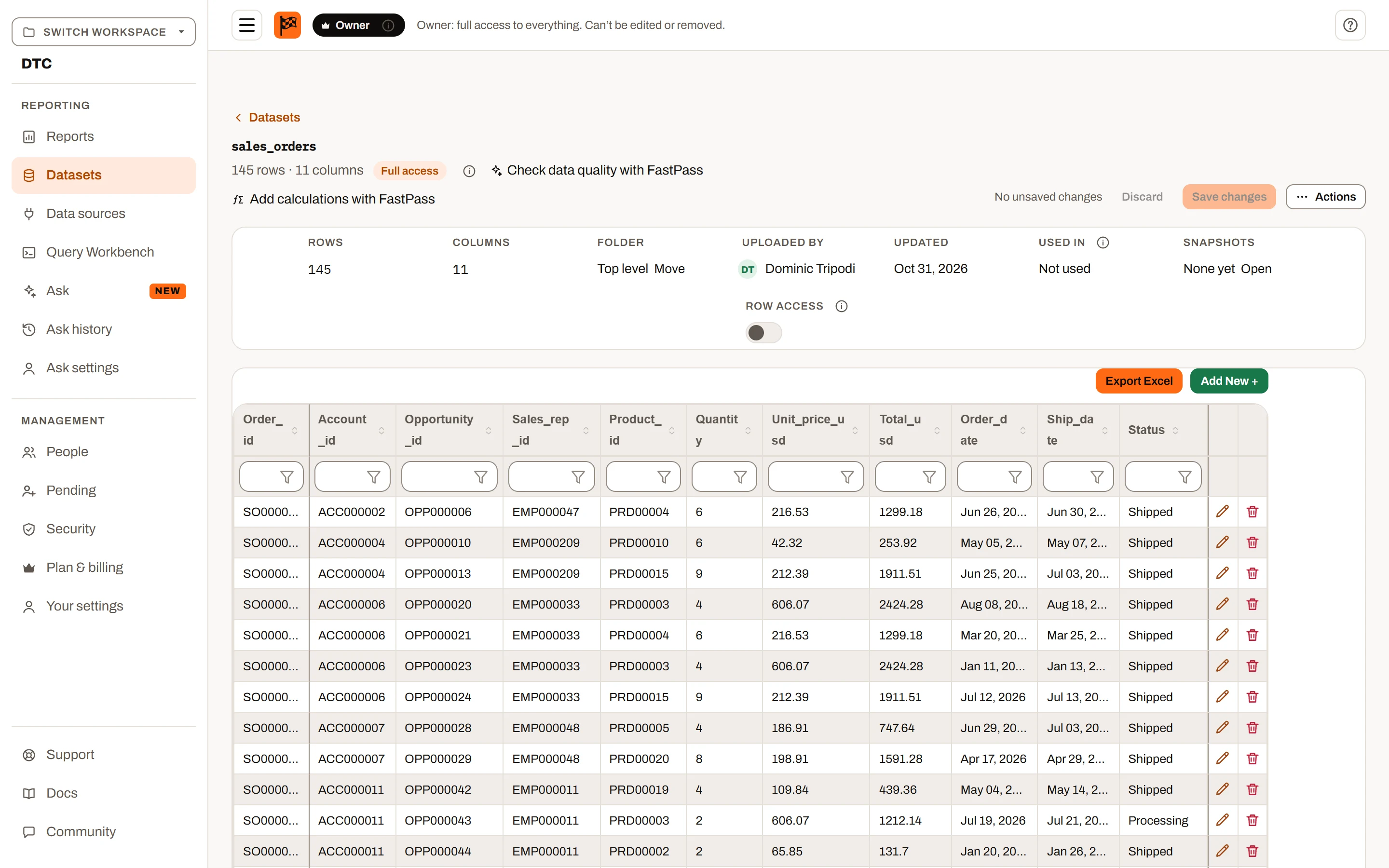
A dataset’s own page: its rows in the grid, with editing, filters and the column settings.
Who can edit here#
You can edit rows on this page when all of these are true:
- The workspace is on Plus or Ultimate.
- You have edit access to the dataset: you uploaded it, you are the owner or an admin, or you have edit access to a report that uses it.
- The dataset takes edits. An uploaded dataset always does: its rows are its own. Any other dataset (one filled from a data source, a query dataset, a replay dataset) takes only the edits its write-back actions allow.
Otherwise the grid is read-only and a banner says why:
- "This account's plan doesn't save row edits, so this dataset is read-only here." (Free and Mini)
- "You can view this dataset. Its uploader, an admin, or anyone with edit access to a report that uses it can change its rows."
- "This is a query dataset: its rows come from its query and change only when it refreshes."
- "Rows of this dataset are edited from the reports that use it." (datasets that hold rows typed into a report)
When you have edit access but the dataset's write-back doesn't allow a change, a list says why instead, for example "Set the dataset's key fields before its rows can be edited." or "Nothing writes this dataset's rows yet: set up write-back on the dataset." (see Why a dataset can't be edited).
On a dataset that isn't an uploaded one, a banner above the grid says what you can change, for example "You can change Status, Qty. OrderId is the key field, never changed here. Edits run Update order and Post to ERP. Rows can't be deleted."
Other banners: "Filtered to your row access…" when row access limits you, and "Row access filtering is on for this dataset and no rows are assigned to you. Ask an admin for access." when you have none.
If there are no rows to show, the page explains why: none are assigned to you, the dataset is empty, or the plan keeps only its columns ("the rows stay in your file").
Making and saving changes#
- Edit, add and delete rows in the grid (see The data grid). Each row is saved as soon as you save it in the grid (or add or delete it), and a note says what happened, for example "1 row saved."
- There is no Save changes button: the header says "Saving…" while a save runs, then "All changes saved". Changes a save couldn't store stay unsaved: the header shows "n unsaved changes"; fix the row and save it again to retry. Discard asks "Discard your changes?" and puts every row back as it was when you opened the dataset.
- Leaving the page, closing the tab or reloading with unsaved changes asks you to confirm first.
How saving works with other people:
- Only the cells you changed are sent. If someone else changed a different column of the same row, both changes are kept.
- If someone else changed the same cell since you opened the page, your value replaces theirs, and the note says "n rows had values someone else changed since you opened the dataset; yours replaced them."
- Rows that cannot be saved are listed with a reason: the row was deleted by someone else; the dataset was replaced since the page loaded; "value" isn't a valid value for that column; the column no longer exists; the plan doesn't save edits; you don't have edit permission; you don't have access to that row (or the change would move it out of the rows you can see); the row is in an older, locked snapshot; or it has no snapshot date.
- If saving fails entirely, your changes stay on the page: "Your changes couldn't be saved. They're still here; try again in a moment."
On snapshot datasets, rows in older snapshots may be locked, and rows without a snapshot date must be given one before saving. See Snapshots and versions.
A dataset with write actions. When the dataset has at least one enabled write action, saving a row runs the actions instead, in their order:
- While it runs, the grid is read-only and a banner shows the progress, for example "Saving: step 1 of 2, Update order, 40 of 120 rows done".
- Afterwards a note says what happened: "n rows saved.", then "n rows couldn't be saved; their changes are still here, with the reasons below." when some were turned away, and "n more wait for the next save (at most 1,000 a save)." past 1,000 rows. The rows that weren't saved are listed under "These rows weren't saved; fix them and save again:", each with its reason.
- If a step fails as a whole, a popup names the step, the action and the reason (see When a save fails).
- When the save was the first run of a new data source action, nothing is written and the page says "Dry run passed: the data source accepted these changes and rolled them back, so nothing was saved yet. Save the row again to write it." (see Dry run).
An uploaded dataset with no enabled actions saves straight to its own rows, as described above.
Live updates#
When someone else saves changes to a dataset you have open, the new rows arrive in the background and replace what you see, with a notice in the bottom right corner. This waits while you have unsaved changes, while a save is running, or while a grid row is open for editing.
The data grid#
The same grid is used on the dataset view page and in Grid visuals in reports.
A dataset’s own page: its rows in the grid, with editing, filters and the column settings.
| Task | How |
|---|---|
| Sort | Click a column header. Click again to reverse. An arrow shows the direction. |
| Sort by several columns | Hold Ctrl and click more headers. A small number shows each column's order. |
| Search a column | Type in the box under the header. Matching ignores capital letters. |
| Compare numbers | In a number column type >5, >=5, <5, <=5, =5 or a range 5..10. Currency and percent signs and thousands separators are ignored, so >$2,000 works. In a text column these are just characters to look for. |
| Pick values | Click the filter icon in the box under the header to choose one or more values from a list. The icon fills in while a selection is active. Search boxes and value lists on different columns combine. |
| Reorder columns | Drag a header left or right. Pinned columns stay at their edge. |
| Resize a column | Drag the right edge of its header (mouse only). |
| Pin a column | Right-click a header and choose Fix Left or Fix Right; Unfix releases it. The first text column is pinned left automatically so each row stays named while you scroll. |
| Edit a row | Click the pencil, or double-click a cell. Number columns take numbers only (anything else keeps the old value); date columns use a date picker. Press Enter or click the save icon to keep the row, or the X to cancel. Only the columns the dataset lets you change can be typed into; key fields never can. |
| Add a row | Click Add New +, fill in the row at the top, and click the save icon. A dataset with write-back actions offers only the columns its insert action writes; required ones are marked, and a row missing one is refused with "Field is required on a new row." |
| Delete a row | Click the trash icon and confirm "Are you sure you want to delete this row?". |
| Export | Export Excel downloads an .xlsx of the grid (dataset view only). |
Notes:
- The grid only draws the rows on screen, so it stays fast with hundreds of thousands of rows.
- Sorting, filtering, column order, widths and pins on the dataset view page last until you leave the page. In a report's Grid visual, a column reorder is saved with the visual.
- Export Excel writes every row of the dataset, including unsaved changes, in the current column order. Your sort and filters are not applied to the file.
- Emptying a cell that the dataset's write-back can't clear is refused when you keep the row: "Field: this field can be changed but not emptied." See Patch and clear.
Editing data in a report#
In the report builder, a Grid visual can allow editing. Select the visual and, in its settings, tick Editing, then optionally Allow adding rows and Allow deleting rows, and add any columns that should stay read-only to the read-only well. Calculated fields can never be typed over.
The visual's settings can only narrow what the dataset allows, never widen it. On a stored dataset:
- A column is editable only when the dataset lets you change it: on an uploaded dataset every column but its key fields; on any other dataset only the fields its update actions write. Key fields are never editable.
- Add New + shows only when the dataset takes new rows (an insert action, or an uploaded dataset), and the new row has only the columns the insert writes, with the required ones marked.
- The trash icon shows only when the dataset takes deletes.
- A field can be emptied only when the dataset can clear it; otherwise keeping the row says "Field: this field can be changed but not emptied."
What happens to an edit:
- It changes the rows in the report straight away: every other visual on that dataset updates.
- On a stored dataset (Plus and Ultimate), saving the row in the grid saves it to the dataset straight away ("Row saved."). Otherwise it stays in your browser: the Data pane shows "n edits" next to the dataset, with Save changes and Revert edits (which throws them all away after you confirm).
- Export data in the Data pane downloads the dataset as an .xlsx with your edits included, using the report's column names as headers. Aliases are never exported.
- Leaving the report with edits asks you to confirm first.
- Grid edits are not part of undo and redo; use Revert edits.
- While you have edits on a stored dataset, live updates from other people to that dataset are held, with the note "It updates when you revert your edits to it."
Saving edits from a report#
On Plus and Ultimate, each row you save, add or delete in a grid on a stored dataset is saved straight away. Edits still waiting (rows a save turned away, a dry run) are saved with Save changes in that dataset's block in the Data pane, or with Save all edits in the toolbar, which saves every dataset's edits in turn (it also shows in Dash view). Saving the report itself (Save, Ctrl+S) never sends edits, and Save all edits doesn't save the report. See Saving grid edits for the progress, the outcomes and the failure popup.
Where the edits go depends on the dataset:
- An uploaded dataset with no enabled write actions: straight to its own rows, as saving a row on its page does, with the same reasons for a row that isn't saved ("The row was deleted by someone else.", "The dataset was replaced since the report opened.", "You don't have access to that row." and so on).
- Any dataset with write actions: through its actions, in order (see Write-back).
When there are edits but no Save changes, a line under them says why, for example "These edits stay in this report until you export it: the dataset isn't saved in the workspace." (a dataset read from a file) or "Nothing writes this dataset's rows yet: set up write-back on the dataset."
Are edits saved?#
| Where you edit | Free | Mini | Plus | Ultimate |
|---|---|---|---|---|
| Grid visual in a report | Not available | Yes, kept for the session, exportable, not saved | Saved with Save changes or Save all edits, to wherever the dataset writes | Saved with Save changes or Save all edits, to wherever the dataset writes |
| Dataset view page (each row as you save it) | Not available | Not available (no stored rows) | Saved to the dataset for everyone, with history | Saved to the dataset for everyone, with history |
| Report with data (.ifpr: rows and unsaved edit log in a file) | No | No | Yes | Yes |
The grid's Editing hint says so: "An edit updates every visual on the dataset at once. A stored dataset saves each row as soon as you save it in the grid; only the columns the dataset lets you change can be edited."
Indexes#
An index lets reports find a dataset's rows by a column's value without reading every row. Reports add the indexes they need on their own; you can add more for columns you often filter on. Indexes never change which rows anyone sees.
Choose Indexes from the ⋯ menu on a dataset's row on the Datasets page, or from Actions on the dataset's own page. Anyone who can open the dataset can see the list, on Mini and up.
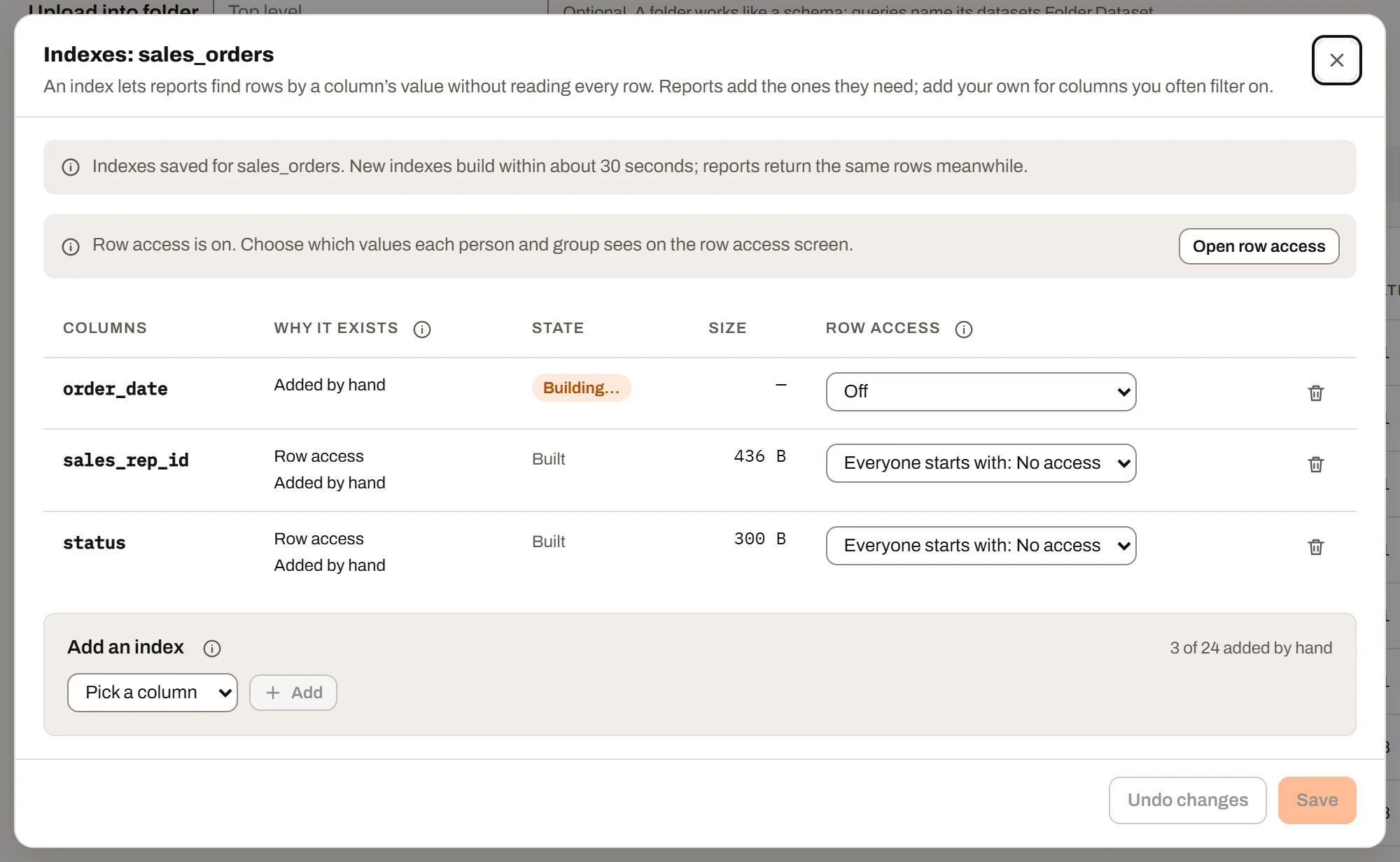
Indexes on a dataset: why each exists, the row access columns, and adding one by hand.
The list#
| Column | What it shows |
|---|---|
| Columns | The column, or for a composite index its columns in order, for example "Status + Region". |
| Why it exists | One line per reason: "Added by hand", "Used by report name" (a saved report filters, slices or groups on the column), "Input key" (a key column of a dataset typed into reports), "Connection" (a connection that carries row access), "Snapshot column" or "Row access". |
| State | "Building…" for a new index, until it is built (within about 30 seconds); reports return the same rows meanwhile. "Not saved" for one you have just added. |
| Size | The built index's size. |
| Row access | Single-column indexes only: Off, Everyone starts with: No access or Everyone starts with: All values. See Row access columns. |
Adding and removing indexes#
People with edit access to the dataset (its uploader, an admin, the owner) can change the list:
- Under Add an index, pick a column. To make a composite index, pick up to 4 columns in order with Then by…. A composite index helps when you filter on all its columns together, or on the first ones.
- Click Add. You can add up to 24 indexes by hand.
- The trash button removes an index added by hand. An index a report, key, connection or the snapshot column needs can't be removed; its info tip says what uses it.
- Click Save. Undo changes puts the list back as it was.
Row access columns#
The Row access control makes a single column one of the dataset's row access filter columns (up to 5), and sets its starting access: what a person or group with no values chosen in that column gets. It can be changed only by the owner and admins, on Plus and Ultimate, on uploaded datasets; for anyone else it is disabled and its info tip says why.
- Saving a column with No access asks first: "Everyone except owners and admins loses access to this dataset until you choose their values for column."
- If row access is off for the dataset, a note says marked columns take effect once it is turned on, with a Turn on row access… button. When it is on, Open row access goes to the row access dialog to choose values.
- If someone else changed the dataset's row access while you had the dialog open, saving reloads the list and asks you to make your changes again.
Query editors#
The Query Workbench can change a dataset's rows with INSERT, UPDATE and DELETE. Besides the owner and admins, only the people chosen as the dataset's query editors can do that.
The Query editors section is at the bottom of the dataset's own page, for the owner and admins only.
- Open the dataset from the Datasets page.
- Under Query editors, tick the people who may change its rows from the Workbench. The list has everyone in the workspace with the Editor, Manager or Admin role and the owner. The owner and admins are shown ticked and can't be unticked, because they always can.
- Click Save query editors.
Being a query editor isn't enough on its own. A query editor's changes also need:
- the workspace on Plus or Ultimate;
- edit access to the dataset: they uploaded it, or they can edit a report that uses it (see Who can edit here). If someone loses edit access, they stay on the list but can't change rows until they get it back.
A query editor who isn't the owner or an admin can't change a dataset's key fields with UPDATE (see Changing datasets).
Their changes also stay inside their row access. Setting up permissions walks through the whole setup.
Someone who leaves the workspace is taken off every list. The choice is per dataset; there is no workspace-wide setting.
Query datasets#
A query dataset is a dataset made from a query's result with Save as dataset… in the Query Workbench. Reports use it like any other dataset. It is one of four kinds:
| Kind | Its rows |
|---|---|
| Live | None are stored. The query runs each time someone opens it, with that person's access. |
| Saved copy | The query's result, refreshed by running the query again, by hand or on a schedule. |
| Copy of selected rows | The values selected in the Workbench grid. It never refreshes. |
| Replay | None are stored. A replay query runs each time someone opens it, with that person's access and with values a report sets. See Replay datasets. |
Plan availability: Plus and Ultimate (replay datasets: Ultimate). It counts toward the plan's stored datasets.
What it holds#
A live dataset shows each person the query's result as they can see it: row access on the datasets it reads applies to each person, and someone who can't open those datasets sees no rows. It's at most a minute behind, and up to date as soon as a source changes. It has no refresh setting, and its page shows no status.
A saved copy: the query runs with the access of the person who saved it, its query owner. So the dataset holds only the rows they could see, and everyone who can open the dataset sees all of those rows. It doesn't take on the row access rules or connections of the datasets it reads; an admin can set row access on it like any dataset.
A copy's rows are a result, not a live view: nothing changes between refreshes. Each refresh runs the query again with the owner's access at that moment, so rows they've gained access to appear and rows they've lost disappear.
A copy of selected rows holds exactly the values that were selected, and nothing of row access either. It can't be refreshed or edited.
The query itself is kept with the dataset, along with which result set it holds, which of its columns (when whole columns were saved) and how it refreshes. Its rows can only come from the query: it can't be replaced by uploading a file, and its grid is read-only until write-back actions write the rows to where they really live (the datasets or the database the query reads). A copy of selected rows can never be edited ("A copy of selected rows can't be edited.").
When it refreshes#
| Refresh setting | Runs |
|---|---|
| Manually | Only when someone clicks Refresh now |
| When a source dataset changes | About 5 minutes after any dataset the query reads changes: an upload, an edit in a grid or report, or a Workbench change |
| Every hour | An hour after the last refresh |
| Daily at a time | Once a day, after that time in the chosen time zone |
Scheduled refreshes are checked every 5 minutes, so one can run up to 5 minutes after it's due. Refresh now works whatever the setting. TODAY() and NOW() in the query use the time zone saved with the dataset (the saver's browser time zone).
Its section on the dataset page#
A query dataset's page has a Query dataset section showing how it refreshes (Live, Manually, When a source dataset changes, Every hour, Daily at a time, or Never for a copy of selected rows), its query owner, the columns it keeps, when it last refreshed and how that went.
- Refresh now (the query owner and admins, saved copies only) runs it at once. When an admin who isn't the owner asks, the refresh is queued and runs as the owner within 5 minutes; the page says so.
- Edit query (the query owner and admins, not for a copy of selected rows) opens the query in the Workbench. Save there runs the new query, replaces the dataset's rows and saves the query, all at once. Saving needs permission to save query results as datasets (or being an admin).
- Whoever saves a changed query becomes its query owner, so from then on it refreshes with their access.
- The new query must return the same columns, with the same names and types, so reports built on the dataset keep working. If it doesn't, the save is refused and nothing changes; save the new query as a new dataset instead.
- If a refresh finds the columns have changed (for example a source column was renamed), it fails with "The query's columns changed" and the last rows are kept.
When refreshes pause#
Refreshes stop, and the section shows Refresh paused with the reason, when the query owner leaves the workspace, loses permission to save query results as datasets, or can no longer open a dataset the query reads. The dataset keeps its last rows. An admin can click Take over to become its query owner; it then refreshes with the admin's access.
Replay datasets#
A replay dataset runs a replay query live, the way a stored procedure runs, with values a report passes in. It stores no rows: each time someone opens a report on it, the replay runs with their access. A dashboard runs it with the values given when it was added, which nothing on the dashboard changes; a printable report runs it with the values its parameters pick. A replay dataset is always live; for a stored copy of a replay's result, run it in the Workbench and save the result as a saved copy instead.
Make one in either place:
- In the Query Workbench, Save as dataset…, then under What it holds choose A replay, run live ("Runs the replay for each reader with their own access; a printable report can set its inputs from its parameters."). If the script is one
EXECof a replay, that replay is picked for you. - In the report builder, Add dataset, then From a replay query (see Adding a dataset). It is saved in the workspace and added to the report.
Each of the replay's parameters is listed as an argument, with its type. Added to a dashboard from Add dataset, each argument has just a Value box: a value given is fixed, a required one must be filled, and an empty one uses the replay's default. Otherwise Set by says how it gets its value:
| Set by | What happens |
|---|---|
| The report (A report in the Workbench) | An input. A printable report sets it from one of its parameters; when nothing sets it (a dashboard never does), the replay's default applies, or blank when it has none. An argument whose parameter has no default is marked with a star (required). |
| A fixed value | The value typed in Fixed value is kept with the dataset and never changes. A list takes values separated by commas. A required argument needs a value: "@Name has no default: give it a value, or leave it as an input." |
Things to know:
- A date input also takes a relative date, worked out when the report reads it:
today,yesterday,startOfWeek(Monday),startOfMonth,startOfQuarter,startOfYear,startOfLastMonth, ordaysAgo:7. - Each reader's run is kept for up to a minute for the same values; different values never share rows.
- A visitor to a public link always gets the defaults: a public report can't pass values to a replay.
- A replay dataset has no history, indexes or snapshot dates, and a saved version records nothing for it.
- If the replay is dropped, or no longer runs for the reader, the dataset reads as no rows.
- It is read-only in every grid until it has key fields and write actions.
Replay datasets, and replay and FPQL write actions, are Ultimate only, although Plus has the Query Workbench. On Plus, saving one or setting a replay dataset's values is refused with a plan message, and an action saved earlier stops running until the workspace is on Ultimate again; it can still be switched off or removed. Plus writes back through a data source instead.
Write-back#
Write-back is how edits to a dataset's rows are saved, and where they go. It is set in the Write-back section on the dataset's page, under the grid, and from the report builder's Data pane (Set up write-back… in the dataset's block, which opens the same section in a dialog, without the history).
The section's info tip: "How edits to this dataset's rows are saved: through the actions below, in order, each with its author's rights. Every change is logged with who saved it."
Who sees it: the owner, admins and anyone with edit access to the dataset, on Plus or Ultimate.
| Dataset | What can be edited |
|---|---|
| Uploaded, or rows typed into a report | Every field but its key fields, saved to its own rows. Actions are optional: "No actions: edits save to this dataset's own rows. Add one to send them on to another system too." With actions, its own save always runs last. |
| Filled from a data source (a table, view or procedure, live or not) | Only what its actions allow: the fields its update actions write, new rows when it has an insert action, deletes when it has a delete action. Nothing without key fields and an action: "No actions yet: this dataset can't be edited until one writes its rows somewhere." |
| Query dataset, replay dataset | The same as above. |
| Copy of selected rows | Never. |
Key fields#
Key fields are the fields that identify a row where it is stored, such as OrderId. You set them by hand under Key fields: tick each one and click Save key fields ("Key fields saved."). Nothing is read from the database.
- They become read-only everywhere: in every grid, on the dataset's page and in the Workbench (where only the owner and admins can still
UPDATEthem). - A dataset that isn't an uploaded one needs them before an update or delete action can be saved.
- A key field an action uses shows "(used by an action)" and can't be removed: "OrderId is used by an action; change or delete that action first."
- A row whose key field is blank can't be updated or deleted: "The row has no OrderId, which identifies it."
Write actions#
An action is one step that writes the edited rows somewhere: an update, an insert or a delete, with a target and a mapping from the target's parameters to the dataset's fields. The section lists them under Actions, in the order they run:
- Each shows its position, name, operation and target (for example "Table on data source"), and "Runs as person": an action always runs with the rights of its author, the last person who saved it, whoever saves the edits. Every change is still logged against the person who saved the edits.
- Enabled, Dry run next save (data source targets only) and Email the author when it fails switch each one; the change saves at once.
- Edit opens the builder; Delete asks "Delete the action name? Saves stop running it."
- An action whose author no longer has the rights it runs with shows "Disabled: … Saving it again makes you its author." A save that would run it is refused before anything runs.
- At most 20 actions on a dataset, with names unique on the dataset, ignoring case.
Where an action can write:
| Target | What it is | Plan |
|---|---|---|
| A replay query in this workspace | A replay query that writes datasets, run once per row with the row's values as its arguments. | Ultimate |
| An FPQL statement on a dataset in this workspace | One UPDATE, INSERT or DELETE of one dataset, with @parameters, run once per row. | Ultimate |
| A table on a data source | A table on a data source sealed for writing, approved for write. The statement is written for you. | Plus and Ultimate, with the Data sources add-on |
| A stored procedure on a data source | A SQL Server procedure approved for write, its parameters filled from the row. | Plus and Ultimate, with the add-on |
| Query text on a data source | A write query text that has passed review. | Plus and Ultimate, with the add-on |
Who may add or change an action:
- Any action: the dataset's owner, an admin, or anyone with edit access to the dataset.
- A replay or FPQL action: also the Query Workbench, and edit access to every dataset it writes, since it will run as you. Someone without the Workbench can still reorder, switch or delete one.
- A data source action: also Manage on the data source (or being the owner or an admin). Only data sources sealed for writing that you manage are listed. One whose write-back is off is listed with "(write-back is off)": its actions save, but don't run until its owner turns write-back on (see Write-back on a data source).
The action builder#
Add action (or Edit) opens the builder, titled "New write action" or "Edit name":
- Operation: Update rows, Insert rows or Delete rows.
- Where it writes: one of the targets above, then the replay, the statement, or the data source and its table, procedure or query text ("Only texts that write and have passed review are listed.", with a Write a query text link). On Plus the two workspace targets aren't offered.
- Keys for this action (update and delete): a subset of the dataset's key fields, all of them to begin with. Without key fields: "This dataset has no key fields yet. Set them in Key fields first."
- Fields it writes (update and insert): tick the fields. An insert writes the new row's key fields too.
- Columns (a table): each field matched to a column by name, which you can change, or Leave out. Parameters (the other targets): one row per parameter, Filled with one of:
Filled with The value Leave unbound (its default) Nothing: the parameter's default. A parameter with no default must be filled. Key field (as loaded) The row's key field, as it was loaded New value The field's value after the edit (see Patch and clear) Emptied? (true / false) True when the user emptied that field in that row Value as loaded The field's value before the edit Fixed value A value you type Who saved Their User id, Email or Name Run id The save's run number Operation word update,insertordeleteTime of the save The UTC date and time Record id (uploaded datasets) The row's own id in an uploaded dataset Parameters are matched by name to begin with (
@OrderIdtoOrderId; names such as@UserEmail,@UserId,@RunId,@Operationand@Noware recognised); Map by name again redoes it. A field whose values are lists can be sent As a list where the target takes one, or with Send as one delimited value and a delimiter of one to three characters (,by default). - Preview: for a table, "The statement that runs", exactly as the data source will run it; for a procedure or query text, "A statement this target could run"; for a replay or FPQL target, a "Proposed replay". A replay or FPQL statement writes a dataset you pick first, under Dataset the statement writes: a query, replay or data source dataset takes no row changes itself, so its actions write the datasets behind it, and only datasets you can change rows of are listed. Which column each field writes matches each field to a column of that dataset, by name to begin with (ignoring capitals); change any that differ. On Ultimate, Open in Workbench opens the proposed replay in a new Workbench tab to finish and run, and Save as statement keeps it on the action as an FPQL statement. Both wait until a dataset is picked.
- Options: Name, Enabled, Dry run first (validate, then roll back) (data source targets, ticked to begin with) and Email me when a run fails.
Anything that stops the action being saved is listed above Save action, for example "Set the dataset's key fields first: an update or delete finds rows by them.", "Pick at least one column to change." or "@Qty has no default, so it needs a value."
Make this table editable. On a dataset filled from a data source table, when the data source is sealed for writing and you manage it, the section offers Make this table editable: "Adds an insert, an update and a delete on table, matching fields to columns by name." It needs the key fields first ("Set the key fields first: they say which row of table an edit changes."). Afterwards: "table is editable: an insert, an update and a delete were added. Each runs as a dry run first." Not offered in the desktop app.
Order#
Actions run strictly in their order, top to bottom. Drag one by its grip, or use ↑ and ↓, to move it ("Order saved."). Suggest order (with two or more actions) puts inserts first, then updates, then deletes ("Ordered: inserts, then updates, then deletes.").
- A save runs only the actions whose operation it has rows for: a save with only changed rows runs only the update actions.
- Several actions let one dataset write to more than one place, for example an aggregated dataset whose fields come from two tables, each action with its own keys.
- Consecutive actions on the same data source run in one transaction: they are committed together at the end, or rolled back together. Actions on another data source, or on the workspace's datasets, are separate: if a later step fails, earlier steps stay saved, and the failure says which rows went through.
- A replay or FPQL action saves each row as it runs; a later row failing doesn't undo earlier ones.
- An uploaded dataset's own save always runs after its actions.
Patch and clear#
Every edit is a patch unless its action says otherwise: a save carries only the fields the user changed in each row, and an unchanged field is sent as NULL, which the target reads as "leave it". So the database keeps its current value, and two people editing different fields of one row both get their change in. A table action's update sets each column to COALESCE(@value, column).
- Patch (ticked to begin with, for each written field of an update): untick it to send the row's value every time, changed or not. The builder warns that "then a stale loaded value can overwrite a newer one".
- Can be emptied (a table), or a parameter Filled with Emptied? (true / false) (other targets), adds a clear flag, so a field the user empties is sent on purpose and set to blank. Without one, a patched field can be changed but not emptied: the grid refuses with "Field: this field can be changed but not emptied.", and the builder lists such fields ("… can be changed but not emptied: no parameter clears it. Add a clear parameter (for example @NoteClear) to the target, then map it as "Emptied?".").
- A field with patching off can always be emptied.
- An update or delete finds its row by the action's keys against the values in the database now. If no row matches, that row isn't saved ("the row no longer exists") and the rest go on. If more than one row matches, the key isn't unique: the step stops (on a data source, its whole transaction is rolled back).
When you write your own procedure or query text, treat NULL in a patched parameter as "unchanged", for example SET Qty = COALESCE(@Qty, Qty), and add a clear parameter for a field that may be emptied.
Dry run#
The first save through a new data source action is a dry run, unless its author turned Dry run first off: the data source checks every change and then rolls it all back. During a dry-run save nothing is written anywhere: the dataset's other steps are skipped too ("Not run: this save was a dry run of a new data source action. Save again to write.").
When the dry run passes there is no failure popup. The Data pane says "Dry run passed: the data source accepted these changes and rolled them back, so nothing was saved yet. Save changes again to write them." (the dataset's page says the same, ending "Click Save changes again to write them."). Your edits stay, the action's dry run is turned off, and the next Save changes writes them. A dry run that fails shows the failure popup and stays on, so the next save is a dry run again. Dry run next save in the actions list turns it back on. No email is sent for a dry run.
When a save fails#
A step that fails as a whole (the database refused it, a connection failed, a key matched more than one row) stops the save. A popup over the grid, "Your changes to dataset weren't all saved", names the step, the action and the reason. It then either lists the rows that went through before it stopped, which stay saved, or says "Nothing was saved." Either way: "Your edits are still in the grid; fix what the message says and save again." It ends with the run number ("The dataset's Write-back history has every row.") and stays until you click Dismiss.
The action's author is also emailed, "A save through your write action "name" failed", with the dataset, the step and the reason, at most once an hour per action (later failures are counted in the next email). Untick Email the author when it fails to stop it.
Some saves are refused before anything runs, with a message where you saved, for example:
| Message | Why |
|---|---|
| "Your last save of this dataset is still running." | One save per dataset at a time. |
| "Action can't run: …" | An action's author lost the rights it runs with, the data source's write-back is off, or its query text waits for review. |
| "You're saving too often. Try again in a minute." / "The data source has taken all the saves it allows today." | The data source's limits on saves per person and per day. |
| "That's more edited rows than one save may send to the data source." / "Those edits are larger than one save may send to the data source." | The data source's row and size limits. |
| "Writes to this data source are paused after several failed runs. Try again in a few minutes." | 5 failed write runs in 5 minutes pause writes to it for 10 minutes. |
Rows turned away one by one (the row no longer exists, you can't read it, a value doesn't fit its column) stay in your edits, marked with the reason. Before anything runs, each changed or deleted row is checked against the rows you can read in the dataset: one you can't read, or that has gone, is turned away with "This row isn't one you can read, or it no longer exists.", so an author's wider rights never reach rows you can't see.
Why a dataset can't be edited#
When something stops a change, the dataset's page and the Data pane say why:
| Message | What to do |
|---|---|
| "Set the dataset's key fields before its rows can be edited." | Set the key fields. |
| "Nothing writes this dataset's rows yet: set up write-back on the dataset." | Add a write action. |
| "This workspace's plan doesn't save row edits." | Plus or Ultimate is needed. |
| "You can view this dataset but not change it." | Ask for edit access. |
| "A copy of selected rows can't be edited." | Save the query as a live dataset or a saved copy instead. |
| "Action is turned off: its author no longer has the rights it runs with." | The author, or someone else who may, saves the action again. |
| "Write-back is turned off on data source." | The data source's owner or an admin turns it on. |
| "Action waits for an admin to review its query text." | The workspace owner or another admin reviews it. |
Write-back history#
Every row each step changed, or tried to, is kept per dataset under Write-back history, below the actions on the dataset's page. The owner, admins and anyone with edit access to the dataset can read it.
- Each save is one line: when, who saved it, the actions it ran, "n saved", "n not saved", and "dry run" for a dry run. Click it to see its rows.
- Each row shows the Action, who it Runs as (the action's author), the Key, the Old and New values (and the fields it emptied), the Outcome ("Saved", or why not) and the Rows it affected. Rows outside your row access show "Hidden by your row access" in place of their values.
- Filter by From and To dates, Saved by and Action; Load older pages back. Export CSV downloads what is loaded.
- An uploaded dataset's own save appears as the action "Direct edit".
- The history is kept as long as the dataset, and deleted with it.
Connecting datasets#
A connection links two datasets on the columns they share, such as Customers and Orders on CustomerId. Connections let a report:
- Nest one dataset's rows under another's in a Grid visual (each customer opens to show its orders).
- Cross-filter across datasets: clicking a customer in one visual narrows the orders shown in others.
- Look up values in calculated fields, such as
Customers[Region](see the formulas guide). - Pass on row access filtering from one dataset to another (Plus and Ultimate).
See Filters and interactions for how selections travel along connections.
Kinds of connection#
- One-to-many: each row on the one side matches many rows on the other side, like one customer to many orders. Each row on the other side matches at most one row on the one side.
- One-to-one: each row matches at most one row on each side.
- Many-to-many (both sides repeat the matched value) is not supported: rows would multiply when joined. The builder warns about it, and selections never travel across such a link.
Rows match when every matched column holds the same value on both sides. Values match after spaces at either end are removed. A row whose matched value is blank never matches anything.
Workspace connections (Datasets page)#
The Connections section under the datasets table holds connections that apply to every report. Reports that use both datasets get the connection automatically when they are created or opened.
To add one, click Add connection:
- Pick the One side and the Other side. Direction matters for row access: filtering on the one side flows to the other side, not back. ⇄ swaps the sides.
- Pick the Kind: One-to-many or One-to-one.
- Under Matched columns, pick a column on each side. A pair with the same name (ignoring case, spaces,
_and-) is suggested for you. + Match on another column adds another pair; × removes one. - The data is checked when exactly one pair is picked. You'll see either confirmation ("Each Customers row can match many Orders rows; each Orders row matches at most one Customers row.") or a warning such as "Customers repeats 3 values of CustomerId, so this isn't one-to-many. Swap the sides, pick another field, or clean up the repeated rows." Connections on several pairs are not checked: make sure the one side is unique on them together.
- Click Connect (or Save connection when editing).
Rules (also checked by the server):
- The two datasets must be different, and every pair needs a column on both sides ("Pick a column on both sides of every pair, or remove the pair.").
- Each pair's columns must have the same stored type on both sides.
- There can't be two connections between the same two datasets, in the same direction, on the same columns.
- Changing or removing a connection needs edit access to both datasets. Others see it marked Read only.
- Snapshot datasets have extra rules. See Snapshots and versions. A connection that no longer meets them is marked Not in use, and reports leave it out until it is fixed.
- A Filters chip means row access filtering on one side also limits the other.
- Removing a connection asks first. "Reports keep the connections they already have. Row access filtering on one dataset will no longer limit the other through this connection."
- Deleting a dataset removes every connection that names it.
Plan availability: adding or changing a workspace connection needs Plus or Ultimate, as row access does (row access follows connections); the server refuses it on Free and Mini. On Mini the Connections section says "Connecting datasets is part of the Plus and Ultimate plans. The workspace owner can upgrade on the Upgrade page.", hides Add connection and each connection's Edit, and still lists the connections and lets you remove one. Removing a connection and seeing the list are not limited by plan. A move from Plus to Mini removes only the connections that the removed reports used and no kept report does; a move to Free removes them all.
Report connections (the builder's Connections tab)#
Once a report has two or more datasets, the builder's Connections tab lists its connections and lets you add more with + Add connection. Each connection names two datasets (↔) and one or more field pairs (+ Match on another field). Swap and remove buttons sit in each connection's header.
Under each connection the data is checked and you see one of:
- One-to-one, One-to-many or Many-to-one, with a short explanation.
- Many-to-many, with how many values repeat on each side and a View n rows button that opens the rows causing it. Match on another field, or clean up the repeated rows.
- A line such as "1,204 matched values · 12 Orders rows unmatched · 3 blank, skipped".
A connection marked From your datasets comes from the Datasets page. Removing it in the report lasts only until the report is opened again; change it on the Datasets page instead.
Report connections are available on every plan, including Free.
Row access filtering#
Row access filtering limits which rows each person sees in a dataset, in every report that uses it. For example, each sales rep sees only their own region.
Plan availability: Plus and Ultimate. Set by the workspace owner and admins. The server refuses it on Free and Mini.
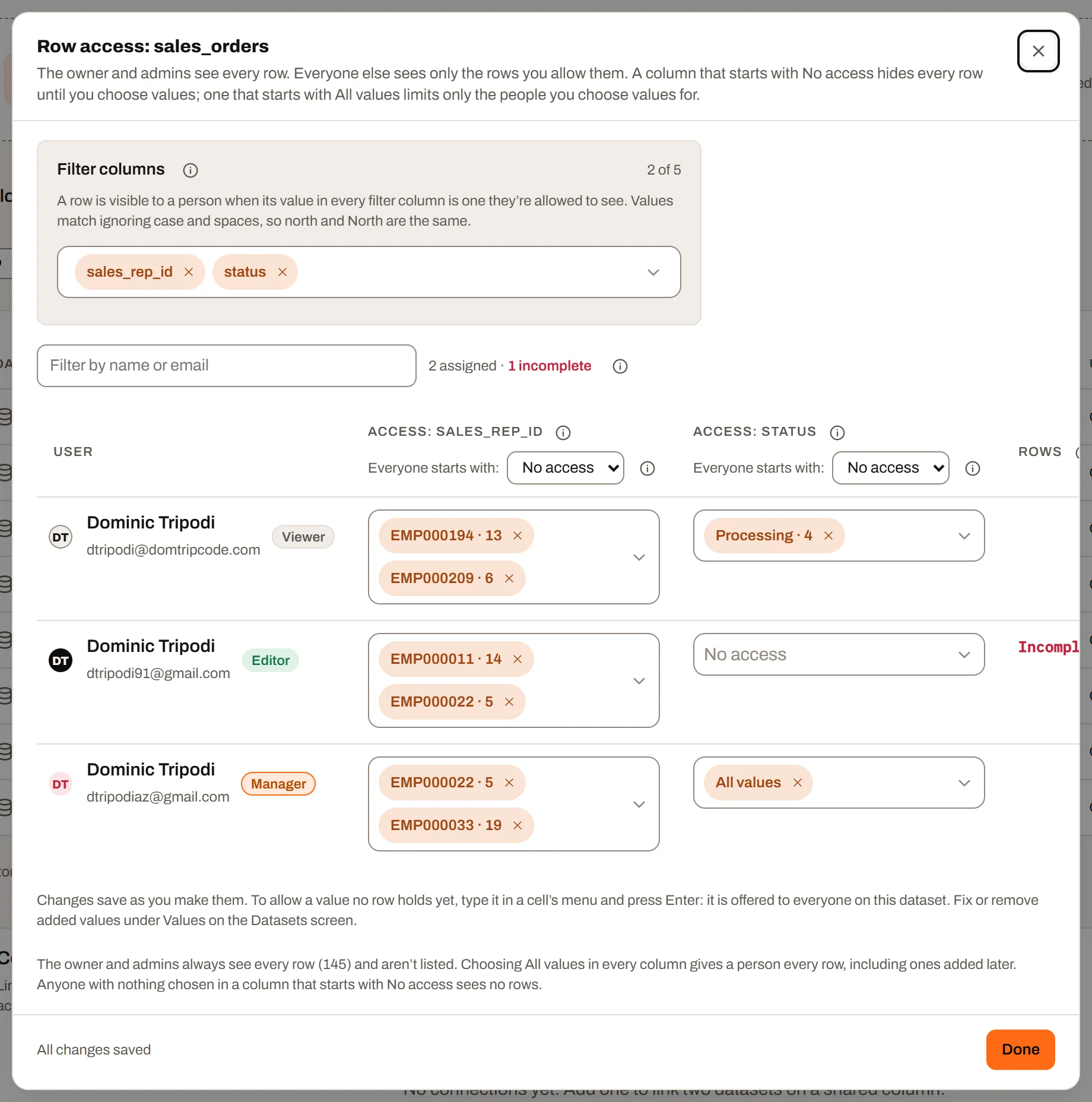
Row access on a dataset: the filter columns, and the values each person may see in them.
Who sees what#
- The owner and admins always see every row. They are not listed in the rules.
- When filtering is on, everyone else (managers, editors, viewers, invitees and guests) sees only the rows their rules allow. A filter column that starts with No access (the default) gives no rows to anyone without values in it; one that starts with All values limits only the people and groups given values. If every filter column starts with All values, someone with no rule at all sees every row.
- When filtering is off, everyone who can open the dataset sees every row. Rules are kept and apply again if it is turned back on.
- Visitors to a public link see the rows of the group chosen in the report's public link setting, and none if no group is chosen. See Sharing.
Turning it on#
On the Datasets page, use the switch in the Row access column (owner and admins only; uploaded datasets only).
- Turning it on asks first: "All non-admin users will have 0-row access until assigned." It takes effect as soon as you continue, in every report that uses the dataset. Anything assigned before it was last switched off applies again. A filter column that starts with All values doesn't limit anyone you haven't chosen values for.
- Click Turn on and assign access. The Row access dialog opens.
- Turning it off asks first, and says everyone who can open the dataset will see every row.
Assigning access (Manage)#
In the Row access dialog:
- Filter columns: pick up to 5 columns to filter on (you can also mark them on the Indexes dialog). Columns with a short list of values (region, team, customer) work best. A column with more than 1,000 distinct values can't list them all, and a note says so.
- Starting access: each column's header says "Everyone starts with: No access" or "All values", and changes it. This is what a person or group with nothing picked in that column gets.
- Choose People or Groups (Groups appears once the workspace has groups) and search by name or email.
- For each person or group, each filter column has an Access cell. Pick the values they may see, or All values. An empty cell in a column that starts with All values shows "All values (starting)" greyed out.
- The Rows column shows how many rows that rule alone matches. It doesn't count rows the person also gets through a group, or rows removed by a connection.
Changes save as you make them ("Saving…", "All changes saved"). Click Done to close.
The rules:
- A row is visible when its value in every filter column is one the person may see (all columns must match; any picked value within a column matches).
- Values match ignoring capital letters and spaces at either end, so "north" and "North" are the same. Blank cells appear as "(blank)" and can be picked too.
- All values also covers values that arrive in later uploads. Picking every value by hand covers only today's values.
- A column left empty takes the column's starting access. With No access (the default) it gives no rows: a rule with some columns picked and a No access column empty is incomplete and also gives no rows; the dialog counts these as "n incomplete". With All values it lets every value through. Values you pick always win.
- A person gets their own rule plus the rule of each group they belong to. Rules are added together whole: "North + Widgets" and "South + Gadgets" never combine into "North + Gadgets".
- Adding a filter column gives nobody values in it. If it starts with No access, everyone except the owner and admins loses access to the dataset until you choose their values there (or set the column to start with All values); a note says so. Removing a filter column asks first, because people may then see more rows. Everyone's values for a removed column are kept, and apply again if you add it back.
- Removing someone from the workspace removes their rules. Deleting a group removes its rules from every dataset.
Values that don't exist yet#
To give access to a value no row holds yet (for example a new region arriving next month), type it in a cell's menu and press Enter (Add value). It is then offered in every rule on that column.
The Values button (in the Row access column of the Datasets page, or the dataset page's details) opens Added values, which lists them with Rows now, Used by and Status:
- Add a value to a filter column ahead of time.
- Rename a value to fix a typo: every rule that uses it follows. Edits save 2 seconds after you stop typing, or when you leave the box. Renaming one value to another that already exists asks to Merge them.
- Remove a value: it is taken out of every rule that uses it. If that leaves someone with nothing picked in that column, you are warned that they will see no rows until fixed.
How it is enforced#
Filtering is applied on the server, so it can't be bypassed in the browser:
- Every read returns only the rows in the person's scope: opening a report, the dataset view, exports, value lists in slicers and filters, and row counts. A limited person never sees the dataset's total.
- Edits are checked as they are saved. A limited person cannot edit a row they cannot see, change a row so it moves out of their rows, or add a row outside them.
- Replacing, deleting or changing the settings of the dataset needs access to every row.
- Changes to rules take effect on the person's next request. Open reports and grids are told to reload.
- A limited person sees a Filtered chip on the Datasets page and "Filtered to your row access" on reports.
Filtering through connections#
Filtering flows along connections from the one side to the other side (both ways for one-to-one), and on down a chain (A to B to C). A person sees an Orders row only if its customer is a Customers row they can see. This happens even if a report doesn't include the one side. A dataset limited this way shows a "Via dataset" chip, and the Row access dialog names the datasets its rules also limit.
Large datasets#
On Plus and Ultimate, opening a report on a stored dataset with more than 500,000 rows (counting only the rows you can see) asks first, in a dialog titled "name is large": "This dataset has 1.9 million rows across 48 snapshots. Loading all of it may take a while."
- Load the last n weeks / months / years, then Load these (snapshot datasets only): loads just the recent snapshots. The choice is saved with the report and can be changed in the Data pane.
- Purge old snapshots… (snapshot datasets, for people who can change the dataset): stops opening and takes you to the dataset's retention rule on the Datasets page.
- Load everything: loads every row. You won't be asked again for that dataset until you close the browser tab.
- Cancel (or closing the dialog) stops opening the report.
Deleting a dataset#
Choose Delete from the ⋯ menu on a dataset's row, or from Actions on its own page (uploader or admin, with access to every row).
- The dialog warns if reports use it: "n reports use this dataset and will show it as missing until it's replaced." Otherwise it says "No reports use this dataset."
- Click Delete dataset.
- Deleting also removes every connection to the dataset, and every Summary Calculation that reads it. Its row access rules go with it.
- The dataset is permanently erased after 24 hours. There is no way to restore it from the app.
Plan limits summary#
| Feature | Free | Mini | Plus | Ultimate |
|---|---|---|---|---|
| Datasets page (upload, replace, delete) | No; build from a file for the session | Yes | Yes | Yes |
| What is saved | Nothing | Columns only | Columns, and rows of up to 10 datasets | Columns, and rows of up to 50 datasets |
| Spreadsheets in one report | 5 | 10 | No limit | No limit |
| Re-pick the file when a saved report opens | (nothing saved) | Every dataset | Datasets past 10 | Datasets past 50 |
| Grid editing in reports | No | Yes (not saved) | Yes, saved with Save changes | Yes, saved with Save changes |
| Export data from the Data pane | No | Yes | Yes | Yes |
| Edit and save rows on the dataset view | No | No | Yes | Yes |
| Key fields, write actions, write-back history | No | No | Yes | Yes |
| Write actions on a data source (table, procedure, query text) | No | No | With the Data sources add-on | With the Data sources add-on |
| Replay datasets; replay and FPQL write actions | No | No | No | Yes |
| Workspace connections (add or change) | No | No | Yes | Yes |
| Report connections (builder) | Yes | Yes | Yes | Yes |
| Row access filtering | No | No | Yes | Yes |
| Large dataset prompt (over 500,000 rows) | No | No | Yes | Yes (with snapshot window) |
| Query datasets (Save as dataset in the Query Workbench) | No | No | Yes, within the 10 | Yes, within the 50 |
| Query editors (change rows from the Query Workbench) | No | No | Yes | Yes |
All limits on stored rows, edits and row access are also enforced by the server, not just hidden in the app.