
Docs › Share
Sharing reports
Insight FastPass lets you share saved reports and folders with people in your workspace, with specific people outside it by email, and with anyone at all through a public link. Sharing with people in the workspace (person by person, by group or by seat) is part of the Plus and Ultimate plans; sharing outside it (by email, public links and embedding) is view-only and part of the Ultimate plan.
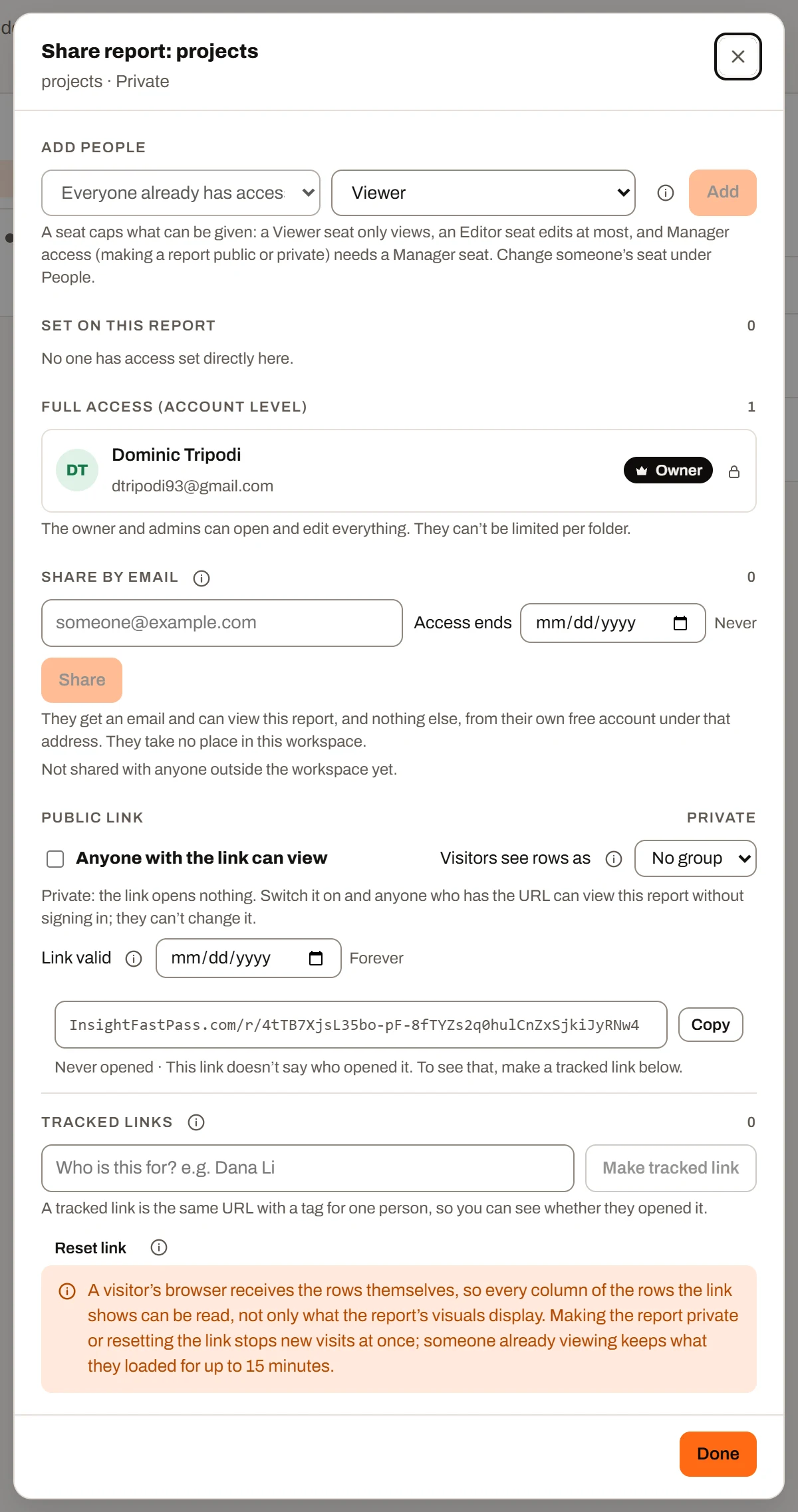
Share & permissions for a report, all sections.
The ways to share at a glance#
| Way | Who it reaches | Account needed? | What they can do | Where it is set |
|---|---|---|---|---|
| Workspace role (Owner, Admin) | Members with that role | Yes, a seat in the workspace | Open and edit everything | People page (see User management) |
| Whole workspace | Every manager, every editor and manager, or every member | Yes, a seat in the workspace | The most their seat allows on that item: viewers view, editors edit, managers manage | Share dialog, Whole workspace |
| Access on a folder or report | Members with a Manager, Editor or Viewer seat | Yes, a seat in the workspace | Viewer, Editor or Manager on that item, capped by their seat | Share dialog, Add people or groups |
| Access for a group | Every member of a group (see Groups) | Yes, a seat in the workspace | Viewer, Editor or Manager on that item, capped by each member's own seat | Share dialog, Add people or groups |
| Share by email (guests) | Anyone with an email address | Yes, a free account under that exact address | View one report, read-only | Share dialog of a report, Share by email |
| Public link | Anyone who has the URL | No | View one report, read-only | Share dialog of a report, Public link |
| Tracked link | One named person (a copy of the public link) | No | Same as the public link | Share dialog of a report, Tracked links |
Sending someone a file (an export) is not sharing in this sense; see Sending copies instead of sharing.
Plan availability: Whole workspace, Access on a folder or report and Access for a group need the workspace to be on Plus or Ultimate; Share by email, the Public link, Tracked links and Embed need Ultimate. On Free and Mini the Share dialog opens but shows "Sharing folders and reports with people in the workspace is part of the Plus and Ultimate plans. The workspace owner can upgrade on the Upgrade page." and offers no controls. On Plus a report's dialog has the member sections, and in place of the email, link and embed sections says "Sharing by email with people outside the workspace, public links and embedding are part of the Ultimate plan." The person receiving a guest share needs only a free account, and a public-link visitor needs nothing at all.
Who can share what#
What you can do in the Share dialog depends on three things: the workspace's plan (Plus or Ultimate for members, Ultimate for guests and links), your seat in the workspace, and your own access to the folder or report.
| You can... | Needs |
|---|---|
| Open Share folder / Share & permissions | Editor access (or better) to that folder or report |
| Give members or groups Viewer or Editor access | Editor access to the item |
| Give members or groups Manager access | Manager access to the item (or an Owner/Admin seat) |
| Share with the Whole workspace (managers, editors and managers, or everyone) | Manager access to the item (or an Owner/Admin seat) |
| Share a report by email, see its guests, make tracked links | An Editor, Manager, Admin or Owner seat, plus Editor access to the report |
| See the public link and copy it | Editor access to the report |
| Switch the report public or private, choose Visitors see rows as | Manager access to the report |
| Set Link valid (an expiry date) or Reset link | Manager access to the report and a Manager, Admin or Owner seat |
Viewers can never share. If someone without permission tries, they see messages such as "Viewers can't share reports." or "Only the workspace owner, an admin or a manager can reset a link."
Seats and roles themselves are explained in User management and Workspaces.
Opening the Share dialog#
You open sharing from the Saved reports page:
- A report or folder in the table: click the ⋯ button at the end of its row (or right-click the row) and choose Share & permissions. The item is greyed out if you don't have Editor access to it.
- The folder you have open: click Share folder at the top right of the folder.
- From the People page: open a member's folder and report count, then click Manage beside any item to open that item's Share dialog.
The same row menu also has Make public / Make private for reports you manage (see Public links).
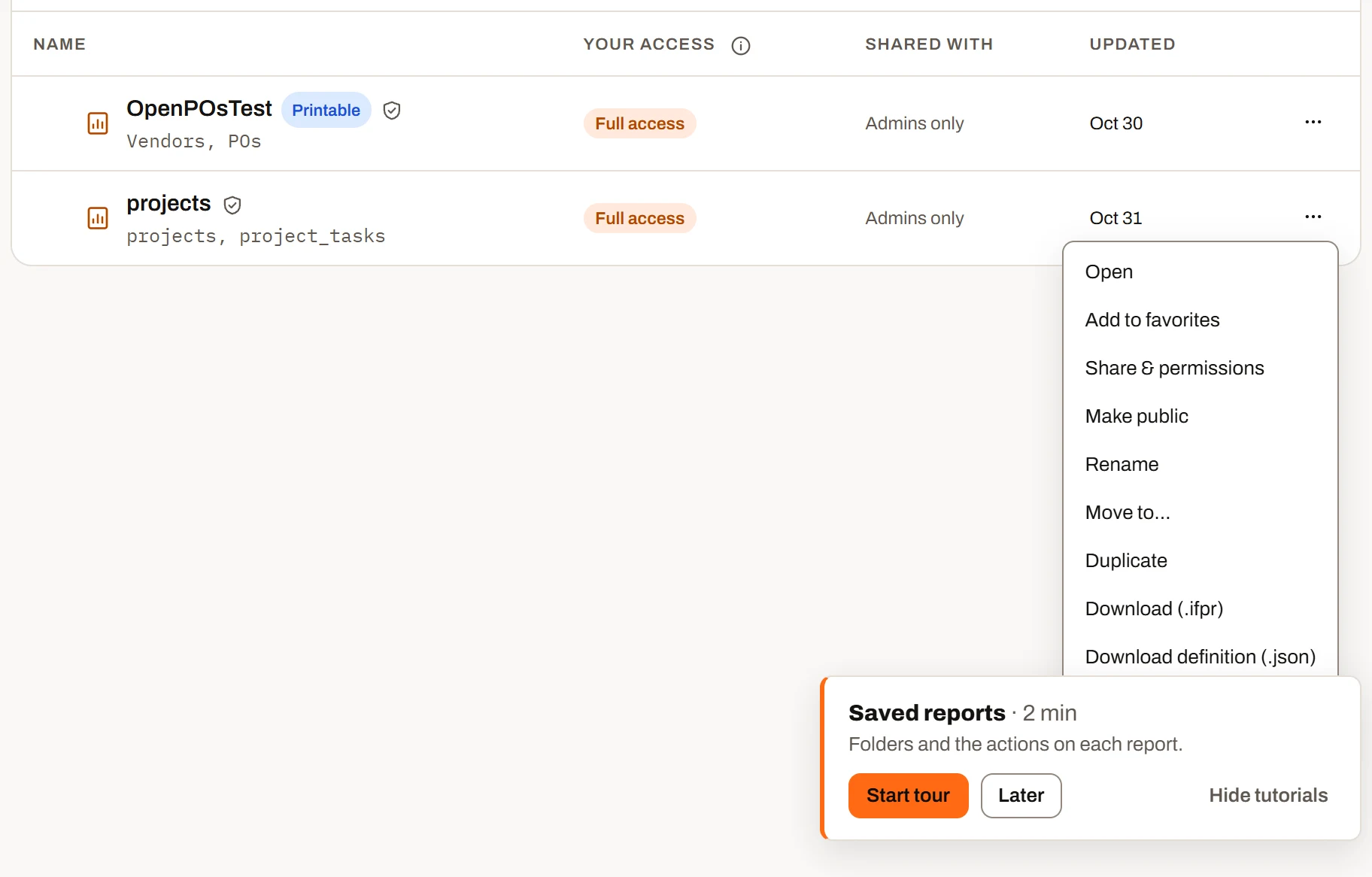
A report’s actions menu, from the ⋯ at the end of its row.
The Share dialog, section by section#
The dialog's title is Share folder: name or Share report: name. Under it, a line sums up the item:
- For a folder: its path, then "applies to N subfolders and M reports inside".
- For a report: its path, then Private, Public · anyone with the link, or Public until date · anyone with the link, then "open to editors and up" (or "open to everyone in the workspace", "open to managers") when it is shared with the whole workspace, then "shared with N people, N groups and N guests" when it is shared with people or groups (set on the report or inherited from a folder).
Every change in the dialog is saved the moment you make it; there is no separate save. Done just closes the dialog.
Whole workspace#
Shares this folder or report with every member of a seat at once, including people who join later. Pick one:
| Choice | Who gets access |
|---|---|
| Admins and the people added here (the default) | Only the owner, admins and the people set in the sections below. |
| Managers | Every manager, who can manage it. |
| Editors and managers | Every editor, who can edit it, and every manager, who can manage it. |
| Everyone in the workspace | Every viewer, who can view it, every editor, who can edit it, and every manager, who can manage it. |
Each person gets the most their seat allows, so choosing Editors and managers lets every editor edit the report, not just open it. To give an editor or manager view-only access, add them under Add people or groups as Viewer: a person set on this item keeps the access set for them here, even when the whole-workspace choice would give them more. Guests are never included; they are shared with by email.
On a folder, the choice flows down to every subfolder and report inside, like access set for a person. A narrower choice on an item inside doesn't take away what a folder above gives; when that happens the dialog says so ("Editors and managers also have access from folder, which applies here too.").
Changing it needs Manager access to the item, because it gives every manager Manager access. Others see the choice greyed out with "Changing this needs Manager access here." On the Saved reports page, the Shared with column shows Everyone, Editors and up or Managers beside the people's pictures, and Admins only only when nobody else has access.
Add people or groups#
Gives a workspace member, or every member of a group, access to this folder or report.
- Pick the person or group in the first list. People come first, under People: each entry shows their name and seat (for example "Dana Li · Editor seat"). The list leaves out the owner and admins (they already see everything), guests, and anyone who already has access set directly on this item. People who have been invited but not yet joined are included, so you can set up their access ahead of time. The workspace's groups follow under Groups, each with its size ("Finance team · group of 4"), leaving out groups that already have access set directly here. If nobody and no group is left, it reads "Everyone already has access".
- Pick an access level: Viewer, Editor or Manager. For a person, levels their seat can't hold are greyed out with "(needs Editor seat)" or "(needs Manager seat)". For a group no level is greyed out by a seat, because each member's own seat caps what they get. Levels you can't give are marked "(you can't grant this)".
- Click Add.
The hint under the row reminds you that a seat caps what can be given, and that seats are changed under People. With a group picked it says instead: "Everyone in group (N members) gets this access, and each person's seat still caps what they can do: a Viewer seat only views, an Editor seat edits at most. Someone with their own access here, or another group's, gets the highest of them."
How group access adds up. A group's access counts for each member as if it were set for them, capped by their seat: Manager access for a group gives a Manager seat Manager access, an Editor seat Editor access and a Viewer seat Viewer access. When someone has access set for themselves and for a group they're in, or through several groups, on the same folder or report, they get the highest. Group access flows down a folder like a person's. Between a report and the folders above it, the workspace's How access adds up setting decides (see Sharing folders versus reports): by default the nearest entry decides, so an entry on a report (for the person or for one of their groups) overrides what a folder above gives. Group access never reaches guests, and it wins over a Whole workspace choice on the same item the way a person's own entry does.
Who's in a group is managed by the owner and admins on the People page (see Groups). Taking someone out of a group, or deleting the group, takes away the access it gave them at once, including a report they have open.
Set on this folder / Set on this report#
Every group and everyone with access set directly on this item, with the count beside the heading. Groups come first, each with the group icon, "Group · N members · each member's seat caps this" and, if this entry replaces what the group inherits, "overrides level from folder name". Each person's row shows them, their seat, and, if this entry replaces something they inherit, "overrides level from folder name".
- Use the drop-down on a row to change their level, or choose Remove access to take it away.
- If you can't manage the item, you see their level as a label instead.
- If there is nobody, it reads "No one has access set directly here."
Guests are not listed here; they appear under Share by email with their dates.
Inherited from parent folders#
Only shown when someone, or a group, gets access to this item from a folder above it. Each row reads "level · from folder name" (for a group, "level · group of N members · from folder name"). Click Change here to give that person or group their own entry on this item, starting at the inherited level, which you can then raise or lower. The info tip explains: "Access set on a folder flows down to everything in it. Setting it here overrides what this item inherits, up or down."
Full access (account level)#
The workspace owner and every admin, each with a lock icon. "The owner and admins can open and edit everything. They can't be limited per folder." To change this, change their seat on the People page.
Share by email#
Only on reports. See Sharing with people outside the workspace.
Public link#
Only on reports. See Public links.
Access levels#
| Level | What it allows on the folder or report |
|---|---|
| Viewer | Open the report and use its filters. Nothing is saved. |
| Editor | Everything a Viewer can do, plus build and save the report, edit rows, rename, move, delete, and share it (give Viewer or Editor access, share by email). |
| Manager | Everything an Editor can do, plus make the report public or private, choose which rows link visitors see, and give others Manager access. |
| Full | Owner and admins only: everything, everywhere, including the top level of the folder tree. |
Seats cap levels. A person's workspace seat is their ceiling: a Viewer seat only ever views, an Editor seat edits at most, and Manager access needs a Manager seat. If someone holds a higher level than their seat allows (for example their seat was lowered later), they get the lower of the two until their seat changes again.
The Your access column on the Saved reports page shows your own level on each item. A folder marked Path only is visible only because something inside it was shared with you; the folder itself isn't.
Access set for members has no end date. Only guest shares (below) can end on a date.
Sharing folders versus reports#
- Folder access flows down. Access set on a folder applies to every subfolder and report inside it, at any depth, including ones added later.
- Which setting counts is a workspace setting. The owner or an admin chooses it under How access adds up on the People page (Plus and Ultimate; see User management). At the same item a person's own entry and their groups' entries always count together, and the highest wins. Between levels:
- Nearest grant decides (the default). If a subfolder or report has its own entry for a person, or for a group they're in, that entry decides their access there, whether it is higher or lower than the folder's. Use Change here to create such an entry, for example to give someone less on one report.
- Highest grant counts. A person gets the highest access set for them or their groups on the item or on any folder above it, and a Whole workspace choice counts the same way. An entry lower down can raise access but never lower it.
- For example, a Viewer grant on a report and an Editor grant on its folder: Nearest gives Viewer; Highest gives Editor. Either way the person's seat still caps it.
- The Share dialog says which rule the workspace uses, under Set on this folder / report: "The nearest setting decides: …" or "This workspace counts the highest access: …". Changing the rule takes effect at once, including in reports people have open.
- Moving changes inherited access. A report or folder that moves picks up the access of its new parent folders and loses what it inherited from the old ones. Entries set directly on the item move with it. Guests and the public link are set on the report itself, so moving or renaming a report doesn't affect them.
- Only reports can be shared outside the workspace. Share by email and the public link exist on reports only. There is no way to share a whole folder with a guest or by link; share each report.
- Duplicating a report creates a new, private report with no guests and no direct entries of its own; it inherits whatever its folder gives.
Sharing with people outside the workspace (guests)#
A guest is someone outside your workspace you shared one report with by email. Guests:
- can only view, never edit,
- see only the reports shared with them (and only the datasets those reports use),
- take no seat in your workspace and don't count toward its user limit,
- appear on your People page as Guest with "Shared by email · takes no seat" and how many reports they have.
Sharing a report by email#
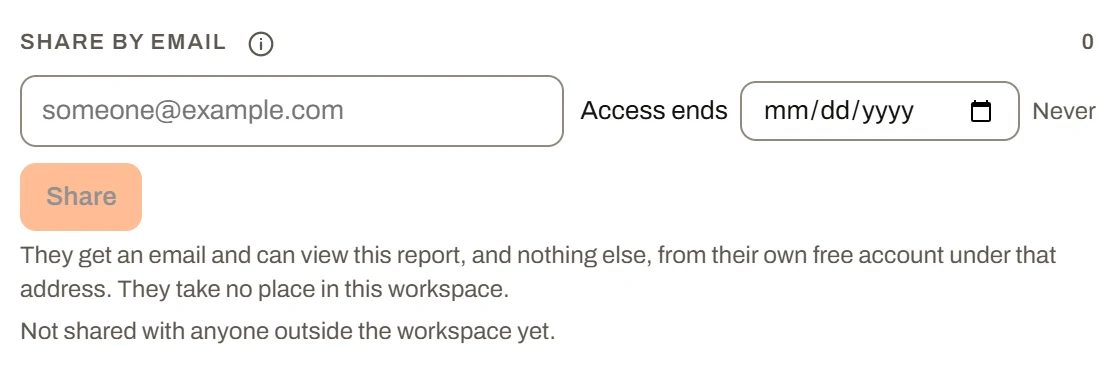
The Share by email section.
- In the report's Share dialog, go to Share by email.
- Type the address in the box (placeholder "someone@example.com").
- Optionally set Access ends to a date. Leave it on Never for no end date. Click Never to clear a date you picked. Access lasts until the end of the chosen day in your local time; you can't pick a day in the past.
- Click Share (or press Enter).
A message confirms what happened, for example "address was emailed. They can open it now." or "...They'll see it once they create an account with that address." If the email couldn't be sent, the share still stands: "address was given access, but the email couldn't be sent. Use Resend in a moment."
Rules and messages you may hit:
| Situation | What happens |
|---|---|
| The address isn't valid (no "@", contains spaces, or over 255 characters) | "Enter a valid email address." |
| The address belongs to the owner or a member of this workspace | "That person is already in this workspace. Share with them from the list of people instead." Use Add people or groups for members. |
| The end date has passed | "Pick a date that hasn't passed yet." |
| The workspace isn't on Ultimate | "Sharing reports with people outside the workspace is part of the Ultimate plan..." |
| The same person was emailed about this report less than 10 minutes ago | Refused with a message saying how long to wait. |
| More than 5 emails from you to the same address within a minute | "Too many emails to that address in the last minute. Try again shortly." |
| This person's earlier access to the workspace is still being cleaned up | "What this person could open before is still being deleted. Try again in a moment." |
The person does not need an account yet. Their access is attached to the email address and starts working as soon as they create an account with that exact address.
The guest list#
Each guest row shows their name (or address), their address, "Hasn't created an account yet" if they haven't registered, and a status line made of:
- Until date or Expired date (if the share has an end date),
- Last opened today / yesterday / N days ago / date · N times, or Never opened. This is recorded when the guest opens the report from their own account.
- The email status: Email sent, Email sent · resend in N min, Email failed, or Email not sent yet.
- Access not set (in warning colour) if the share was saved but the step that actually lets them open the report failed.
Buttons on each row:
| Button | What it does |
|---|---|
| Retry | Only when Access not set shows. Repeats only the access step, without another email. If it keeps failing, the person's account may not have finished verifying yet. |
| Resend | Sends the email again with the same end date. Greyed out for 10 minutes after a successful send; available at once after a failed send. |
| Change date / Extend | Opens an Access ends picker with Never, Cancel and Save. Extend shows instead of Change date once a share has expired. |
| Remove | Asks "Remove name? They lose this report at once." Confirm with Remove. |
Live shares are listed first, then expired ones (greyed). Expired shares stay in the list until you extend or remove them, so you can bring someone back without retyping their address. If nobody has been shared with, it reads "Not shared with anyone outside the workspace yet."
If any dataset in the report has row access filtering switched on, a warning reads "Guests see no rows of dataset names until an admin assigns them under Datasets: row access filtering is on there." See Row access for shared viewers and link visitors.
What the guest receives#
The email's subject is "Sharer's name shared "Report name" with you on Insight FastPass". It says the report is view only: they can open it, filter it and look at every page, and nothing they do changes it for anyone else. If the share has an end date, it says "You can view it until date (UTC)."
- If they already have an account, the button Open the report takes them to the report (after signing in if needed). The email says it is waiting under Shared with you on their Reports page.
- If they don't, the button Create your free account opens sign-up. Once they register with that same address and verify it, they are taken straight to the report.
They must sign in with the exact address the report was shared with. Forwarding the email doesn't give anyone else access.
Where shared reports appear for a guest#
Reports shared by email appear in Shared Reports, which the guest reaches from the workspace switcher ("Shared with you by email"). This works even for someone with no workspace of their own.
- All shared reports lists every report shared with them: Name (with "Until date" if it ends), Workspace, Shared by, Shared on, and Remove.
- Under Shared with you in the tree, each sharing workspace has its own entry, labelled with who shared from it, for example "Acme (Dana Li)" or "Acme (Dana Li and 2 others)", with the number of reports. Selecting it lists that workspace's reports with Shared by, Shared on, Your access and Remove, plus Remove all from Shared Reports.
- Expired shares, and shares from workspaces that are no longer on Ultimate, don't appear.
- A guest can star shared reports to keep them under Favorites at the top of the tree, in their own order. See Favorites in Shared Reports.
Opening a shared report as a guest#
The report opens read-only. The strip above it has a back button to Shared Reports, the report's location, the access label, and Remove from Shared Reports. The report is in Dash view and Print is the only toolbar action: no editing, saving, exporting or downloading. Filters and slicers work for the guest's own session only.
If the share has ended or been removed, they see "This report is no longer shared with you." If the report was deleted: "This report doesn't exist any more."
A guest removing reports from their own list#
A guest can take one report off their list (Remove, or Remove from Shared Reports inside the report) or a whole workspace's reports (the × beside the workspace in the tree, or Remove all from Shared Reports). The confirmation explains that they won't be able to open it any more and "Whoever shared it can share it again."
If a guest later joins the workspace#
If a guest accepts an invitation to the workspace, their guest shares are removed automatically. They keep access to those reports through their new seat, at the level their seat allows.
Members: "Shared with you" in your workspace#
Members who aren't the owner see a Shared with you entry under the folder tree, labelled Everything shared with you, with their seat label. It lists every report they can open in this workspace, wherever it is filed, which helps when a report sits inside folders they can't open. Columns: Name, Shared by, Updated, Your access, and Show in folder. Reports a member sees because of an Admin seat show "Admin access" as who shared it. The entry only appears when there is something in it.
Public links#
Every saved report has one permanent public address of the form InsightFastPass.com/r/<code>. The code is a long random string that can't be guessed. The link opens nothing while the report is private; once you switch the report public, anyone who has the URL can view the report without signing in.
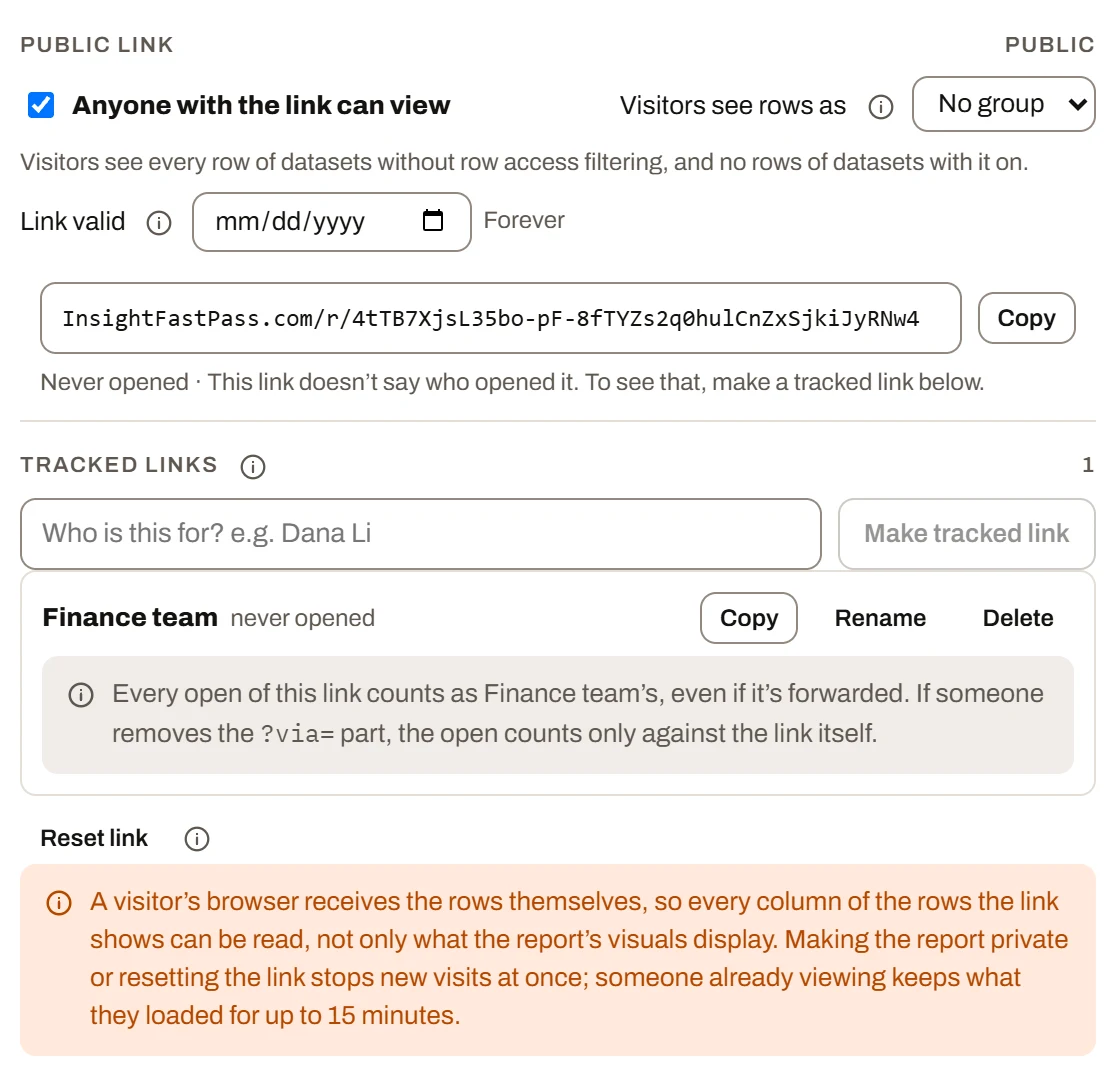
The Public link section: the link, how long it lasts, who visitors see rows as, and the tracked links.
The Public link section shows Public or Private beside its heading.
Making a report public or private#
- Turn on Anyone with the link can view in the Share dialog, or
- choose Make public / Make private from the report's ⋯ menu on the Saved reports page.
You need Manager access to the report. Without it the switch is greyed out and the hint adds "Only someone with Manager access to this report can switch it." Public reports show a Public label next to their name on the Saved reports page (its tip says "Public until date" when an end date applies).
Switching a report private, or back to public, keeps the same URL. The hint under the switch tells you the current state, for example "Private: the link opens only for people with access who sign in. Switch it on and anyone who has the URL can view this report without signing in; they can't change it."
Visitors see rows as#
Visitors have no account, so you choose which group they read the data as. This only matters for datasets with row access filtering switched on:
| Choice | Datasets with row access filtering on | Other datasets |
|---|---|---|
| No group | No rows | Every row |
| A group | Only the rows assigned to that group | Every row |
| A group that has since been deleted (shown as A deleted group) | No rows ("Its group was deleted... Pick another group.") | Every row |
Groups are set up by admins on the Datasets page; see Datasets.
Copying the link#
The box shows the address (always displayed as InsightFastPass.com/r/...). Click Copy (it changes to Copied for two seconds) or click in the box to select it. If copying fails: "The link couldn't be copied. Select it and copy it by hand."
Under the box: when it was last opened ("Last opened today", "Never opened", ...), the end date if one is set, and a reminder that "This link doesn't say who opened it. To see that, make a tracked link below." The box is shown, dimmed, even while the report is private.
Link for members#
Above the public link, the dialog always shows a Link for members: the report's own address, InsightFastPass.com/account/reports/<workspace>/<report>, with Copy. It needs nothing switched on. Anyone who opens it signs in (if they aren't already) and gets the report if they have access to it: members and admins of the workspace, and people it is shared with by email. Anyone else sees "You don't have access to this report." The Opens at choice described below applies to it too.
Linking to a bookmark#
A dashboard that has bookmarks shows an Opens at choice between each link's box and its Copy, set to No bookmark. Pick a bookmark and the addresses gain ?bookmark=...: whoever opens one lands on that bookmark, exactly as Open in the Bookmarks tab would show it (the bookmark's page, as saved, with its visuals and filters). The one choice applies to every address you copy from the dialog while it is picked, the link for members and tracked links included, and the line under each box says so. It isn't saved: the dialog opens on No bookmark every time, and the plain link keeps working whatever you pick.
The same link is one step away in the builder: a bookmark's ⋯ menu has Copy link, which copies the report's public link opening to that bookmark. It is there on saved workspace reports on Ultimate (the plan with public links); the toast reminds you that the link opens once the report is public, and to save the report first when it has unsaved changes, since the link finds the bookmark in the saved report.
If the bookmark is later deleted, the link still opens the report, as saved, with a short note that the view it pointed to is gone.
Link valid (expiry)#
Managers (with a Manager, Admin or Owner seat) can set Link valid to a date, or Forever (the default; click Forever to clear a date). The link stops working at the end of the chosen day, local time.
When you set a date, a checkbox appears: Also make the report private on that date.
- Ticked: "On date this URL stops working and the report becomes private." Afterwards the hint reads "Was public until date, now private. Switch it on to make it public again."
- Not ticked: "On date this URL stops working and a new one takes its place; the report stays public." Everyone holding the old URL is cut off, and the new URL is created the next time someone in the workspace opens the report's sharing. You then hand out the new one.
Others see the date as read-only text.
Tracked links#
A tracked link is the same public link with a tag for one person (...?via=<tag>), so you can see whether they opened it. Members with an Editor seat or better can make them.
- Type who it is for in "Who is this for? e.g. Dana Li" (up to 255 characters).
- Click Make tracked link.
Each tracked link shows its label, when it was last opened and how many times, and Copy, Rename and Delete. Things to know:
- Every open of a tracked link counts as that person's, even if they forward it. If someone removes the
?via=part, the open counts only against the main link. - A tracked link opens the report only while the report is public. It gives no extra access.
- Delete only stops the tracking. The URL still opens the report (as a plain open) while the report is public. To cut someone off, make the report private or reset the link.
- Opens are counted once per visit. A visitor who keeps the page open is not counted again.
Reset link#
Reset link gives the report a new address. Confirm with Reset link in the warning "Give this report a new URL? Every copy you've handed out, tracked links included, stops working." Your tracked links keep their names and counts; copy them again to get working URLs. Needs Manager access to the report and a Manager, Admin or Owner seat.
What a link visitor sees and can do#
- They open the URL in any browser. No account, sign-in or install is needed. The page is titled "Shared report" and is hidden from search engines.
- A strip says Shared report and "Read-only: filters work; nothing you change is saved."
- The report opens in Dash view with Print as the only action. They can use filters, slicers and every page, but can't edit, save, export, download or see any other report, dataset or workspace page.
- A link made for a bookmark (see Linking to a bookmark) opens on that bookmark's page as it was saved; the rest of the report is there as usual.
- While the report is private, the public link isn't a dead end for people with an account. Someone not signed in is sent to sign in and then brought back to the link. Someone signed in who has access to the report (a member or admin of its workspace, or a guest it was shared with by email) is taken to the report in their workspace, bookmark included, as the link for members would. Someone signed in without access sees "You don't have access to this report."
- The data is live. They see the report's current saved version and the datasets' current rows, not a snapshot. If someone changes a dataset while they have it open, the new data loads in place with a notice in the bottom right corner.
- If a dataset in the report has row access filtering on and their group has no rows of it, a label reads "No rows are shared with this link in: dataset names".
- Very large datasets (more than 500,000 rows) may show the same "load a window of snapshots" prompt signed-in users see.
The dialog warns about one important point: "A visitor's browser receives the rows themselves, so every column of the rows the link shows can be read, not only what the report's visuals display." Only make a report public if you're comfortable with anyone who has the link seeing every column of every row it can reach. Use row access and a visitor group to limit the rows.
Messages a visitor may see:
| Message | Cause |
|---|---|
| "This link isn't available. The report may be private now, or the link may have changed; ask whoever sent it for a new one." | The link was reset or expired, the workspace is no longer on Ultimate, or the workspace owner's account was closed. All of these look the same to a visitor. A private or deleted report instead sends the visitor to sign in (see above). |
| "You don't have access to this report." | The report is private (or deleted) and the signed-in person isn't a member or guest of its workspace. |
| "Too many tries from this network. Wait a minute and reload the page." | More than 30 link openings from the same network within a minute. |
| "Your browser didn't keep the report's session cookie, so the report can't load. Allow cookies for this site, or open the link outside a private window, and reload." | Cookies are blocked. |
| "The report couldn't be opened. Try again in a moment." | Any other error. |
If someone who is signed in to Insight FastPass opens a public link in the same browser, the link page uses its own visitor session; their own session comes back when they leave the page.
Row access for shared viewers and link visitors#
Row access filtering limits which rows of a dataset each person sees. It is set per dataset by admins (see Datasets). For sharing, it works like this:
- Owner and admins always see every row.
- Members and guests see only the rows assigned to them, directly or through a group, on any dataset with row access filtering on. With nothing assigned they see no rows of that dataset, unless every filter column starts with All values (then only the people and groups given values are limited; see Datasets). Guests appear in the people lists admins use for this, so they can be assigned rows like members. A strip label, Filtered to your row access, tells a signed-in viewer their view is filtered.
- Link visitors see the rows of the group chosen under Visitors see rows as, or none with No group.
- Datasets without row access filtering show every row to anyone who can open the report.
- Filtering happens on the server before data is sent. Report filters can narrow what someone sees but never widen it.
Revoking access#
| To stop... | Do this | Takes effect |
|---|---|---|
| A member's access to one item | Share dialog, their row, Remove access | Right away |
| A member's inherited access on one item | Change here, then lower or remove it | Right away |
| A group's access to one item | Share dialog, the group's row, Remove access | Right away, for every member |
| One person's access through a group | Take them out of the group (People page, Groups) | Right away, on every item the group has access to |
| Everything a group gives | Delete the group (People page, Groups) | Right away |
| All of a member's access | Remove them from the workspace (People page, see User management) | Right away; their sharing settings, row access and group places are cleared |
| One guest on one report | Share by email, Remove | At once |
| A guest on every report | People page, Remove all shares on the guest (owner and admins) | At once; their row access and group places in the workspace are cleared too |
| A guest on a set date | Give the share an Access ends date | From that instant |
| Everyone using the public link | Switch off Anyone with the link can view, or Make private | New visits refused at once; someone already viewing keeps what they loaded for up to 15 minutes |
| Everyone holding the current URL, but keep the report public | Reset link | Same as above |
| The link on a set date | Link valid date | From that date |
Removing access never deletes the report or its data.
What happens when...#
A report is deleted. Everyone loses access right away: members, guests and link visitors. It disappears from guests' Shared Reports and from everyone's favorites, and its public link stops working. Datasets are kept.
A folder is deleted. Every folder and report inside it is deleted too, with the same effect on each report. The delete confirmation says how many folders and reports go with it and "People lose access right away. Datasets are kept."
A report or folder is moved or renamed. Renaming changes nothing about who has access. Moving changes only access inherited from folders (see Sharing folders versus reports); guests, direct entries and the public setting stay.
The workspace moves from Ultimate to Plus (downgrade).
- Guests stop seeing the workspace's reports at once; they vanish from Shared Reports.
- Public links stop working.
- Members keep their folder and report access, groups and row access, and the Share dialog keeps working for them.
- Nothing is deleted at once. Moving back to Ultimate within the grace period brings back the guests (unless their end dates passed meanwhile) and the public links with their settings; after it, the public settings are cleared.
The workspace moves below Plus (to Mini or Free).
- Everything above stops, and no new access can be given: the Share dialog becomes read-only.
- Members keep the folder and report access they were already given, for themselves or through a group, until the purge, 30 days after the downgrade, which removes every grant (to people and to groups) and whole-workspace setting, every group and every row access setting.
A member leaves or is removed. Their own access settings, row access and group places are cleared. Guest shares and tracked links they created stay in place, still shown as shared by them.
A guest's share expires. They lose access from that instant, and the report leaves their list. Sharers still see it as Expired date until they extend or remove it.
The workspace owner's account is closed. Public links stop working and the workspace's reports disappear from guests' Shared Reports.
Emails and notifications#
| Event | Email sent? |
|---|---|
| Sharing a report by email | Yes, to the guest |
| Resend | Yes, the same email again |
| Change date / Extend on a guest | Yes, the share email is sent again |
| Retry (access not set) | No |
| Removing a guest, or a share expiring | No |
| Giving or removing member access | No |
| Making a report public or private, resetting or dating a link, tracked links | No; you hand out links yourself |
Limits on share emails: one email per guest per report every 10 minutes after a successful send (a failed send can be retried at once), and at most 5 emails from you to the same address in any minute. Workspace invitations are covered in User management.
Security behaviour you may notice#
- Short sessions. Viewing a report uses a separate short-lived report session (about 15 minutes) that renews itself while the page is open. That is why a link visitor who already has the report open can keep viewing for up to 15 minutes after the report is made private or the link is reset; any new visit is refused at once.
- Changes reach guests quickly. When a guest is added or removed, their sessions are refreshed so the change applies within about a minute, or at once for removals.
- Links can't be guessed. Public link codes are 43 random characters; tracked-link tags are 12 random characters and say nothing about the person.
- One answer for every closed link. Visitors can't tell whether a link is private, reset, expired or deleted.
- Rate limits. Opening public links is limited to 30 per minute per network; share emails are limited as described above.
- Cookies are required. Reports, including public links, need the browser to accept cookies for the site.
- Not indexed. Public link pages are marked so search engines don't list them.
Embedding#
A report can also be shown inside another website, in a frame: publicly (its public link, framed), to people who sign in and already have access, or to your own application's users through an app registered under Security. Embedding is Ultimate only, and the Share dialog's Embed section has the snippets. See Embedding reports in another site.
Sending copies instead of sharing#
Instead of sharing a live report, you can send someone a file from the report's Export menu, or the Reports page's actions menu: Download definition (.json) (pages, visuals and filters with no data) or Download report (.ifpr) (the definition with the data and edits inside; Plus and Ultimate). The recipient can open it with Import… in their own copy of the app. Print is available to everyone, including guests and link visitors. A file is a copy taken at that moment: it doesn't update, and you can't revoke it. Guests and link visitors can't export. Exports are covered in Saved reports.
Plan availability: Export appears on plans that save reports (Mini, Plus, Ultimate); Package (the report with its data, .ifpr) is Plus and Ultimate. See Plans and limits.
Plan limits summary#
| Feature | Free | Mini | Plus | Ultimate |
|---|---|---|---|---|
| Access on folders and reports for members (Add people or groups, Whole workspace) | No | No | Yes | Yes |
| Groups, and access on folders and reports for a group | No | No | Yes | Yes |
| Share by email (guests) | No | No | No | Yes |
| Guest end dates, resend, last opened | No | No | No | Yes |
| Public link (make public, visitor group) | No | No | No | Yes |
| Link expiry date, reset link | No | No | No | Yes |
| Tracked links | No | No | No | Yes |
| Viewing a report shared with you as a guest | Any plan, including a free account | |||
| Viewing a public link | No account needed | |||
| Embed reports in another website | No | No | No | Yes |
| Export Definition / Package | No / No | Yes / No | Yes / Yes | Yes / Yes |
The plan that counts is the plan of the workspace the report belongs to, not the plan of the person viewing it.