
Docs › Workspaces and people
Workspaces
A workspace is the shared space where a team's reports, datasets, folders and people live. Every workspace has one owner and its own plan, and you can belong to as many workspaces as you are invited to.
What a workspace is#
Think of a workspace as a company account. Everything you build in Insight FastPass belongs to a workspace, not to you personally:
- Reports, folders and datasets are stored under the workspace. If you leave or are removed, what you made stays behind for the rest of the team.
- People join a workspace by invitation and each gets a role (Owner, Admin, Manager, Editor or Viewer). See User management.
- The plan belongs to the workspace. Free, Mini, Plus or Ultimate applies to everyone working in that workspace, whatever plan their own workspaces are on. A person invited to an Ultimate workspace gets Ultimate features while working there, even if their personal workspace is on Free. They only need a free account to join. See Plans and limits.
- Each workspace is a separate subscription. Owning two workspaces means two plans, managed separately.
Behind the scenes, every time you switch workspace the app loads that workspace's reports, datasets, people and plan, and the features you see (Save, sharing, extra visual types and so on) follow that workspace's plan.
Your personal workspace#
When you register, a workspace is created for you automatically:
- You are its owner.
- It starts on the Free plan.
- It is named "Your display name's workspace" (or your email address if you didn't give a display name). You can rename it at any time.
If you were invited to a workspace before you had an account, registering with that same email address keeps everything that was set up for you (the invitation, and any folders, reports, row access or group places given to you ahead of time). You still get your own personal workspace as well, unless you already own one.
Creating more workspaces#
Anyone can create as many workspaces as they like. Each new one:
- starts on the Free plan,
- has you as its owner,
- is a separate subscription.
There are two places to create one:
- The workspace switcher at the top of the left-hand menu: click Switch workspace, then Create new workspace. Type a Workspace name (up to 255 characters) and click Create workspace. The new workspace opens on its Reports page.
- Your settings, under Your workspaces: at the bottom, under Create a workspace, type a name and click Create workspace.
A blank name is not accepted.
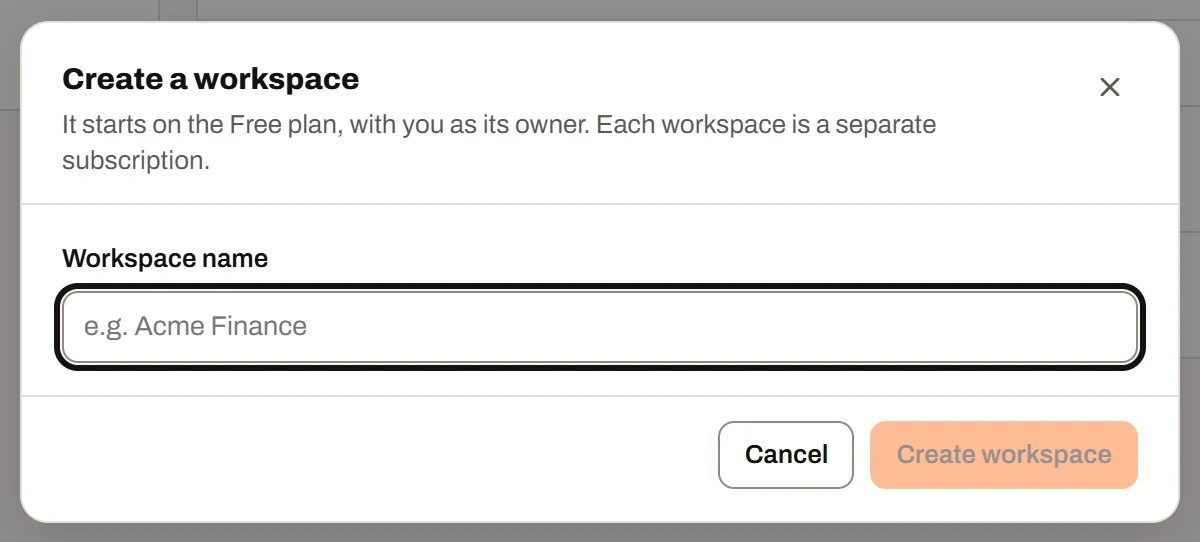
Create a workspace, from the switcher.
Belonging to several workspaces and switching between them#
You can be in any number of workspaces: the ones you own and the ones you have been invited to. The Switch workspace button at the top of the left-hand menu opens a list of them:
- Each workspace you work in, with your role in it underneath (Owner, Admin, Manager, Editor or Viewer). The one you're in is ticked. Workspaces you own are listed first (oldest first), then the ones you've joined (in the order you joined them).
- Shared Reports ("Shared with you by email"): reports that other workspaces shared with you individually by email, where you aren't a member. You can view them but take no place in those workspaces. See Sharing.
- Create new workspace.
The name of the open workspace is shown under the switcher. If two workspaces you work in have the same name, the owner's name is added in brackets, for example "Acme (Dana Li)", so you can tell them apart.
How switching works:
- The app remembers your last pick in this browser, so you come back to the same workspace (or to Shared Reports) next time. On another browser or device it opens your first workspace.
- If you're on the Reports page, switching takes you to the top of the new workspace's Reports (the folder you had open belongs to the old workspace). On any other page (Datasets, People and so on), you stay on that page in the new workspace.
- In Shared Reports, only Reports and Your settings are on the menu. If you open another page there, you're taken to Reports.
You can also switch from Your settings, under Your workspaces: each workspace you're in is listed with your role, its plan and (if you don't own it) who owns it, with a Switch to this workspace button. The open one is marked Current.
If you have no workspace at all#
This can happen if you gave your only workspace away and were then removed from it, or left it. The Reports page then says You have no workspaces assigned to you and asks you to create one (it starts on Free, with you as owner). If you have invitations waiting, the page tells you how many; accepting one opens that workspace automatically.
The workspace menu#
The left-hand menu (the "rail") holds the sections of the open workspace. Use the menu button at the top left (three bars) to shrink the rail to icons or show the labels again; the app remembers your choice in this browser.
| Menu item | Who sees it | What it's for |
|---|---|---|
| Reports | Everyone | Saved reports and folders, and New report. On Free nothing is saved, so this page offers New report to build a report for the current session only. See Saved reports and Report builder. |
| Datasets | Everyone in a workspace (not in Shared Reports) | Uploaded spreadsheets the workspace's reports can use, their snapshots, connections and row access. See Datasets. |
| People | Everyone in a workspace | Who's in the workspace and their roles; inviting, removing and changing people (Owner and Admins only); groups; the Roles & access reference. See User management. |
| Pending | Owner and Admins only | Invitations that haven't been answered, and an ownership transfer that hasn't been accepted. See User management. |
| Upgrade | Everyone in a workspace | The workspace's plan, the plan comparison, and the user count. Only the owner can change the plan. See Plans and limits. |
| Notifications | Everyone | Invitations and ownership offers waiting for you. A number on this item shows how many things are waiting for your answer. See Notifications. |
| Your settings | Everyone | Your list of workspaces, tutorials, password, sign-out and account deletion. See Account settings. |
The bar along the top shows your role chip for the open workspace (hover or tap the info icon to see what that role may do), a one-line reminder of what your role allows, and the ? button for in-app tours (see In-app tutorials). In Shared Reports, the chip reads Guest and the reminder says the reports are read-only.
Live notices#
When you have a report or a dataset open and someone else changes the data underneath it, the app refreshes the rows for you in the background and shows a short notice in the bottom-right corner, for example:
- "Dana Lee edited 2 rows in Sales"
- "Dana Lee added a row and deleted 3 rows in Sales"
- "Dana Lee and Sam Ortiz changed rows in Sales" (two people), or "Dana Lee and 3 others changed rows in Sales"
- "Sales was reloaded with new data" (someone replaced the dataset with a new upload)
- "The rows you can see in Sales changed" (an admin changed your row access)
- "Sales was updated" (a change with no named editor)
How they behave:
- Your own edits never produce a notice.
- Each notice disappears after about 6 seconds, or when you click its close (X) button. At most three show at once; older ones go first. Leaving the page clears them.
- Several changes arriving close together are fetched once, so you get one notice rather than many.
- If you have unsaved edits, the new rows wait so your work isn't overwritten, and the notice adds when they'll arrive: in a dataset, "The rows update after you save or discard your changes."; in a report, "It updates when you revert your edits to it."
- A brief loss of connection followed by a reconnect refreshes the data silently, without a notice.
Live notices only apply to datasets whose rows are stored in the workspace, which means Plus and Ultimate workspaces (see Plans and limits). Changing rows in a stored dataset is Plus and Ultimate, so edit and "reloaded with new data" notices can appear on both.
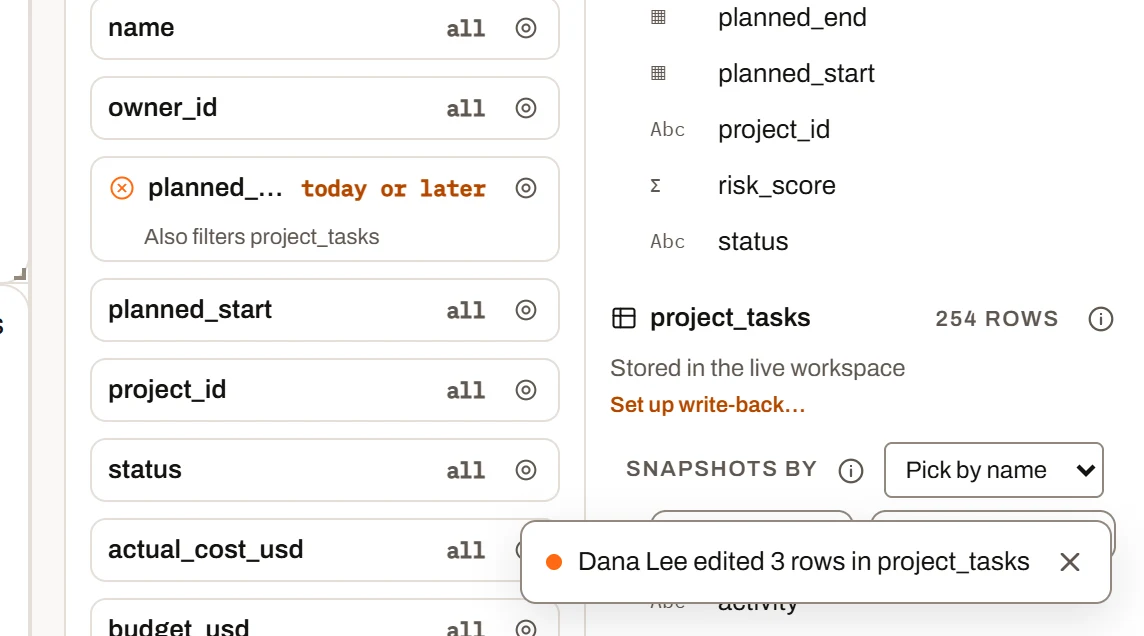
A live notice in the corner of a report: a change someone else just made has been loaded.
Renaming a workspace#
Only the owner can rename a workspace. Go to Your settings, find the workspace under Your workspaces, click Rename, type the new Workspace name (up to 255 characters) and click Save. Everyone in the workspace sees the new name.
Transferring workspace ownership#
The owner can hand a workspace to someone else in it. The new owner takes over the workspace and its plan (its subscription); the previous owner stays in the workspace as an Admin.
Who can transfer, and to whom#
- Only the owner can offer a workspace.
- You must own at least one other workspace. A transfer can never leave you owning none. If this is your only workspace, the Transfer ownership button is disabled with the note "Create another workspace to transfer this one." Create a second workspace first (it can stay on Free).
- The new owner must already be a member who has accepted their invitation. You can't transfer to someone whose invitation is still pending, or to a guest (someone who only had a report shared with them by email). If there's nobody suitable, the app says "A workspace can only go to someone who is already in it." Invite them first and transfer once they've joined.
- One offer at a time per workspace. Offering it to a different member replaces the earlier offer.
Making the offer#
You can start a transfer from either place:
- Pending page, in the Ownership transfer section: click Transfer ownership.
- Your settings, under Your workspaces: click Transfer ownership next to the workspace.
Choose the person under Transfer to and click Send request. They get an email ("Your name wants to make you the owner of Workspace") and a notification on their Notifications page. Nothing changes until they accept — you stay the owner in the meantime, and the Pending page and Your settings show "Waiting for name to accept".
Re-sending the email: if the email failed, you can send it again straight away; if it went out, you can send it again 10 minutes later (the button reads Send again in N min until then). No more than 5 emails a minute can go to the same person.
To withdraw the offer, click Cancel transfer (on Pending or in Your settings).
Accepting or declining (for the person receiving it)#
The offer appears on Notifications in the menu: "Name wants to make you the owner of Workspace". Click Review to see what accepting means:
- You become the owner, with full access to everything in it.
- The previous owner stays in the workspace as an admin.
- Each workspace is a separate subscription. The panel names the workspace's current plan; as owner, the plan becomes yours to manage.
Then click Accept ownership, Decline, or Not now (which just closes the panel).
Which plan applies after accepting: the workspace keeps its current plan. The panel says "The workspace keeps its current plan when you accept. Payment methods aren't set up here yet." (Once billing is live, accepting is where the new owner will choose a plan and set up payment. In test environments a "Plan after you accept (development only)" picker appears, which warns about anything a lower plan would delete and refuses a plan whose user limit is below the number of people in the workspace.)
What happens on acceptance#
All at once:
- You become the owner. Your old member role is removed (the owner always has full access).
- The previous owner becomes an Admin.
- If the workspace's subscription had been cancelled (because the previous owner deleted their account), it is running again.
- The offer disappears.
- Everyone in the workspace has their session refreshed so the change takes effect within about a minute.
- Sharing settings you held as a member are cleared, since the owner doesn't need them.
When an offer stops working#
The acceptance is refused ("That transfer is no longer available.") if:
- the owner cancelled it, or offered it to someone else;
- you are no longer a member (being removed from the workspace also withdraws any offer made to you);
- the previous owner no longer owns another workspace.
Leaving a workspace#
Anyone except the owner can leave a workspace they've joined. Open the workspace, go to People and click Leave this workspace.
- It happens straight away (there is no confirmation step).
- You lose access to the workspace's reports and datasets. What you created there stays in the workspace.
- Your folder and report sharing, row access and group places in that workspace are cleared the next time the owner or an admin opens the workspace.
- The app switches you to your first remaining workspace, or to the "no workspaces" page if you have none left.
- To come back, you need a new invitation.
The owner can't leave. To step away from a workspace you own, transfer it first (you then become an admin and can leave), or delete your account (see below).
What happens when the owner deletes their account#
Deleting your account (Your settings, Delete my account…) does not delete the workspaces you own, and they are not handed to anyone automatically. Instead, the app tells you before you confirm:
- The subscription of every workspace you own is cancelled at the end of its current subscription period.
- When it ends, the workspace stops working for everyone in it, unless you transfer it to someone else first (Transfer ownership, under Your workspaces).
- Reports, datasets and everything else in a workspace are deleted once its subscription has been inactive for more than 30 days.
- Workspaces you're only a member of are not affected (you simply can't sign in any more).
In Your workspaces, a workspace whose subscription has been cancelled shows a Subscription cancelled tag.
If the same email address registers again later, that person becomes the owner of those workspaces again and their subscriptions are no longer cancelled. An ownership offer you made before deleting your account can still be accepted, which also restores the subscription.
Recommendation for owners: transfer every workspace that should carry on before deleting your account.
Plan availability#
Workspaces themselves (creating, switching, renaming, transferring, leaving) work the same on every plan. What differs is what you can do inside each workspace, which follows that workspace's plan:
| Free | Mini | Plus | Ultimate | |
|---|---|---|---|---|
| Create, switch, rename, transfer, leave | Yes | Yes | Yes | Yes |
| People in the workspace | 1 (just the owner) | 2 | 5 | 10 |
| Extra users (10 per pack) | No | Yes | Yes | Yes |
| Live notices on stored data | No stored data | No stored data | All notices | All notices |
| Appears in a guest's Shared Reports | No | No | No | Yes |
Plan limits summary#
| Feature | Free | Mini | Plus | Ultimate |
|---|---|---|---|---|
| Number of workspaces you can own or join | Unlimited | Unlimited | Unlimited | Unlimited |
| Users per workspace (owner + members + pending invitations) | 1 | 2 (+10 per pack) | 5 (+10 per pack) | 10 (+10 per pack) |
| Ownership transfer | Yes | Yes | Yes | Yes |
| Live notices | n/a | n/a | Edits, replacements and row access changes | Edits, replacements and row access changes |
Full details are in Plans and limits.