
Docs › Your data
Query Workbench
The Query Workbench is a page for asking questions of your datasets in a query language, FPQL, instead of building a report. You write a script, press F5, and the rows come back in a grid. It works like the query windows in SQL Server Management Studio: an Object Explorer on the left, query tabs on the right, results underneath. This guide covers the page. The language itself is in FPQL.
Plan availability: the Query Workbench is part of the Plus and Ultimate plans, for everyone in the workspace. Viewers use it read-only (see What viewers can do). Changing a dataset's rows from the Workbench works on both (see Changing dataset rows).
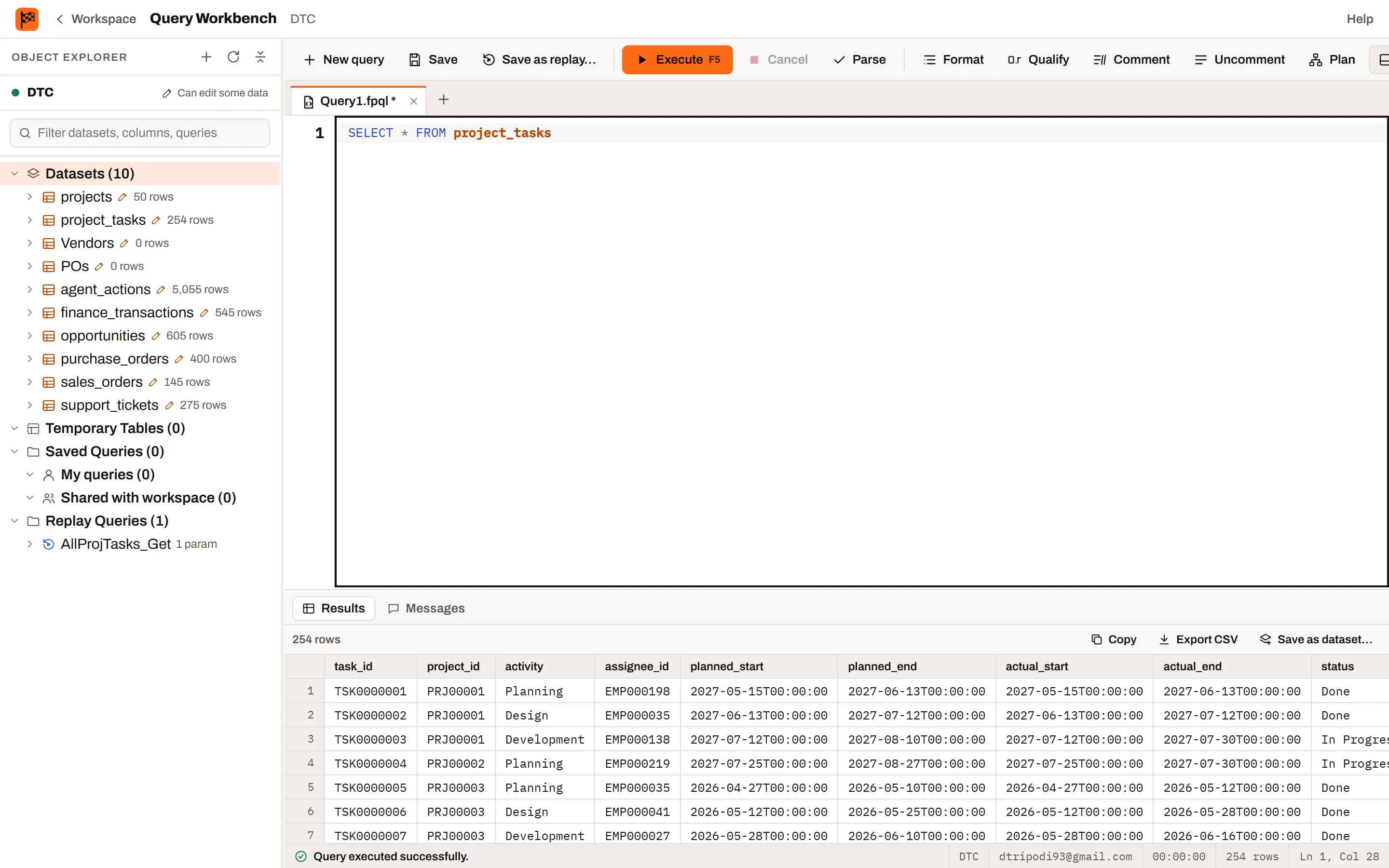
The Query Workbench: the Object Explorer, a query tab and the results of a query run with F5.
Opening the Workbench#
- Open the workspace you want to query.
- Click Query Workbench in the menu on the left.
The Workbench opens full height, for the workspace you had open. Workspace at the top left takes you back. If the workspace's plan doesn't include the Workbench, the page says so instead.
The layout#
| Part | What it does |
|---|---|
| Object Explorer (left) | Lists what you can query: datasets and their columns, this tab's temporary tables, saved queries and replay queries. Drag its edge to make it wider or narrower. On a narrow screen it opens as a drawer from the Explorer button. |
| Toolbar | New query, Save, Save as replay, Execute, Cancel, Parse, Format, Qualify, Comment, Uncomment, Plan and Results. Where Ask FastPass is turned on, Ask FastPass opens the composer to have FastPass write a query on the datasets you have open or selected in the Object Explorer; the query opens here by itself in a new tab when it is ready (in the desktop app, in a Workbench window of its own), and Open in Query Workbench on its answer brings it back again. |
| Tabs | One per query. A new tab is called Query1.fpql, Query2.fpql and so on; a saved query's tab has its name. * means unsaved changes, and a spinner means it is running. |
| Editor | Where you write the script, with line numbers, colouring, suggestions and underlined mistakes. |
| Results (bottom) | Results, Messages and Execution plan for the tab's last run. Drag the bar above it to resize it; Results on the toolbar (Ctrl+R) hides or shows it. |
| Status bar | Whether the last run worked, the workspace, your email, how long it took, rows returned and the caret's line and column. |
The Object Explorer#
The header shows the workspace name and either Read-only or Can edit some data, which means at least one dataset lets you change its rows (it has a pencil beside it).
| Folder | What's inside |
|---|---|
| Datasets | Every dataset you can open, with its row count (the rows you can see). Open one for its columns: a key icon marks key columns, a magnifier marks indexed columns, a lock marks row access columns. Calculated fields (fn) and Summary Calculations (Σ) are listed under the columns. A lock beside the dataset means row access filtering is on. A query dataset has a query icon and a refresh badge, green when its last refresh worked. |
| Temporary Tables | The temp tables of the tab you're in (see FPQL). |
| Saved Queries | My queries and Shared with workspace. |
| Replay Queries | Every replay query in the workspace (they're all shared). Open one to see its parameters. |
Datasets and replay queries that are filed in a folder are grouped under a node for each folder (A to Z), followed by the ones at the top level. A folder works like a schema in SQL Server: a dataset or replay in it is written Folder.Name, such as Sales.Orders (see Folders).
Type in the filter box to narrow every folder to names that contain what you typed.
Double-click a column to insert its name at the caret (Qty, or [Unit price] for a name with spaces), a dataset to insert its name (Sales.Orders for one in a folder), a saved query to open it, or a replay query to insert an EXEC for it. You can also drag any name into the editor. Select Top 1000 Rows and Script SELECT write FROM Folder.Name for a dataset in a folder, and Script EXEC writes EXEC Folder.Name.
Right-click for more:
| On | Menu |
|---|---|
| A dataset | Select Top 1000 Rows, Script SELECT to new query, Insert name, Copy name, Refresh, Manage indexes… (when you can change its indexes), Edit query (a query dataset, for its owner and admins) |
| A temp table | Select Top 1000 Rows, Insert name, Drop |
| A saved query | Open, Open and run, Copy query text, Save as replay query…, Move to Shared (or back; yours only), Delete |
| A replay query | Script EXEC to new query, Modify, Copy name, Delete (its owner, the workspace owner and admins) |
The Object Explorer and the keyboard: arrow keys move through the tree and open or close folders, Enter does what a double-click does, and Shift+F10 opens the menu.
Your first query, step by step#
- Open the Workbench, and in the Object Explorer open Datasets. Right-click a dataset and choose Select Top 1000 Rows. A new tab opens with a query like this, and runs it:
-- Select top 1000 rows from Jobs SELECT TOP (1000) [JobID] , [Customer] , [Status] , [Qty] FROM Jobs; - The rows appear under Results. Click Messages to see how many rows came back.
- Delete the column lines you don't need. (When you write a query yourself, type
ssfand Tab forSELECT * FROM, pick the dataset, then put the caret after*and press Tab to write the column list for you.) - Add a filter on a new line before the
;, for exampleWHERE [Status] = "Open". Suggestions appear as you type[, and a mistake (say[Statu]) is underlined in red before you run. - Press F5. Only the open jobs come back.
- Press Ctrl+S, give the query a name and choose My queries to keep it. It now appears under Saved Queries in the Object Explorer.
From here, FPQL has the whole language: totals with GROUP BY, joining datasets, temp tables and more.
Writing and running a query#
- Click New query (or the + after the last tab).
- Write a script. Suggestions appear as you type:
- Tables: right after
FROM,JOIN,INTOorUPDATE, the datasets and temp tables, before you type anything. A dataset in a folder is offered asOps.Tasks, and afterOps.only the datasets in that folder (only the ones you can change afterUPDATEorINSERT INTO). - Columns: while you type a word, the columns of the tables in the query come first, written with their table (
products.sku, orp.skuwith an alias). A column two tables share is offered once per table, such asj.CustomerIDandc.CustomerID. Afteralias.or[, only that table's columns. - Keywords, then functions. Multi-word keywords match what you've already typed:
drop table if eoffers DROP TABLE IF EXISTS and replaces the whole phrase, and so doIS NOT nu,ORDER b,LEFT j,INSERT iand the rest. Starting the phrase again (CREATE c) still replaces the first word rather than repeating it, and a space after a word that only starts a phrase (CREATE,DROP,LEFT) lists how it goes on. Words that are keywords on their own, such asUNION, don't open the list, so Enter after them still starts a new line. - Functions go in with both brackets. A function that takes nothing leaves the cursor after them (
TODAY()); any other puts it between them (DATEADD(|)). - Replay queries after
EXECorDROP REPLAY(afterFolder., the ones in that folder), and their parameters after the name.
Argument hints. While the cursor is inside a function's brackets, a hint above the line shows the function's arguments with the one you're typing in bold, the values it accepts where there's a fixed set, and what the function does:
It follows the cursor through nested calls and commas inside text don't confuse it. Esc hides it until you leave that call.
Arrow keys pick one, Tab or Enter inserts it, Esc closes the list, and Ctrl+Space shows suggestions at any time. The list closes when you click elsewhere or move the cursor away from the word. Near the bottom of the window it opens above the line.
Keywords are capitalized as you type. When you finish a keyword with a space, a line break,
(,),,or;, it turns to capitals:selectbecomesSELECT. Only FPQL's reserved words change (SELECT,FROM,WHERE,AS,AND,NULLand so on), never a column name such asdateorname, and never anything inside text, comments or[brackets]. Ctrl+Z undoes it. - Tables: right after
- Press F5 (or Ctrl+E, or Execute).
F5 runs the selected text, or the whole tab when nothing is selected. Line numbers in messages always count from the top of the tab.
Mistakes are underlined in red as you type, and their line number turns red. Hover over the line number to read the problem. Parse (Ctrl+F5) lists every problem in Messages without running anything. When the script runs, the server checks it again and has the final say.
Editor shortcuts#
| Key | What it does |
|---|---|
| F5, Ctrl+E | Run the selection or the whole tab |
| Ctrl+F5 | Parse: check the script without running it |
| Alt+Shift+F | Format the script, or just the selected lines (see Formatting) |
| Alt+Shift+Q | Qualify columns: write each column with its table, in the selection or the whole script (see Qualifying columns) |
| Ctrl+S | Save |
| Ctrl+/ | Comment or uncomment the selected lines |
| Ctrl+K, Ctrl+C | Comment out the selected lines (press Ctrl+K, then C) |
| Ctrl+K, Ctrl+U | Uncomment the selected lines (press Ctrl+K, then U) |
| Alt+Up, Alt+Down | Move the current line, or the selected lines, up or down one line |
| Alt+Shift+arrows, Alt+Shift+drag | Column selection: select the same columns across several lines, then type on all of them at once (see Column selection) |
| Ctrl+M | Include the execution plan in the next run |
| Ctrl+R | Show or hide the results |
| Ctrl+Space | Show suggestions |
| Tab | After * or alias.*, list the columns in its place; after a shortcut such as ssf, expand it (see below); otherwise indent |
| Shift+Tab | Outdent |
Shortcuts. Type a shortcut as a word on its own and press Tab (or pick it from the suggestions) to replace it:
| Type | Becomes |
|---|---|
ssf | SELECT * FROM |
After ssf, the list of datasets opens, so ssf, Tab, pick a dataset, Enter gives SELECT * FROM Jobs. A shortcut inside text or a comment, or as part of a longer name, is left alone.
Cancel stops a running script. Anything a finished statement already did stays done.
Column selection#
Hold Alt+Shift and drag (or just Alt and drag), or press Alt+Shift with the arrow keys, to select a rectangle: the same columns on several lines. Then:
- Type to write on every one of those lines at once, for example
p.in front of a column of names. Lines shorter than the column are padded with spaces. After typing, every line keeps a cursor at that column, so you can keep going. - Backspace and Delete remove the selected block, or one character on each line when nothing is selected.
- Ctrl+C and Ctrl+X copy (or cut) the block, one line per row. Ctrl+V pastes one line per row when the clipboard has as many lines as the selection, otherwise the same text on every row.
- Esc, an arrow key without Alt+Shift, or a click without Alt goes back to a single cursor.
Each change is one step for Ctrl+Z.
Formatting#
Format on the toolbar, or Alt+Shift+F (the same key as Format Document in VS Code), lays the script out in the SQL Prompt style. With lines selected, only those lines are formatted.
SELECT  j.JobID
        , c.CustomerName
        , SUM (j.Value) AS Total
  FROM  Jobs AS j
      LEFT JOIN Customers AS c
          ON c.CustomerID = j.CustomerID
 WHERE  j.Status <> "Shipped"
        AND (
                j.Qty > 10
                OR  j.Value > 1000
            )
 GROUP BY
    j.JobID
    , c.CustomerName
ORDER BY Total DESC;- Clause keywords line up on the right:
SELECT,FROM,WHEREand the rest end in the same column.GROUP BYandORDER BYhang past it. - One item per line, with the comma in front. Items sit on 4-space tab stops.
GROUP BYandORDER BYwith more than one item start on the next line. - Conditions:
ANDandORstart a line under the first condition. A bracket that holds anANDorOR, or a subquery, opens onto its own indented lines. - Joins are indented under
FROM, withONfour spaces further in. - Statements:
INSERT INTOkeeps the first column beside the bracket.DECLAREputs each variable on its own line.- A replay query's parameters go one per line under its name.
- Keywords and functions are in capitals, with a space before a function's bracket:
SUM (Value),TODAY (). Column, dataset and variable names keep the case you typed them in. - Kept as you wrote them: comments, blank lines (up to two in a row) and
GOlines.
Formatting never changes what a script does. It checks that the result reads as the same statements, and if it can't lay a script out faithfully it leaves the text alone. Scripts with mistakes can still be formatted.
Qualifying columns#
Qualify on the toolbar, or Alt+Shift+Q, writes every column that's missing its table with its table name or alias, in the selected text or, with nothing selected, the whole script:
-- Before
SELECT sku, name, [Unit price] FROM products WHERE sku <> ""
-- After
SELECT products.sku, products.name, products.[Unit price] FROM products WHERE products.sku <> ""- Each column gets the table that has it in that query: its alias if it has one (
p.sku), otherwise the dataset's name. Subqueries, joins, temp tables (#Open[JobID]) andUPDATE/DELETEwork too. - A name that more than one table in the query has, or that no table has, is left as it is. The message says how many were qualified and how many were left.
- In
ORDER BY, a name that is one of the query's own output columns (ORDER BY Totalafter… AS Total) stays as it is. - Column names come out spelled as the dataset spells them.
Your tabs are kept#
Each tab's text is kept in your browser for this workspace, so closing the browser and coming back later brings your tabs back, unsaved work included. Reloading the page also keeps each tab's temp tables. A tab you close is gone, with its temp tables; if it has unsaved changes you're asked Save changes to name? first. Middle-click a tab to close it, or right-click it for Save, Copy query text, Close and Close other tabs.
Results, Messages and the plan#
Results#
Every SELECT that returns rows gives one grid; a script with several gives several, one under the other.
- Row numbers are on the left. Numbers are right-aligned. A blank value shows as NULL on a yellow background.
- Click a cell, a row number for the whole row, or a column name for the whole column, and press Ctrl+C to copy it. Drag across cells, row numbers or column names, or Shift+click, to select everything between that and the last click; Ctrl+click (Cmd on a Mac) adds another cell, row or column. Esc clears the selection. Copy above the grid copies every row with the column names, ready to paste into a spreadsheet. Right-click the grid for a menu in two columns. Selection acts on what you've selected and All on the whole result. Each has Copy, Copy with headers (the column names on the first line), Export CSV and Save as dataset… (see Saving part of a result).
- Export CSV downloads the grid as a CSV file.
- The grid draws 500 rows at first; Show 500 more draws more. Copy and Export CSV always include every row returned.
- A run returns at most 10,000 rows per grid. When there are more, the grid says "Only the first … rows were returned": add a filter or
TOP, or write the resultINTOa temp table and work from there.
Messages#
Messages lists what each statement did, for example "(12 rows affected)", anything PRINT wrote, and errors:
Msg 207, Line 3: Unknown field [Statu] in Jobs.
Click an error to jump to it in the editor. An error stops the rest of its batch; the next batch (after GO) still runs. See FPQL errors for what the numbers mean.
Execution plan#
Turn on Plan (Ctrl+M) and run again to see how the server read your data: each step, the rows in and out, and for each dataset read, the indexes used and how many chunks it read out of the total.
Index advice#
When a query reads most of a large dataset to find a few rows, Messages and the plan say which column an index would help with, for example "Index advice: an index on [Region] of Jobs would let this read skip chunks". If you can change that dataset's indexes, Add index… beside it opens the dataset's Indexes dialog. See Indexes.
Saving queries#
A saved query is a tab's script kept under a name, so you can open it again later or share it with the workspace. It's saved exactly as written and isn't checked, so you can save unfinished work. (To save a script that other scripts can run with parameters, make it a replay query instead.)
Saving a query#
- Write the script in a tab.
- Press Ctrl+S (or Save on the toolbar).
- The first time, enter a Name and choose a folder:
- My queries: only you can see it.
- Shared with workspace: everyone who can use the Workbench in this workspace can open it.
- Click Save. The tab takes the query's name and it appears under Saved Queries in the Object Explorer.
After that, Ctrl+S saves over the same query; the tab shows * while there are unsaved changes. Names are unique per folder.
Opening, running and copying#
- Double-click a saved query in the Object Explorer to open it in a tab, or right-click it for Open, Open and run or Copy query text. A query that's already open is brought to the front rather than opened twice.
- To keep a copy under another name, save it with a new name from the save dialog; the original isn't changed.
Sharing a query#
Right-click one of your queries and choose Move to Shared. It moves to Shared with workspace for everyone who can use the Workbench. Move to My queries takes it back. Only the query's owner can move it.
- Anyone can open a shared query, but only its owner, the workspace owner and admins can save over it. Anyone else is offered Save a copy, which saves it under their own My queries.
- If someone else saved the query after you opened it, you're asked what to do: Open their version, Save mine as a copy, or Save mine over it.
Deleting a query#
Right-click it and choose Delete. The owner can delete their own queries; the owner, the workspace owner and admins can delete a shared one. When someone leaves the workspace, their own queries are deleted and their shared ones pass to the workspace owner.
Replay queries#
A replay query is a script saved under a name that any script can run with EXEC, like a stored procedure. Use one for a query you run often with different values: the values are its parameters. A replay without parameters is just a named query you can run, or load into a temp table, from any script. The syntax is in FPQL: Replay queries.
Replay queries are listed under Replay Queries in the Object Explorer. Every replay query is shared with the workspace: everyone who can use the Workbench sees and runs it. A replay can be filed in a folder by writing the folder before its name: CREATE REPLAY TaskQueries.[Open tasks] AS … saves it in TaskQueries, and EXEC TaskQueries.[Open tasks] runs it. Folder and name together are unique, ignoring case, so the same name can be in two folders. Open one to see its parameters, each with its type and default.
Making a replay query without parameters#
- In a new tab, write
CREATE REPLAY [Name] ASfollowed by the query:CREATE REPLAY [Open jobs by customer] AS SELECT c[CustomerName], COUNTROWS() AS OpenJobs FROM Jobs AS j JOIN Customers AS c ON c[CustomerID] = j[CustomerID] WHERE j[Status] <> "Shipped" GROUP BY c[CustomerName]; - Press F5. The query is checked, and if it's fine Messages says "Replay query [Open jobs by customer] saved." It appears under Replay Queries for everyone in the workspace. Nothing else runs; saving a replay doesn't run it.
- To run it, write
EXEC [Open jobs by customer];in any tab and press F5, or right-click it and choose Script EXEC to new query.
Making a replay query with parameters#
The quickest way is to start from a working script whose values are in DECLAREs at the top:
- Write and test the script as usual:
DECLARE @Days NUMBER = 7; DECLARE @Customers TEXT LIST = []; SELECT j[JobID], c[CustomerName], j[PromiseDate] FROM Jobs AS j JOIN Customers AS c ON c[CustomerID] = j[CustomerID] WHERE j[PromiseDate] <= DATEADD(TODAY(), @Days, "day") AND (@Customers IS NULL OR c[CustomerName] IN @Customers); - Click Save as replay query… on the toolbar (or on a saved query's menu) and give it a name, for example
Late jobs. - A new tab opens with the replay's script. The leading
DECLAREs have become its parameters, with their values as defaults:CREATE OR ALTER REPLAY [Late jobs] @Days NUMBER = 7, @Customers TEXT LIST = [] AS BEGIN SELECT j[JobID], c[CustomerName], j[PromiseDate] FROM Jobs AS j JOIN Customers AS c ON c[CustomerID] = j[CustomerID] WHERE j[PromiseDate] <= DATEADD(TODAY(), @Days, "day") AND (@Customers IS NULL OR c[CustomerName] IN @Customers); END; - Check it, change anything you like (add or remove parameters, change defaults), and press F5 to save it.
You can also type the CREATE OR ALTER REPLAY script yourself. Each parameter is @Name TYPE, with = default if it should have one. A parameter without a default is blank when the caller leaves it out, so filters on it should read (@Name IS NULL OR …). Use a … LIST type when callers should be able to pass several values.
Running a replay query#
Right-click it and choose Script EXEC to new query. You get an EXEC with every parameter written out at its default, ready to change:
EXEC [Late jobs] @Days = 7, @Customers = [];Change the values and press F5. Leave out any parameter to use its default, pass them by name (@Days = 14) or in order (EXEC [Late jobs] 14), and pass several values to a list parameter in square brackets: @Customers = ["Northline Aero", "Kestrel Defense"]. To work further with the result, load it into a temp table: INSERT INTO #Late EXEC [Late jobs] @Days = 30;.
Changing and deleting a replay#
- Modify (right-click) opens the replay's
CREATE OR ALTER REPLAYscript in a new tab. Change it and press F5 to save over it. If the new version has a mistake, nothing is saved and the old version stays. - Only the replay's owner (the person who created it), the workspace owner and admins can change or delete it. Anyone else who runs its
CREATE OR ALTER REPLAYgets "Only the owner of [name] and workspace admins can change it". - Delete (right-click), or
DROP REPLAY [Name]in a script, deletes it. - A replay runs with the access of whoever runs it. Everyone can run the same query, each on their own rows; it never lets them see rows, or change datasets, they couldn't already.
- On Ultimate a replay can also back a report dataset that runs it live, with fixed values or a printable report's parameters (Saving a replay as a live dataset), and a dataset's write action can run one to save grid edits. A write action runs the replay with the rights of the action's author, not of the person saving.
Saving results as a dataset#
Save as dataset… above a result grid turns the query into a new dataset that reports can use. It can be live (the query runs each time someone opens it) or a saved copy that refreshes by running the query again.
Plan availability: Plus and Ultimate, within the plan's number of stored datasets. The owner, admins, and people an admin has allowed to save query results as datasets (on the People page) see the button.
- Click Save as dataset… above the grid you want, or right-click the grid and pick it under Selection or All.
- Give it a Dataset name, and optionally a Folder (pick an existing one from the suggestions, or leave it blank for the top level). The name must be unique in that folder.
- Choose How it stays up to date:
- Live: nothing is stored. Each time someone opens it, the query runs with their access, so row access on the datasets it reads applies to each person.
- Saved copy, refreshed by hand: stores the result as you see it now. Refresh it from the dataset page.
- Saved copy, refreshed on a schedule: When a source dataset changes, Every hour, or Daily at a time (in your browser's time zone).
- If the script returns several grids and you're saving a whole result, pick which Result set the dataset holds.
- Click Save dataset. The query runs once more and the new dataset is created; Open the dataset takes you to it.
Saving part of a result#
What you select in the grid decides what Save as dataset… under Selection saves:
| You select | It saves |
|---|---|
| Nothing | The whole result, as above |
| Whole columns (click or Ctrl+click column names) | Just those columns. Live or a refreshed copy both work: each run picks the same columns by name. |
| Whole rows, or a block of cells, with the same columns on every selected row | A copy of exactly those values. It can't be refreshed or run live, and the dialog warns you about this instead of showing the refresh options. |
| Different columns on different rows | Nothing: Save as dataset… is greyed out. Hover over it: "To save a selection as a dataset, select the same columns on every selected row (or whole columns, or whole rows)." |
See Query datasets for refreshing, editing the query and what happens when its owner leaves.
Saving a replay as a live dataset#
On Ultimate, Save as dataset… can save a replay query instead of the script's result: a replay dataset that runs the replay live for each reader, with values a report sets.
- Run a script, then click Save as dataset… and give it a Dataset name and optional Folder.
- Under What it holds, choose A replay, run live ("Runs the replay for each reader with their own access; a printable report can set its inputs from its parameters."). The other choice, This query's result, is the ordinary dataset above.
- Pick the Replay query. When the script is one
EXECof a replay, that one is picked already. - For each argument, choose who sets it: A report (an input a printable report's parameters set; its default applies otherwise, and always on a dashboard) or A fixed value (typed in Fixed value; several values for a list separated by commas). An argument marked
*has no default, so a fixed value must be given ("@Name has no default: give it a value, or leave it as an input."). - Click Save dataset.
It is always live: nothing is stored, so there is no refresh to choose. The option isn't offered for a selection of the grid. A report can also make one with Add dataset (see Adding a dataset).
Changing dataset rows#
INSERT, UPDATE and DELETE can change a dataset's rows, not just temp tables, when all of these hold:
- the workspace is on Plus or Ultimate;
- you are the owner or an admin, or an admin made you a query editor on that dataset (see Query editors);
- you have edit access to the dataset.
Datasets you can change have a pencil in the Object Explorer. The first time a tab runs a script that changes datasets, you're asked "This script changes datasets. Run it?". Each statement is saved as soon as it runs, as one change in the dataset's history. See Changing datasets for the rules.
A dataset's key fields (set in its write-back) can't be changed with UPDATE by anyone but the workspace owner and admins: "OrderId is a key field". Adding rows with them, and deleting rows, works as usual.
Setting up permissions#
Everything in the Workbench runs with the access of the person using it: they see the datasets they can open, only the rows row access gives them, and they change only what they're allowed to. Three settings decide what more someone can do. The workspace owner and admins set all of them, and always have every permission themselves.
| To let someone… | They need | Where it's set |
|---|---|---|
| Use the Workbench (read datasets, temp tables, saved and replay queries) | Any role, in a workspace on Plus or Ultimate. Viewers use it read-only | Role on People (roles) |
| Make, change or delete replay queries, and share saved queries | An Editor, Manager or Admin role | Role on People |
Change a dataset's rows with INSERT, UPDATE, DELETE | To be a query editor on that dataset, and edit access to it, in a workspace on Plus or Ultimate | The dataset's Query editors section |
| Save query results as new datasets | The Can save query results as datasets permission, in a workspace on Plus or Ultimate with room for another stored dataset | Their row on People |
Public report links never reach the Workbench.
What viewers can do#
A viewer uses the Workbench to read. They see the datasets of the reports they can open, and can:
- write and run queries, use temp tables, and see results, Messages and the plan;
- open and run saved queries shared with the workspace, and run any replay query with
EXEC; - save their own queries under My queries, and delete them.
They can't change data or what others see: INSERT, UPDATE and DELETE on a dataset, CREATE REPLAY and DROP REPLAY, Save as replay query…, Modify on a replay, Move to Shared, and Save as dataset… are for editors and above. A viewer is never a query editor and never saves results as datasets, even when ticked for either. To give someone any of these, change their role to Editor on People.
Letting someone change a dataset's rows#
- Check their role. On People, they need the Editor, Manager or Admin role (admins already can, on every dataset). A viewer can't change rows even as a query editor.
- Make sure they have edit access to the dataset. An editor has it on datasets they uploaded, and on datasets used by a report they can edit, so either share such a report with them with Editor access (Sharing), or have them be the one who uploads it.
- Make them a query editor. Open the dataset from Datasets. At the bottom of its page, under Query editors, tick their name and click Save query editors.
- They see a pencil beside the dataset in the Object Explorer (click Refresh in the Explorer, or reopen the Workbench, if it was already open).
This is set per dataset: someone can be a query editor on Jobs and not on Customers. Taking them off the list, or taking away their edit access, stops their changes at once. Their changes still stay inside their row access: they can only change rows they can see, and can't add a row they wouldn't be able to see.
Letting someone save query results as datasets#
- Go to People.
- In their row, tick Can save query results as datasets. It saves straight away and reaches their open session within about a minute.
- They now see Save as dataset… above their result grids in the Workbench.
This is set per workspace, separately from query editors: one doesn't give the other. Before you give it, keep in mind:
- The new dataset holds the rows the saver can see. If their row access limits them, the saved dataset has only those rows, but anyone who can open the new dataset sees all of them. Row access on the source datasets doesn't carry over; set row access on the new dataset if it needs it.
- It refreshes as the saver, with their access at the time of each refresh. If their access grows, refreshes include the extra rows; if it shrinks, they hold fewer.
- If they leave the workspace or lose the permission, its refreshes pause and an admin can Take over (see Query datasets).
Sharing queries#
Sharing needs no extra permission. Replay queries are always shared with everyone who can use the Workbench. Saved queries start in My queries; their owner can move one to Shared with workspace for everyone to open. Only the owner, the workspace owner and admins can change or delete a shared one. Sharing a query never shares data: each person who runs it gets their own rows.
Plan limits summary#
| Feature | Free | Mini | Plus | Ultimate |
|---|---|---|---|---|
| Query Workbench (viewers read-only) | No | No | Yes | Yes |
| Saved queries and replay queries | No | No | Yes | Yes |
| Temp tables | No | No | Yes | Yes |
| Save results as a dataset | No | No | Yes, within 10 stored datasets | Yes, within 50 stored datasets |
| Change dataset rows with INSERT, UPDATE, DELETE | No | No | Yes, for query editors, admins and the owner | Yes, for query editors, admins and the owner |
| Save a replay as a live dataset | No | No | No | Yes |