
Docs › Workspaces and people
User management
This guide covers who can be in a workspace, what each role can do, and how the owner and admins invite, change and remove people. Each workspace manages its own people; being an admin in one workspace gives you nothing in another.
How people and roles work#
Everyone in a workspace has exactly one account role. The role is a ceiling: it sets the most that person could ever do in the workspace. For Managers, Editors and Viewers, the folders and reports shared with them then decide where they can do it. The Owner and Admins always have access to everything.
There are five roles, highest first:
- Owner — exactly one per workspace.
- Admin
- Manager
- Editor
- Viewer
Below them is a sixth kind of person who is not in the workspace:
- Guest — someone a single report was shared with by email. Guests see only the reports shared with them, read-only, from their own account, and take no place (seat) in the workspace. See Sharing.
People join a workspace only by invitation: the owner or an admin invites an email address with a role, and the person accepts. Nobody can be added without accepting.
Roles and exactly what each can do#
This table is the same one the app shows under Roles & access at the bottom of the People page, with notes on what the server actually enforces.
| Capability | Owner | Admin | Manager | Editor | Viewer |
|---|---|---|---|---|---|
| Open reports | Yes | Yes | Where shared | Where shared | Where shared |
| Create and edit reports | Yes | Yes | In folders where they have Editor access | In folders where they have Editor access | No |
| Create folders inside other folders | Yes | Yes | Inside folders where they have Editor access | Inside folders where they have Editor access | No |
| Create top-level folders | Yes | Yes | No | No | No |
| Share folders and reports with members and groups | Yes | Yes | Where they have Editor access | Where they have Editor access | No |
| Share a report by email with outsiders (guests) | Yes | Yes | Where they have Editor access | Where they have Editor access | No |
| Make a report public or private, and pick which group's rows its public link shows | Yes | Yes | Where they have Manager access | No | No |
| Give others Manager access | Yes | Yes | Where they have Manager access | No | No |
| Reset a report's public link or give it an expiry date | Yes | Yes | Yes (where allowed on the report) | No | No |
| Upload datasets | Yes | Yes | Yes | Yes | No |
| Replace, delete or change the settings of a dataset | Yes | Yes | Their own uploads, if they can see every row | Their own uploads, if they can see every row | No |
| See every row of a dataset | Yes | Yes | Unless row access is on | Unless row access is on | Unless row access is on |
| Set row access and groups | Yes | Yes | No | No | No |
| See pending invitations (Pending page) | Yes | Yes | No | No | No |
| Invite, remove people and change roles | Yes | Yes | No | No | No |
| Save query results as a dataset (Plus and Ultimate) | Yes | Yes | If given the permission | If given the permission | If given the permission |
| Give or take away the permission to save query results as datasets | Yes | Yes | No | No | No |
| Create (or demote) admins | Yes | Yes | No | No | No |
| Rename the workspace, change its plan, add extra users, transfer ownership | Yes | No | No | No | No |
| Leave the workspace | No (transfer first) | Yes | Yes | Yes | Yes |
| Be removed or have their role changed | Never | By the owner or any admin | By the owner or any admin | By the owner or any admin | By the owner or any admin |
What each role means in practice:
- Owner — "full access to everything, including the subscription. Can't be edited or removed." The owner is the only one who manages the plan and extra users, renames the workspace, and can offer it to a new owner (see Workspaces).
- Admin — "full access to every folder, report, dataset and person. Sets row access and groups." Admins see everything and can't be restricted per folder. Any admin can promote, demote or remove other admins.
- Manager — an Editor who can also be given Manager access on a folder or report. Where they have it, they can make reports public or private, choose which group a public link's visitors see rows as, and give others Manager access there.
- Editor — builds reports and uploads data in the folders shared with them as Editor, and can share those folders and reports with other members (up to Editor) and by email with guests.
- Viewer — opens what is shared with them, read-only. A Viewer can only ever be given view access, whatever a folder's sharing says. Viewers can browse the Datasets page but not upload, replace or delete.
How sharing and roles combine#
- Roles set the ceiling. Sharing a folder or report gives a person access up to their role: a Viewer shared as Editor still only views; only a Manager can hold Manager access. The same holds for access given to a group: each member gets it capped by their own role.
- Groups add up. When a person has access set for themselves and for a group they're in, or through several groups, on the same folder or report, they get the highest.
- Access flows down. Sharing a folder covers every subfolder and report inside it, at any depth. By default the closest setting wins, so a subfolder or a single report can override what it inherits (for example, Editor on "Finance" but Viewer on "Finance / Board packs"). The workspace can count the highest instead; see How access adds up.
- Owner and admins see everything. They aren't listed per folder.
- Row access narrows the data. On a dataset with row access filtering on, Managers, Editors, Viewers and guests see only the rows assigned to them (or to a group they're in), in every report that uses it. With nothing assigned they see none, unless every filter column starts with All values. See Datasets.
Role changes, removals and plan changes reach a person's open session within about a minute.
Plan availability#
Giving members access to folders and reports (person by person, by group or to a whole seat), groups, row access and dataset connections are part of the Plus and Ultimate plans. Sharing reports by email with guests and public links are part of Ultimate only. The app hides these on other plans and the server refuses them too. For how the Share dialog works, see Sharing.
The People page#
Open People in the left-hand menu. Everyone in the workspace can open it.
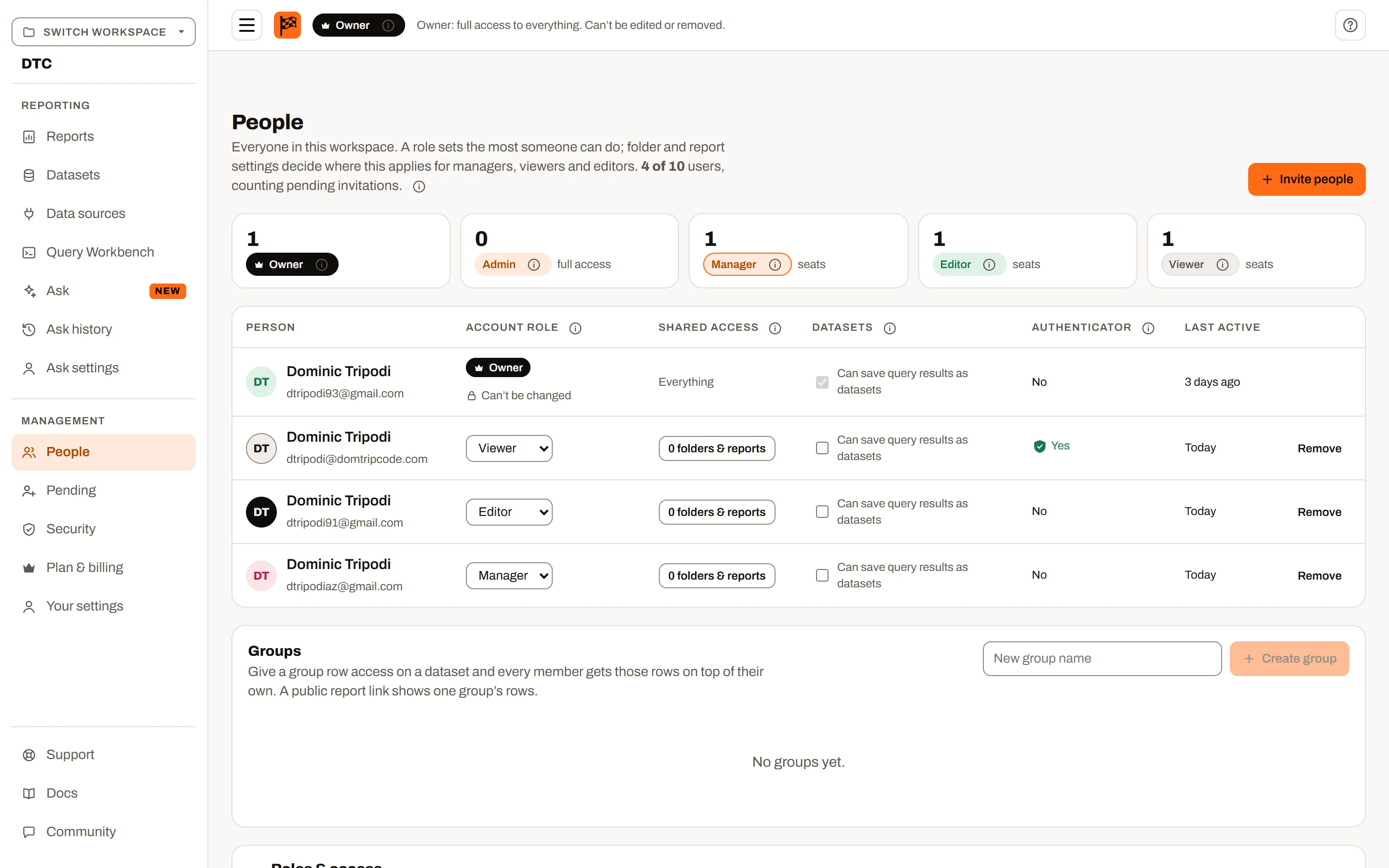
The People page: the stats row and the people table.
What everyone sees#
- A heading explaining that a role sets the most someone can do, and folder and report settings decide where it applies.
- Leave this workspace (for everyone except the owner). See Leaving a workspace.
- A row of counts: the Owner (always 1), Admins ("full access"), Managers, Editors and Viewers ("seats"), and, when there are any, Guests ("no seat"). Each role chip has an info tip explaining it.
- The people table, with these columns:
- Person — name and email address.
- Account role — the person's role. The owner's row says "Can't be changed"; your own row says "That's you".
- Shared access — "Everything" for the owner and admins; for others a button such as 3 folders & reports, which opens a list of what's been shared with them, each with a Manage button that opens that item's Share dialog. If nothing is shared yet: "Nothing has been shared with this person yet. Open a folder or report and use Share to give access." For a guest: the number of reports shared with them by email.
- Datasets — a Can save query results as datasets checkbox for each member. It's ticked and can't be changed for the owner and admins, who always can. For everyone else it's off until the owner or an admin ticks it. Invited people and guests show "—". See Saving query results as datasets.
- Last active — "Today", "Yesterday", "N days ago" (under 30 days), otherwise the date; "—" if never.
- The Roles & access reference at the bottom (closed until you open it): the capability table above, the rules for how roles and sharing combine, and a worked example.
Managers, Editors and Viewers also see the note "Only admins and the owner can invite, remove or change people. You can see who's in the workspace." They see only members — not pending invitations or guests — and no user count.
What the owner and admins also see#
- The user count: "N of M users, counting pending invitations." (A pending invitation holds a seat until it is accepted or cancelled; guests take no seat.)
- Invite people (disabled while the workspace is full).
- Invited people in the table, marked "Invited · Pending", with a role picker for the role they'll join with.
- Guests, marked "Shared by email · takes no seat".
- Actions on each row: Remove (members), Cancel invite (invited people), Remove all shares (guests).
- A note when invitations are waiting, linking to the Pending page.
- The Groups panel (see Groups).
Inviting people#
Only the owner and admins can invite. Click Invite people on the People page or on the Pending page.
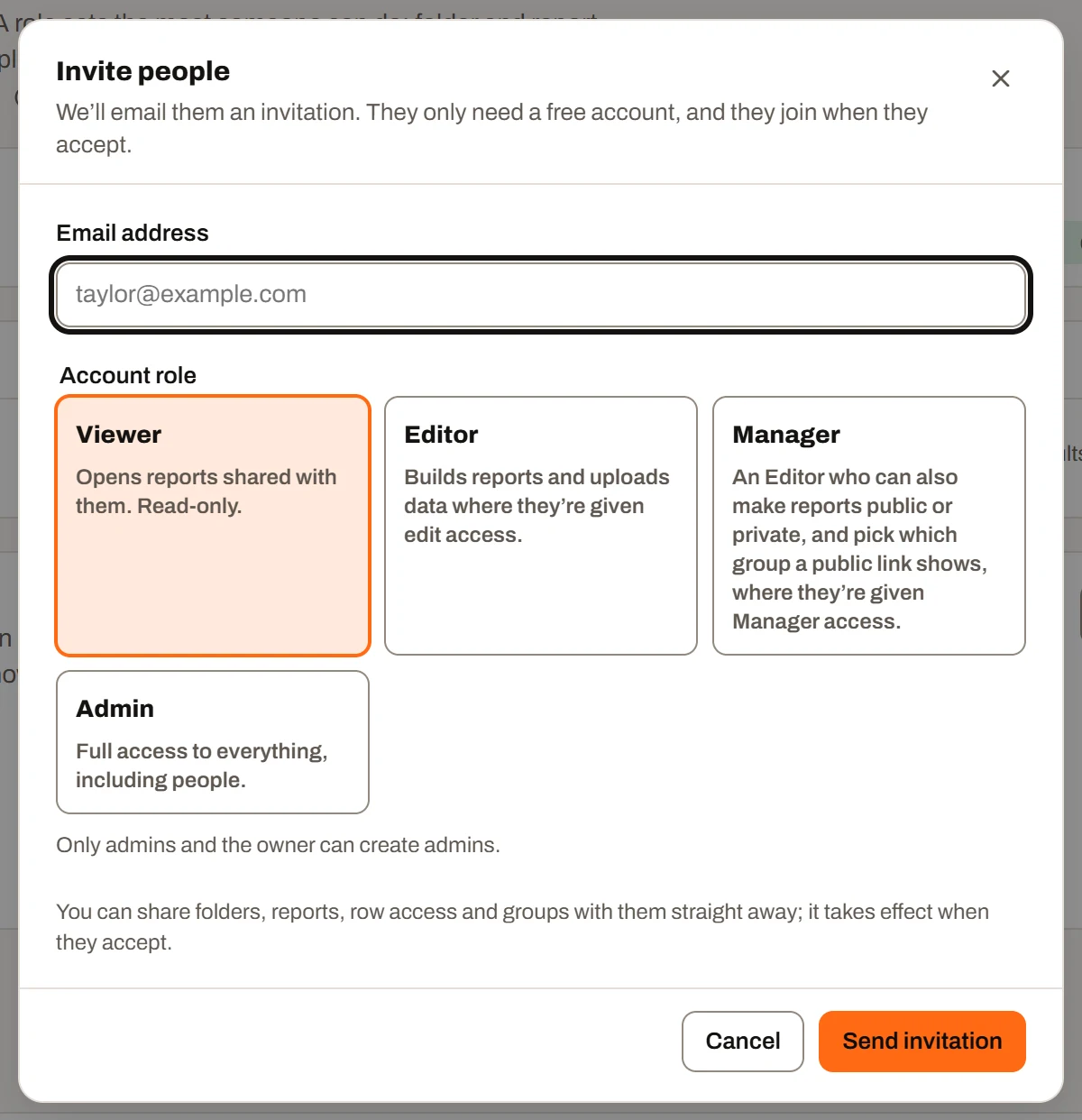
Invite people: the email address and the four role cards.
- Type the person's Email address. They don't need an account yet.
- Choose an Account role from the four cards:
- Viewer — "Opens reports shared with them. Read-only." (selected by default)
- Editor — "Builds reports and uploads data where they're given edit access."
- Manager — "An Editor who can also make reports public or private, and pick which group a public link shows, where they're given Manager access."
- Admin — "Full access to everything, including people."
- Optionally, under Start them with access to (optional), pick a folder and a level (Viewer, Editor or Manager). The level is capped by the role: a Viewer can only get Viewer, and Manager access needs the Manager role. This option only appears on Plus and Ultimate workspaces that have folders, and not when inviting an Admin (admins see everything anyway).
- Click Send invitation.
The app reports either "An invitation was emailed to address. They join when they accept it" or, if the email couldn't go out, "address was invited, but the email couldn't be sent. Send it again from Pending". The invitation is saved either way.
How invitations work behind the scenes#
- An invitation holds a seat from the moment it's sent. It counts towards the workspace's user limit until it's accepted (it becomes a member) or cancelled/declined (the seat is freed).
- You can set things up before they join. The invited address gets a permanent identity straight away, so you can share folders and reports with it, give it row access and add it to groups before the person accepts — or even before they register. It all takes effect when they accept.
- Invitations don't expire. They wait until accepted, declined or cancelled.
- Re-sending: inviting the same address again re-sends the email (and can change the role). If the last email failed, you can send it again at once; if it was sent, you must wait 10 minutes. No more than 5 emails a minute can go from you to the same address.
Why an invitation can be refused#
| Message | Why |
|---|---|
| "Enter a valid email address." | The address has no @, contains a space, or is over 255 characters. |
| "That person is already in this workspace." | The address belongs to the owner or a current member. |
| "This workspace is full: its limit is N users, counting pending invitations. …" | No seat is free. See When the workspace is full. |
| "That email was sent a few minutes ago. You can send it again in N minutes." | The 10-minute wait between emails. |
| "Too many emails to that address in the last minute. Try again shortly." | More than 5 emails a minute to one address. |
| "What this person could open before is still being deleted. Try again in a moment." | The person was recently removed, left, declined or had an invitation cancelled, and their old access hasn't been cleared yet. It is cleared automatically when the owner or an admin opens the workspace (opening the invite dialog does it too); then try again. |
| "Only the workspace owner or an admin can invite people." | Your role doesn't allow it. |
What the invitee sees#
- An email, "Inviter invited you to Workspace on Insight FastPass", saying which role they were invited as.
- If they already have an account, the email links to their settings, where the invitation waits.
- If they don't have an account, it explains that a free account is all they need ("this workspace's plan covers what you do in it") and links to the registration page. They must register with the same email address the invitation was sent to.
- "If you weren't expecting this, you can ignore this email and nothing will change."
- A notification in the app. A number appears on Notifications in the left-hand menu. On the Notifications page: "Inviter invited you to join Workspace. You'd join as a viewer/an editor/…. It costs you nothing: the workspace's plan covers what you do in it." with Accept and Decline buttons. If the person has no workspace at all, the Reports page also mentions waiting invitations.
Accepting and declining an invitation#
- Accept — you become a member with the invitation's role straight away, and the workspace appears in your workspace switcher ("You joined Workspace. Pick it under Your workspaces to switch to it."). If reports from that workspace had been shared with you by email as a guest, those individual shares are removed — as a member you reach them through your role and the sharing already set for you.
- Decline — the invitation is removed and its seat freed. Anything shared with you ahead of time is cleared.
If the workspace's user limit was lowered after you were invited (a downgrade, or extra users removed) and it's now over its limit, accepting is refused with "That workspace has no room for more people right now. Ask its owner to add users, then accept again." The invitation stays, so you can accept later.
If an invitation was cancelled before you answered: "That invitation is no longer available."
The Pending page#
Pending is in the left-hand menu for the owner and admins only (others who open it see "Only admins and the owner can see what this workspace has pending."). It lists what this workspace is waiting on other people for; each row shows whether its email went out.
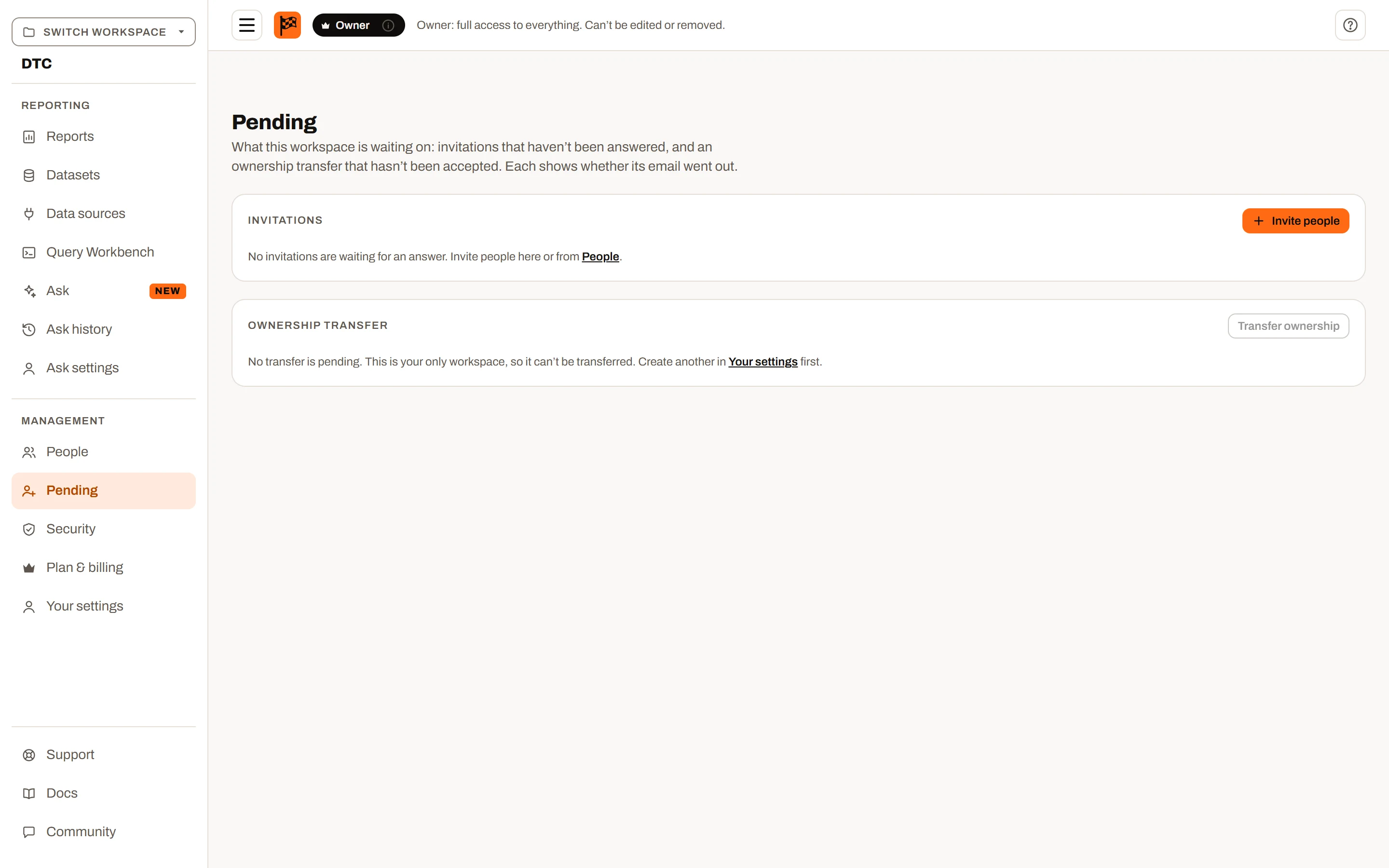
The Pending page: invitations and transfers waiting for an answer.
Invitations (owner and admins):
| Column | What it shows |
|---|---|
| The invited address. | |
| Invited as | The role they'll join with. Change it here at any time: no email is sent, and they get the new role when they accept. |
| Invited by | Who sent the invitation last. |
| Email status | "Email sent date, time", "Email failed to send", or "Email not sent yet". |
| Actions | Send email (never sent or failed), Send again (sent; available 10 minutes after the last send), shown as Send again in N min while waiting; Cancel to withdraw the invitation. |
There's also an Invite people button (disabled when the workspace is full, with a note linking to Upgrade).
Ownership transfer (owner only): either "No transfer is pending" with a Transfer ownership button, or "Waiting for name to accept — you stay the owner until they do" with Send again and Cancel transfer. See Workspaces.
Pending in both directions#
- Things this workspace is waiting on (invitations it sent, an ownership offer it made) are on the Pending page.
- Things waiting on you (invitations to other workspaces, workspaces offered to you) are on Notifications, with the count shown on it in the menu. Ownership offers you've made also show in Your settings → Your workspaces.
Cancelling an invitation#
From Pending (Cancel, which takes effect immediately) or from the invited person's row on People (Cancel invite, which asks first: "The invitation link will stop working, and the sharing settings, row access and group places given to them ahead of time will be cleared."). The seat is freed at once.
Changing roles#
The owner and any admin can change a member's role from the Account role picker in their row on People. The change saves immediately ("Name is now an Editor") and reaches the person's open session within about a minute.
- The owner's role can't be changed, and no one changes their own role on this page.
- Any admin can make someone an admin, or demote another admin.
- For an invited person, the picker changes the role they'll join with (no email is sent).
- Changing someone's role doesn't change what's been shared with them; it only changes the ceiling. For example, demoting an Editor to Viewer makes all their shared folders view-only.
Saving query results as datasets#
On Plus and Ultimate, query results can be saved as a new dataset that other reports use and that refreshes on a schedule. The owner and admins can always do this. Anyone else needs the Can save query results as datasets permission in that workspace.
To give or take it away, the owner or an admin ticks or clears the Can save query results as datasets checkbox in the person's row on People. It saves straight away ("Name can now save query results as datasets") and reaches their open session within about a minute.
- It's off by default for every new member, and it applies to this workspace only.
- Changing someone's role keeps the permission as it is. Making someone an admin means they can save anyway; if they're later demoted, the box shows what it was before.
- A saved query dataset refreshes as the person who saved it, with the rows they can see at that moment. If they leave the workspace, or lose the permission without being an admin, or the plan no longer stores datasets, its refreshes stop. The dataset keeps its last rows and shows "Refresh paused" with the reason. An admin can take it over to run it as themselves.
Removing people#
The owner and admins can remove anyone except the owner (including other admins). Click Remove in the person's row and confirm. The dialog explains: "They'll lose access to this workspace and their sharing settings, row access and group places will be cleared. Reports and datasets they made stay in the workspace."
What happens:
- Their folder and report sharing, row access rules and group places are cleared.
- They are taken out of the workspace, and their session loses it within about a minute.
- If you had offered them ownership of the workspace, that offer is withdrawn.
- Their seat is freed.
To bring them back, send a new invitation.
Guests aren't members, so they have Remove all shares instead: "They lose the reports shared with them by email at once, and their row access and group places here will be cleared."
Groups#
Groups are named sets of people. Share a folder or report with a group (in the Share dialog, under Add people or groups, see Sharing) and every member gets that access, capped by their own role; give a group a row access rule on a dataset and every member gets those rows on top of their own; a public report link shows one group's rows. Only the owner and admins see and manage groups, in the Groups panel on the People page. Anyone who can share an item sees the groups by name and size in the Share dialog, but not who is in them.
Each group's row says how many members it has and, once it has been given access somewhere, "Access to Finance (Editor), Q3 close (Viewer)": the folders and reports it is set on, with its level.
- Create: type a New group name (up to 80 characters) and click Create group.
- Add a member: use the Add member… picker on the group's row. You can add Managers, Editors, Viewers, guests and invited people. Owner and admins can't be added (they see every row anyway). When everyone's in, the picker reads "Everyone is in". A guest in a group gets its row access rules but never its folder and report access: guests see only the reports shared with them by email.
- Remove a member: click the X next to their name. They lose the folders, reports and rows the group gave them at once, including a report they have open.
- Rename: click Rename, type the new name, click Rename.
- Delete: click Delete and confirm. "Its members lose the folders and reports shared with this group and the rows it gave them, on every dataset. Any public link that uses this group will show no filtered rows. People stay on the account with their own access."
Changes save immediately. Someone who has left shows as "Former member N" until removed from the group.
Plan availability: groups are part of Plus and Ultimate. On Free and Mini the panel shows "Groups are part of the Plus and Ultimate plans." and the create box is hidden. After a downgrade to Mini, existing groups can still be deleted and members removed, but not created, renamed or added to, and the purge 30 days later removes them, with the folder and report access given to them. A move from Ultimate to Plus keeps them.
How access adds up#
Below the Groups panel on the People page, the owner and admins choose how access set on a report combines with access set on the folders above it, for everyone in the workspace:
- Nearest grant decides (the default): "Access set on a report or subfolder overrides what the folders above it give, up or down, so you can give someone less in one place."
- Highest grant counts: "Each person gets the highest access set for them or their groups on the report or any folder above it, so nothing set lower down can take access away."
The panel's example: a Viewer grant on a report and an Editor grant on its folder: Nearest gives Viewer; Highest gives Editor. On the same report or folder, a person's own access and their groups' always add up to the highest, whichever rule is chosen, and a person's seat still caps what they get.
The change saves when you pick an option and applies at once, including to reports people have open. Only the owner and admins see the panel; it is shown on Plus and Ultimate, where folder and report access exists. On Free and Mini it is hidden, and the choice made earlier is kept for when the workspace moves back.
User limits and extra user packs#
Each workspace can hold a limited number of users. Users = the owner + every member + every pending invitation. Guests (people with a report shared by email) never count.
| Plan | Users included | Extra user packs |
|---|---|---|
| Free | 1 (just the owner) | Not available |
| Mini | 2 | +10 users per pack |
| Plus | 5 | +10 users per pack |
| Ultimate | 10 | +10 users per pack |
- Each extra user pack adds 10 users and costs $50 a month. A workspace can have up to 100 packs.
- Packs are available on paid plans only. Moving a workspace down to Free removes all its packs.
- Only the owner can add or remove packs, on the Upgrade page (Increase limit by 10 users · $50 / month).
- The owner and admins see the count ("N of M users, counting pending invitations") on the People page; everyone sees it on the Upgrade page of a paid workspace.
When the workspace is full#
When the user count reaches the limit:
- Invite people is disabled on People and Pending.
- The owner and admins see: "This workspace is full: its limit is N users, counting pending invitations." The owner is told to upgrade the plan (on Free) or "change the plan or increase the limit by 10 users" in Upgrade; admins are told to ask the owner.
- Re-sending an existing invitation still works (it already holds its seat).
To make room: cancel pending invitations, remove members, move to a bigger plan, or (on a paid plan) add an extra user pack.
Lowering the limit is refused while it would leave the workspace over it. A downgrade, removing a pack, or choosing a smaller plan when accepting an ownership transfer is stopped with "This workspace has N users, counting pending invitations, and that change allows M. Remove X people or invitations first." Nobody is ever removed automatically. If a workspace does end up over its limit, existing members keep working, but accepting an invitation is refused until there's room.
Plan limits summary#
| Feature | Free | Mini | Plus | Ultimate |
|---|---|---|---|---|
| Users (owner + members + pending invitations) | 1 | 2 | 5 | 10 |
| Extra user packs (+10 users, $50/month each) | No | Yes | Yes | Yes |
| Invite people | No room (owner only) | Yes | Yes | Yes |
| Roles available | Owner only in practice | All | All | All |
| Starting folder access in the invite dialog | No | No | Yes | Yes |
| Share folders and reports with members | No | No | Yes | Yes |
| Groups | No | No | Yes | Yes |
| Row access | No | No | Yes | Yes |
| How access adds up (Nearest or Highest grant decides) | No | No | Yes | Yes |
| Guests (reports shared by email) | No | No | No | Yes |
The user limit is checked by the server as well as the app. Sharing, groups and row access are refused by the server on plans without them, not just hidden.