
Docs › Build reports
Saved reports
The Saved reports page is your workspace's library of reports, organised in nested folders. From here you create reports, open them, and rename, move, duplicate, share and delete them. This guide also covers what saving a report keeps, and what happens when you reopen one.
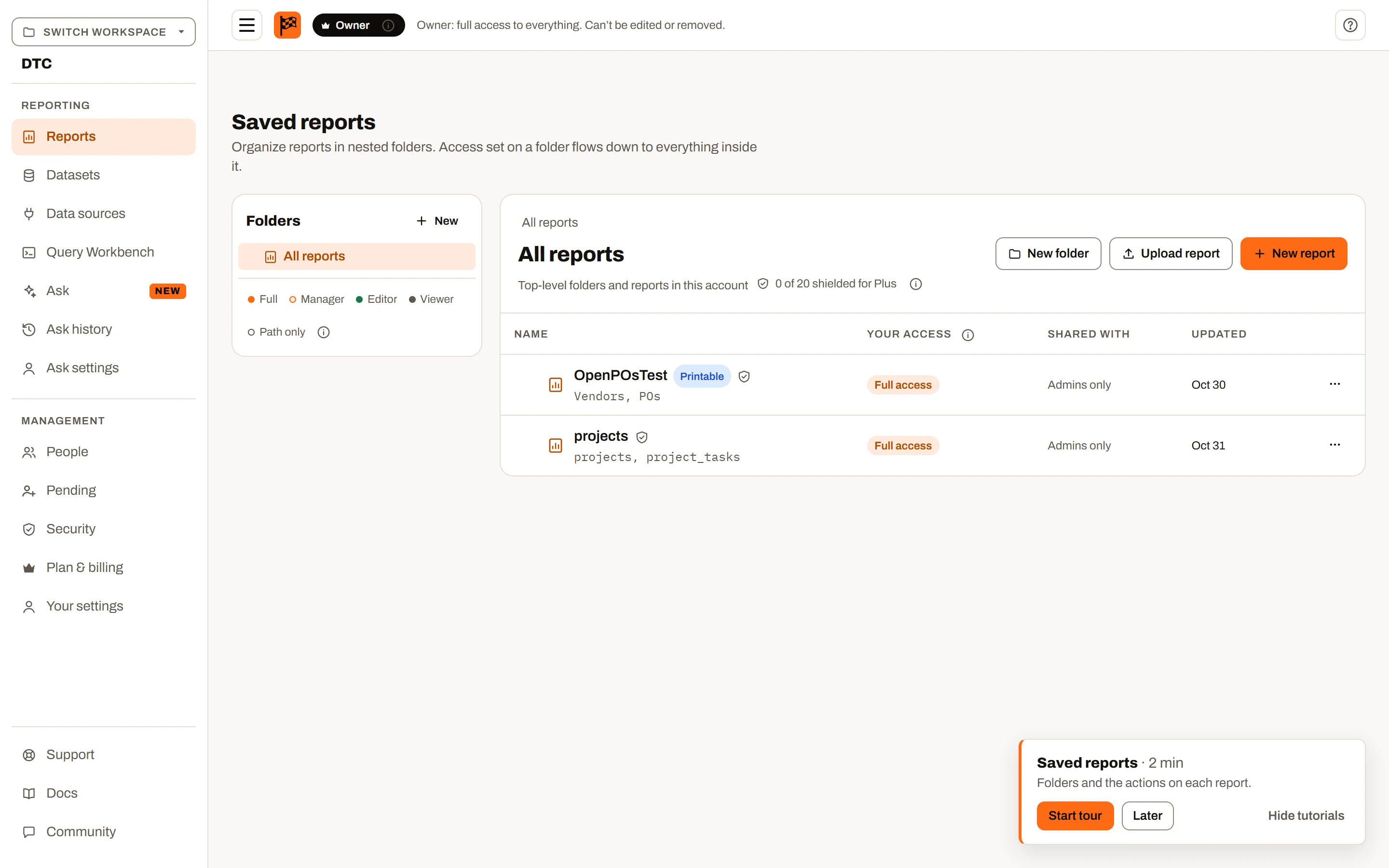
A workspace, signed in: the switcher and the sections on the left, your role in the top bar, and the Saved reports page.
The page at a glance#
- Folders tree on the left: New (a top-level folder), All reports, Favorites when you have starred any reports (see Favorites), your folders (click the caret to expand; the number beside a folder is how many reports are in it, subfolders included), then Shared with you when anything is shared with you. A legend explains the coloured dots: Full, Manager, Editor, Viewer and Path only ("You can see this folder because something inside it was shared with you. The folder itself isn't.").
- The open folder on the right: a path of links (All reports / Finance / FY2026), the folder's name, your access and who it is shared with ("Shared with 3 people", or "Admins only"), then Share folder, New folder, Upload report and New report.
- A table of the folder's subfolders and reports: Name (a star before a report's name adds it to your favorites; a report also lists its datasets; a folder its report count; a Public pill marks a report anyone with its link can open), Your access, Shared with (up to 4 avatars and "+n"), Updated, and an actions button (three dots).
- An empty folder reads "This folder is empty. Add a report or a subfolder to get started." (or "Nothing here is shared with you yet." if you can't add to it).
The page follows the URL, so a folder can be bookmarked or shared as a link.
Banners. Above the table you may see:
- "You don't have access to folder itself. You can see it because something inside was shared with you."
- "Your editor access comes from parent folder and applies to everything inside it."
Actions menu. The three-dots button, or right-clicking a row or a folder in the tree, opens: Open, Add to favorites / Remove from favorites (reports), Share & permissions, Make public / Make private (Ultimate, with Manager access), Rename, Move to…, Duplicate, Download (.ifpr) (Plus and Ultimate) and Download definition (.json) (reports), and Delete. Options you can't use are greyed out. The menu closes on scroll, resize, Escape or a click elsewhere.
The page has two other forms:
- Shared Reports (picked in the workspace switcher): reports shared with you by email from workspaces you aren't part of. See Sharing.
- No workspace ("You have no workspaces assigned to you"): a form to create one (it starts on the Free plan), a pointer to invitations waiting in Your settings, and a link to Shared Reports when you have any. See Workspaces.
On the Free plan#
The Free plan saves nothing, so the page shows:
- A New report button above the heading, with "Upload spreadsheets and build a report. Nothing is saved on the Free plan; upgrade to keep reports here." It opens the Free-plan builder (see The report builder).
- A greyed-out example of folders and reports under "An example of saved reports. Saving reports is not available on the Free plan; yours appear here on Mini, Plus and Ultimate." It isn't real data and can't be clicked.
- Shared with you, which still works.
Creating a report#
- Open the folder the report should live in (or All reports for the top level, owner and admins only).
- Click New report. It is greyed out if you can't add to this folder or the plan doesn't save reports.
- In New report (the subtitle says where: "At the top level" or "In Finance / FY2026"):
- Report name. Left empty, it becomes "Untitled report".
- Kind: Dashboard or Printable report.
- Start from: Blank report to begin with, which needs nothing more: one empty page to build on, with datasets added later from the builder's Data pane. For a dashboard it also offers With data, Spreadsheets (the same, with the spreadsheet drop area open) and From a Power BI report (.pbit or .pbip), which opens the file in Upload report (see Import from Power BI). For a printable report, see Printable reports.
- Pages for new datasets (a dashboard): A page for each dataset (the default) or No pages. The report keeps this for datasets you add later.
- Data (once Start from takes data): a checkbox for each place data can come from, shown only when you have something there. Tick one to pick from it:
- Datasets: the workspace's datasets. Click the picker and type to search; tick as many as you like. Each shows its rows, or "no data: you'll choose the file" when its rows aren't stored, and its column count.
- Linked data (Plus and Ultimate, once the workspace has a data source): the live datasets a data source fills, and New from a data source…, which opens the data source query dialog. The dataset it makes is saved in the workspace straight away, and ticked here; it stays in the workspace even if you cancel New report. To read with a query text that isn't approved yet, the dialog's Write a query text… opens the data source's page, where texts are written and sent for review.
- Spreadsheet (editors and up): drop files or browse (XLSX, XLSM, XLS, CSV or TSV). Each file is read in your browser ("Reading file…") and nothing is sent yet: the file is listed with each of its tabs under it, as "n rows · n columns · not saved yet", under a name no workspace dataset has (
Orders 2whenOrdersis taken). The first file's name fills an empty report name.
- What you pick is listed under its source. The trash can (Remove from this report) takes it out of this report only: it never deletes anything from the workspace. On a file's row it removes all of its tabs. On a dashboard each row has Create a page for this dataset, which starts at Pages for new datasets until you change it.
- Unticking a source hides it, and what you picked there isn't used; tick it again before you close the dialog and your picks are back.
- On Plus and Ultimate, once a spreadsheet is picked, Data to keep says what happens to it when you create the report: Save the data to the workspace (the default: each tab is uploaded as a dataset with its rows) or Don't save the data (nothing is uploaded; the rows stay in your browser for this report). Once the plan's saved datasets are used, only Don't save the data is open. On Mini the files' data is never saved.
- On Mini a report can use up to 10 datasets: once 10 are picked, the rest are greyed out with the reason, and tabs past it are left out.
- Click Create report ("Loading data…" while files upload and rows load). It waits while Start from takes data and nothing is picked.
The builder opens with a starting page for each dataset whose Create a page for this dataset is on (see The report builder), or with one empty page when none is, plus any connections set between those datasets on the Datasets page.
Adding a dataset later. The builder's Add dataset (on the Data pane) has the same Create a page for this dataset, starting at the report's Pages for new datasets, which you can change there too.
The report isn't created until you click Save. If you leave or reload first, nothing is kept and nothing counts toward your report limit.
Saving: what is kept#
Click Save (or Ctrl+S) in the builder. The first save creates the report in its folder ("Report saved to your account"); later saves read "Report saved".
A save keeps the report's definition:
- the report name, pages and their order, and which page was open
- every visual: position, size, dataset, fields, settings, colours and fonts
- page filters and Filter visual selections, and each visual's "Show only rows where" conditions
- the theme, connections, column renames, aliases and type changes, snapshot column and window choices, and the report's copies of calculated fields and Summary Calculations
It does not keep:
- Rows. Rows live in the workspace's datasets, not in the report. Whether they are stored depends on the plan (below).
- Edits made to rows in a grid inside the builder.
- Click-selections that filter the page.
- The undo history.
Rows by plan:
| Plan | Rows of the report's datasets |
|---|---|
| Mini | Never stored. Each time the report opens you pick each dataset's file again. The toast after saving adds "Reopen it with spreadsheets whose column headers match", and an info tip beside Save warns that "a visual that reads a renamed or missing column has nothing to show". |
| Plus | Stored for up to 10 datasets in the workspace; any more keep only their columns and are read from files like Mini. |
| Ultimate | Stored for up to 50 datasets. |
Two people at once. Saving takes a short lock on the report. If someone else is saving at that moment you see "Name is editing this report"; if someone saved or renamed it after you opened it, "Someone saved this report since you opened it. Reopen it to see their changes." Your changes stay on screen but aren't saved; copy what you need, then reopen.
Report limits#
| Plan | Saved reports per workspace |
|---|---|
| Free | 0 (nothing is saved) |
| Mini | 10 |
| Plus | 20 |
| Ultimate | No limit |
How the limit works:
- It counts every report in the workspace, whoever made it. Deleted reports don't count.
- It applies when a report is created: the first save of a new report, and Duplicate. Saving changes to an existing report, renaming and moving always work.
- The app doesn't check the limit before you save, and doesn't show how many reports you have. You find out only when the server refuses:
- Saving a new report in the builder shows "Your plan doesn't include saving reports". The report stays on screen, unsaved.
- Duplicate shows "plan: the plan allows 10 reports" (or 20).
- To make room, delete reports you no longer need, or upgrade (see Plans and limits).
Opening a saved report#
Click a report's name, or Open in its menu. A report you can't open (you only see its folder path) is greyed out.
The builder opens full height under a strip with: a back button (Saved reports, or Shared with you / Shared Reports when you came from there), where the report lives (Finance / FY2026 or Top level), your access chip, and, when it applies:
- "Read-only: filters work; changes aren't saved to the account." for viewers.
- Filtered to your row access, whose tip names the datasets you see only some rows of ("You see only the rows assigned to you in: …") or none of ("No rows are assigned to you in: …. Ask an admin for access."). See Datasets.
"Opening the report…" shows while it loads. A ?bookmark= in the address (from a link copied in the Share dialog or a bookmark's Copy link, see Sharing reports) opens that bookmark's page first. Possible errors: "You don't have access to this report.", "This report doesn't exist any more.", "This report is no longer shared with you." (guests), "The report couldn't be opened. Try again in a moment.", each with Back to saved reports.
Other people's changes to the report's stored datasets arrive while it's open, with a notice in the bottom right corner.
Supplying spreadsheets when rows aren't stored#
When some of the report's datasets keep only their columns (all of them on Mini; past the first 10 on Plus), the builder waits for their files: Choose the files for this report, "This account's plan keeps report layouts, not the rows. Pick the file each dataset came from; it's read in your browser and not uploaded." On a plan that keeps rows (Plus and Ultimate: a dataset added without saving its data, or saved before an upgrade from Free or Mini) the message is instead "These datasets were saved without their rows. Pick the file each one came from; it's read in your browser. When you save the report you can choose to save their rows too, so it won't ask again." See Saving a report with data that isn't saved.
- Click Choose file beside each dataset ("Reading…" while it reads), or drop a file straight on a dataset's box: that file is used for that dataset.
- Or drop several files at once on Drop the files here, or browse above the list. They are read in your browser, and each dataset's box gets a list of every tab of those files ("file · tab (n rows)"); tabs missing one of the dataset's columns are listed greyed, with the columns they lack. Each dataset starts with the best fit picked (the tab named after it, else the first with all its columns); change any of them, then click Use the picked files (n).
- The app uses the tab named after the dataset, otherwise the first tab that has every column the report expects.
- If no tab has them all: "file doesn't match dataset. Missing columns: …". Extra columns are fine.
- Once every file is in, the report opens. Files are read in the browser and never uploaded; you pick them again next time.
Viewers get the same panel. Afterwards, a viewer can load a newer file for any of those datasets with Import data in the toolbar; the toast says which file loaded, or which columns were missing.
Saving a report with data that isn't saved#
On Plus and Ultimate you can build a report without saving its data to the workspace: choose Don't save the data when you add a spreadsheet in New report or with Add dataset. Nothing is sent to the workspace then: each tab is in the report from your browser only, and the Data pane marks it Not saved. Its dataset is made when you save the report: with its rows if you use Save with data and tick it, otherwise with its columns only (a no-data dataset). If you leave without saving, nothing is kept. (On Mini a spreadsheet added this way is always saved with its columns only.)
If a dataset with the same name was added to the workspace in the meantime, the save stops with "The workspace has a dataset named name now, so this report's name can't be saved under that name. Remove it from the report and add its spreadsheet again."
Save saves the report alone and never asks about the data. While any of the report's data is only in your browser (these datasets, a saved report's no-data datasets once you've picked their files, or a printable report's spreadsheets held in memory), a Save with data button sits beside Save, after every save and each time the report is opened. It opens Save with data, listing those datasets:
- Tick the ones whose rows to save to the workspace with the report, then Save report and n datasets. The toast says "Report saved, with the rows of …", and the report stops asking for their spreadsheets. Once every dataset's data is saved, the button goes.
- Cancel saves nothing.
Nothing is ticked to start with. A dataset can't be ticked while its rows aren't loaded ("Pick file again to save its data.") or when someone else uploaded it and you aren't an owner or admin ("Only its uploader or an admin can save its data."). On Plus the dialog says how many more datasets the plan can save the data of, and no more than that can be ticked. Datasets left unsaved keep only their columns, and the report asks for their spreadsheets each time it opens ("Reopen it with spreadsheets whose column headers match"). Save as… saves the copy without its data; use Save with data on the copy.
"Saving the report…" covers the page while it saves.
Saving a report built on the Free plan after upgrading#
If you built a report in the Free-plan builder and then upgrade, Save saves it to your workspace (each spreadsheet becomes a dataset, and the report opens there). Save saves each spreadsheet with its columns only; on Plus and Ultimate Save with data lets you pick spreadsheets whose rows to save too, as above. Those not saved keep only their columns, but the report opens with the rows you had loaded, so it doesn't ask for the files this time; it asks the next time you open it.
A dataset that shows no rows because row access gives you none opens empty rather than asking for a file.
The large dataset prompt#
Before loading a stored dataset with more than 500,000 rows (that you can see), with no snapshot window set, the app asks: "Dataset is large. This dataset has 1.9 million rows across 48 snapshots. Loading all of it may take a while."
- Load the last n weeks / months / years, then Load these (snapshot datasets only; default 12 weeks): loads only those snapshots and saves the choice with the report (the report is marked Unsaved so Save keeps it; change it later under Load in the Data pane).
- Purge old snapshots… (people who can change the dataset): stops opening and goes to the dataset's retention rule on the Datasets page.
- Load everything: loads it all; not asked again for that dataset in this browser session.
- Cancel (or closing): stops opening and goes back.
Viewers and guests#
- Viewers (or anyone with view access to the report): Dash view only; Export and Print (or Import data where files are read). Filters and clicks work, nothing is saved.
- Guests (shared by email from another workspace): read-only, Print only; the strip reads "Shared with you by name · workspace" and offers Remove from Shared Reports. See Sharing.
Renaming a report or folder#
Rename in the menu (needs edit access; not on Free) opens Rename report / Rename folder; type and Save (or Enter). Toast: "Renamed".
You can also rename a report by typing in its name in the builder and saving. Renaming from this page saves a new version of the report; if someone has the report open, their next save gets "Someone saved this report since you opened it…".
Moving a report or folder#
Move to… opens Move "name" ("It takes on the sharing of its new folder. Access set directly on it stays."):
- Pick a destination. Top level is for the owner and admins only ("· admins only"). Folders you can't edit show "· no edit access"; a folder can't move into itself or its subfolders.
- Move here. Toast: "Moved to folder" / "Moved to the top level".
Needs edit access on the item and on the destination.
Uploading a report#
Upload report (beside New report) saves a report file from your computer as a new report in the open folder, on the website and in the desktop app. Choose the file, and the Upload report dialog says what it holds:
- An
.ifpr(from Download (.ifpr), the builder's Download report (.ifpr), or the desktop app) or an older package file: "a report with its data". Each dataset is offered Upload its n rows as a new dataset. A dataset already in the workspace under the same name is offered too (Use name in the workspace), as is Columns only. - A definition (
.report.json, from Download definition (.json)): "a report definition with no data". Pick the workspace dataset each of the report's datasets reads; one with the same name is picked for you. Columns only makes an empty dataset with its columns, and the report asks for the spreadsheet each time it opens (see Supplying spreadsheets). - An SSRS report (
.rdl, with its subreports and shared files, or a.zipof them): "an SSRS report converted to a printable report". Pick the datasets it reads, as for a definition, and read the Conversion notes the dialog lists. - A Power BI template (
.pbit), or a Power BI project (its folder, or a.zipof it): "a Power BI report converted to a dashboard". Each dataset says where Power BI read its rows; pick the workspace dataset it reads, or keep its columns and set it up later. The dialog lists the Conversion notes, with Download notes. A.pbixis refused with the steps that save it as a template. See Import from Power BI.
The report name starts as the file's report name, numbered when the folder has one already (Sales (1)). Upload report saves it and opens it.
By plan:
| Mini | Plus | Ultimate | |
|---|---|---|---|
| Upload a definition (.json) | Yes | Yes | Yes |
| Upload a report with its data (.ifpr) | Yes, columns only (Mini keeps no rows) | Yes, rows kept for up to 10 datasets | Yes, rows kept for up to 50 datasets |
| Upload an SSRS report (.rdl) or a Power BI template (.pbit / .pbip) | Yes, columns only | Yes | Yes |
Past the plan's stored datasets, a new dataset keeps its columns only, and the dialog says so. The report counts toward the plan's saved reports. It needs edit access to the folder (owner or admin at the top level). Summary Calculations the report brought with it stay in the report.
Downloading a report#
A report's actions menu downloads it without opening it, on the website and in the desktop app (which asks where to save):
- Download (.ifpr) (Plus and Ultimate): the report with the data it reads, in one
.ifprfile the desktop app opens, and Import… in the builder reads. It holds only the rows you can see. Toast: "“name” downloaded". - Download definition (.json) (Mini, Plus, Ultimate): pages, visuals and filters with no data, as
<report name>.report.json. Toast: "“name” definition downloaded".
Both need access to open the report. The same two downloads are in the open report's Export menu (see The report builder).
Duplicating a report#
Duplicate saves a copy of the report's saved definition, named "name (copy)", in the same folder. Toast: "Report duplicated".
- Needs edit access to the folder (owner or admin at the top level) and a plan that saves reports.
- It copies the last saved version, not unsaved changes on someone's screen.
- The copy points at the same datasets; no data is copied.
- It counts toward the report limit (see above).
- It doesn't copy who the report was shared with or its public link setting.
Deleting a report or folder#
Delete opens Delete "name"?: "People lose access right away. Datasets are kept." For a folder it adds "This also deletes n folders and n reports inside it."
- Needs edit access to the item.
- A folder delete removes every subfolder and report inside it, and the sharing set on them.
- Datasets are never deleted with a report.
- There is no undo or bin in the app.
- Deleted reports leave everyone's Favorites.
Folders#
- New folder (in the open folder) or New in the tree (top level). Name it ("e.g. Q4 Close") and Create folder. Toast: "Folder "name" created".
- At the top level: owner and admins only; "Only admins and the owner have access until you share it."
- Inside a folder: needs edit access there; "It takes on this folder's sharing."
- Rename, move and delete folders from the menu, as above.
- Access set on a folder flows down to everything inside it, unless a subfolder or report sets its own. See Sharing and User management.
- Opening a folder expands its parents in the tree.
Favorites#
Star the reports you use most to keep them one click away. Favorites are your own: nobody else sees your list, and starring a report doesn't share it or change who can open it.
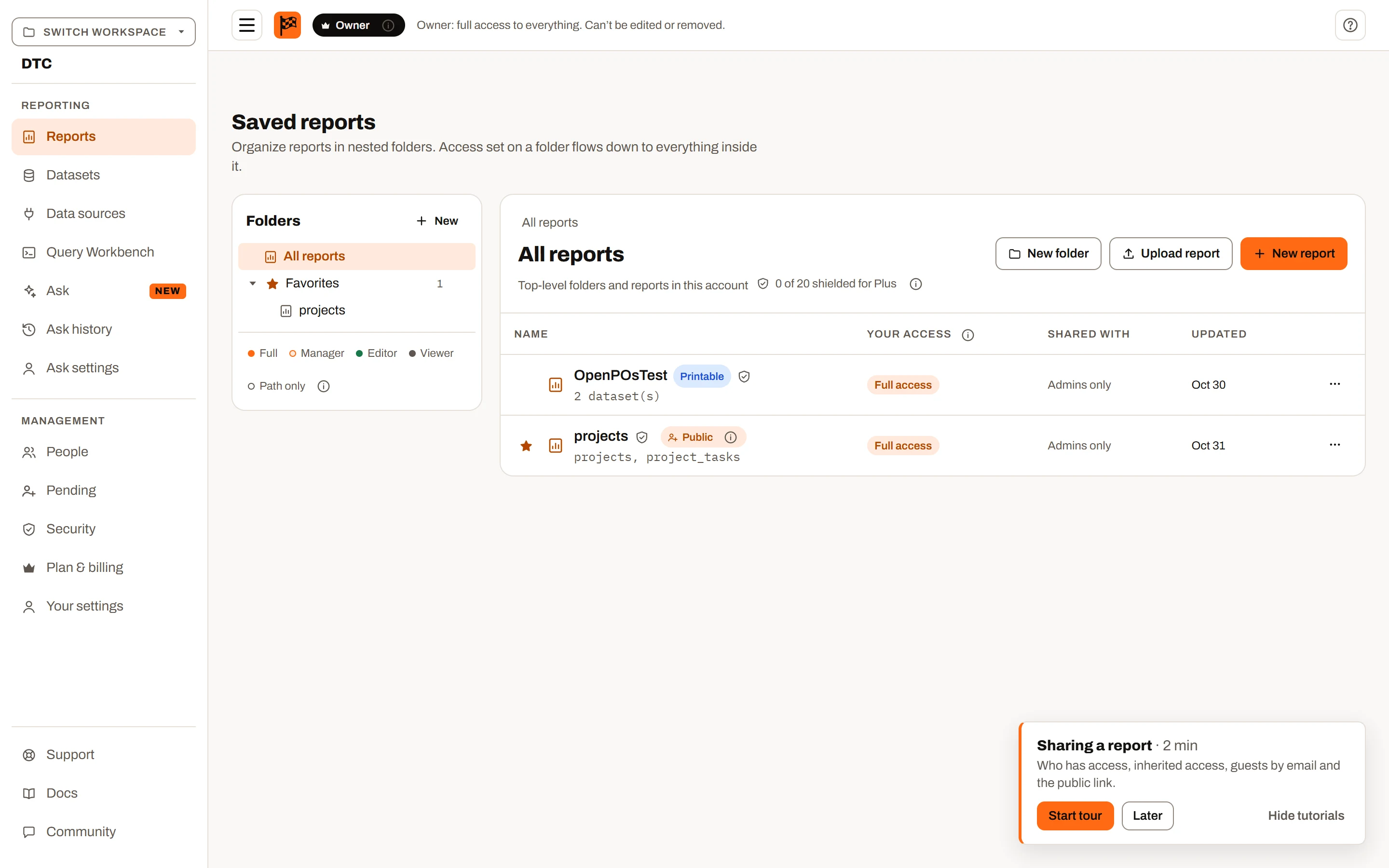
Favorites: the star beside a report’s name, and the Favorites node open above the folders.
Starring a report#
- Point at a report's row and select the star before its name. A filled star marks a favorite; select it again to unstar.
- Or open the report's actions menu (the three dots, or right-click the row) and choose Add to favorites or Remove from favorites.
- An empty star shows only while you point at the row or tab to it (on a touch screen it always shows). A filled star always shows.
- Stars appear wherever reports are listed: in a folder, under Shared with you, in Shared Reports and in the Favorites view itself.
A new favorite goes to the bottom of your list.
Favorites in the folder tree#
Once you've starred a report, Favorites appears in the tree above your folders, with the number of reports in it.
- It opens and closes like a folder: select its caret or its name. Your starred reports are nested inside it, the way subfolders are. It stays open or closed as you move around the app.
- Select a report to open it.
- The tree lists your first 10 favorites. Select Show n more under them to list the rest, and Show fewer to go back to 10.
- To take a report off the list, point at it and select the × on its right.
Opening Favorites like a folder#
To see every favorite in the main area of the page, as you would a folder's contents, point at Favorites in the tree (or tab to it) and select the magnifying glass on its right. The path reads All reports / Favorites, and Favorites is highlighted in the tree while it's open. The page's address can be bookmarked.
The table lists all your favorites, not only the first 10, in your order:
| Column | What it shows |
|---|---|
| Name | The report, with its star and a Public label if anyone with its link can open it. Select the name to open the report. |
| Location | Where the report is filed: its folder path (select it to open that folder), All reports for a report at the top level, or Shared with you for a report shared with you that's filed in a folder you can't open. |
| Your access | The most you can do with the report. See Access you'll see. |
| Updated | When the report was last changed. |
| Actions | The same actions menu as in a folder, for the workspace's own reports. Right-clicking a row opens it too. |
Unstarring a report here takes it out of the table straight away. With no favorites, the view says "You haven't starred any reports here yet."
Reordering your favorites#
Put your favorites in any order you like, in the tree or in the Favorites view:
- Drag: point at a favorite and drag it by its grip, the dots on its left. In the tree the grip sits where a subfolder's caret would be; in the Favorites view it has its own column.
- Keyboard: tab to a favorite's name and press Alt + Up or Alt + Down. The report stays selected in its new place, and screen readers announce its new position.
The tree and the Favorites view always show the same order. In the tree you can only move a report among the favorites it's listing: select Show n more first to move one further down, or use the Favorites view, which lists them all.
Your order is yours alone. Reordering never changes anyone else's favorites, even for the same reports. If a change can't be saved, your list goes back to its previous order and you see "Your favorites couldn't be saved. Try again in a moment."
Favorites in Shared Reports#
Shared Reports has its own Favorites, above the workspaces under Shared with you, for reports shared with you by email. It works the same way: star reports in its tables, open and close it in the tree, show more, reorder, and open it in the main area with the magnifying glass (the path reads Shared Reports / Favorites). Each favorite shows the workspace it comes from, and the Favorites view has Workspace and Shared on columns in place of Location and Updated.
Each workspace has its own favorites#
You keep a separate list in every workspace you work in, and one in Shared Reports. Switching workspace shows that workspace's favorites.
When a favorite disappears#
A favorite leaves your list when:
- The report is deleted, by you or anyone else. Deleting a folder removes every report inside it from everyone's favorites.
- You leave the workspace or are removed from it. Reports that are still shared with you by email stay in your Shared Reports favorites.
- A report shared with you by email is taken off your list, by you (Remove) or by whoever shared it.
- You delete your account.
While you can't open a report (for example, a share has run out or someone took away your access), it doesn't show in your favorites. If you get access again, it comes back in the same place.
Renaming or moving a report keeps it in your favorites.
Plan availability: Favorites are for saved reports, so a workspace on the Free plan, which saves none, has no favorites. Favorites in Shared Reports work whatever plan you're on.
Access you'll see#
| Chip | Meaning ("Your access" tip) |
|---|---|
| Full | Owner or admin. |
| Manager | Share, and make a report public or private. |
| Editor | Build and save. |
| Viewer | Open and filter. |
| Path only | The folder is visible only because something inside it was shared. |
Shared with you#
Under the folders, Shared with you collects everything shared with you in this workspace, wherever it's filed: one entry, "Everything shared with you", with your role and a count. Selecting it shows Name, Shared by, Updated, Your access, and Show in folder where you can open the folder. Reports open with a back button returning here.
Reports shared by email from workspaces you aren't part of are in Shared Reports instead, where you can Remove one or Remove all from Shared Reports. Details in Sharing.
Plan limits summary#
| Feature | Free | Mini | Plus | Ultimate |
|---|---|---|---|---|
| Saved reports | None (example list only) | 10 | 20 | No limit |
| Folders, rename, move, duplicate, delete | No | Yes | Yes | Yes |
| Upload report (.json definition / .ifpr with data) | No | Yes / columns only | Yes / Yes | Yes / Yes |
| Upload an SSRS (.rdl) or Power BI (.pbit / .pbip) report | No | Yes | Yes | Yes |
| Download definition / Download (.ifpr) | No | Yes / No | Yes / Yes | Yes / Yes |
| Rows stored | No | No (files picked each open) | Up to 10 datasets | Up to 50 datasets |
| New report | Free-plan builder (5 spreadsheets, nothing saved) | Yes | Yes | Yes |
| Large dataset prompt / snapshot windows | No | No | Prompt only | Yes |
| Share folders and reports with people and groups in the workspace | No | No | Yes | Yes |
| Make public / private, share by email | No | No | No | Yes |
| Shared with you / Shared Reports | Yes | Yes | Yes | Yes |
| Favorites (star, reorder, open like a folder) | Shared Reports only | Yes | Yes | Yes |