
Docs › Workspaces and people
Plans and limits
Insight FastPass has four plans (Free, Mini, Plus and Ultimate) plus a custom-build option, MVP FastPass. This page is the central reference for what each plan includes, how many people it allows, and what happens when a workspace changes plan.
Plans belong to workspaces#
A plan is attached to a workspace, not to a person. Everyone working in a workspace gets that workspace's plan, whatever plan their own workspaces are on. Someone with a Free personal workspace who is invited to an Ultimate workspace uses Ultimate features while working there, and only needs a free account to join. Each workspace is a separate subscription, and only its owner can change its plan. See Workspaces.
Every new workspace starts on Free, including the one created when you register.
The plans and prices#
| Plan | Monthly | Annual | Who it's for | Included |
|---|---|---|---|---|
| Free | $0 | — | Trying it out | Upload and explore your data; up to 5 datasets in a report; nothing is saved, so reports need to be built in each session; 1 user; 10 core visuals; 5 basic report page templates; calculated fields and Summary Calculations |
| Mini | $5 | $50 | A report you keep | Everything in Free; up to 10 datasets in a report; save up to 10 reports; up to 2 users; all 33 visual types; all basic report page templates; keep the report you built and import your spreadsheet with matching headers; edit data in the grid and export it |
| Plus | $39 | $390 | Recurring reports | Everything in Mini; save up to 10 datasets, with your edits saved; 15 GB of data storage; save up to 20 reports; up to 5 users; folder and report access per person or group (groups included); 40 report page templates; row access filtering; dataset connections; export a report with its data for the desktop app; the Query Workbench (FPQL); no limit on datasets in a report |
| Ultimate | $99 | $990 | Data you keep and share | Everything in Plus; save up to 50 datasets; 50 GB of data storage; unlimited reports; up to 10 users; sharing by email (guests) and public links; embedding reports in your own website or app; snapshot datasets; printable reports delivered by email on a schedule; Ask FastPass (100 AI insights questions per billing period); saved versions |
| Custom — MVP FastPass | Scoped project (quoted per project) | When you need more than reporting | Custom apps and workflows, approval workflows around your data, portals for your customers, and integrations beyond the Data sources add-on. Built as a separate project; see MVPFastPass.com |
Annual prices are ten months of the monthly price (two months free).
Add-ons are listed under the plans, one card each:
- Extra users: on Mini, Plus and Ultimate you can add room for 10 more users for $50 a month, as many times as you need. Not available on Free.
- Data sources: on Plus and Ultimate, connect the workspace to your own databases for $30 a month (see Connect a database).
- Storage: on Plus and Ultimate, add 50 GB of storage for $20 a month ($200 a year), as many times as you need (see Storage). Not available on Free or Mini, which store no rows.
Full comparison of what each plan can do#
This is what the app actually turns on for each plan. "/try trial" is the no-account trial at /try (see The /try trial).
| Capability | What it means for you | Free | Mini | Plus | Ultimate | /try trial |
|---|---|---|---|---|---|---|
| Save reports | Keep a report's design (pages, visuals, filters, formatting) in the workspace. On Free, a report lasts only for your browser session and the toolbar shows Sign up for Save and Export instead of Save. | No | Yes | Yes | Yes | No |
| Reports you can keep | How many saved reports the workspace may hold. | 0 | 10 | 20 | Unlimited | n/a |
| Save the data | Keep a dataset's rows in the workspace, so a report opens ready with its data. Without it, a saved report asks you to pick its spreadsheet(s) each time it opens, and their column headers must match the ones it was built on. | No | No | Yes | Yes | No |
| Datasets with saved data | How many datasets may hold saved rows. Further uploads keep only their columns, and their reports ask for the file each time. | 0 | 0 | 10 | 50 | n/a |
| Data storage | How much the saved rows of the workspace's datasets may take up, with their edit history, snapshots and indexes, plus 50 GB per storage pack (see Storage). | None | None | 15 GB | 50 GB | n/a |
| Save data edits | Edits made to stored rows are saved with the dataset, with their history, or sent through the dataset's write actions with a write-back history (see Write-back). | No | No | Yes | Yes | No (nothing stored) |
| Datasets (spreadsheets) per report | How many datasets one report can use. On Mini, New report greys out datasets past 10 and says why. In the desktop app, a report saved as a file can use 5 while you're signed out. | 5 | 10 | Unlimited | Unlimited | 2 |
| Grid editing | The grid's Editing switch: change values in the grid. On Mini the edits can be exported but aren't saved. On Plus and Ultimate, edits are saved with Save changes, on the dataset's own page or in a report's Data pane (Save all edits in the toolbar saves every dataset's), to wherever the dataset writes (see Datasets). | No (read-only grid) | Yes | Yes | Yes | No (read-only grid) |
| Write-back | Key fields and write actions on a dataset, so edits to a dataset that isn't an uploaded one (filled from a data source, a query or replay dataset) are written where its rows live; the write-back history. Actions on a data source need the Data sources add-on; replay and FPQL actions, and replay datasets, are Ultimate. | No | No | Yes | Yes | No |
| Export data | Download a dataset's rows, edits included, as a spreadsheet (xlsx) from the Data pane. | No | Yes | Yes | Yes | No |
| Export visuals | Planned export of visuals from a report. Not built yet: no plan has image or PDF export; Print works on every plan (see Report builder). | No | No | Yes | Yes | No |
| Export package | Download the whole report as one .ifpr file with its data and edit log inside (Download report (.ifpr) in Export, or Download (.ifpr) on the Reports page). | No | No | Yes | Yes | No |
| Snapshots | Datasets with a snapshot column ("Snapshots by"): several exports stacked by date, for point-in-time comparisons and history. | No | No | No | Yes | No |
| Saved versions | Keep a report as it stood, with the dataset versions it read. | No | No | No | Yes | No |
| Sharing with members | Share folders and reports with workspace members (Managers, Editors, Viewers), person by person, a whole group (each member capped by their own seat) or a whole seat, and groups. | No | No | Yes | Yes | n/a |
| Sharing outside the workspace | Share a report by email with guests, public links (and Copy link), tracked links, embedding. | No | No | No | Yes | n/a |
| Row access | Control which rows each person or group sees in a dataset. | No | No | Yes | Yes | n/a |
| Dataset connections | Link two of the workspace's datasets on the columns they share, so reports work across both and row access follows the link. | No | No | Yes | Yes | n/a |
| Grant rule | The workspace setting that decides whether the nearest grant or the highest grant wins when a folder and a report inside it give different access (see User management). | No | No | Yes | Yes | n/a |
| Query Workbench | Query, join and reshape the workspace's datasets with FPQL (see Query Workbench). | No | No | Yes | Yes | No |
| Scheduled delivery of printable reports | Email a printable report as a PDF on a schedule (see Printable reports). | No | No | No | Yes | No |
| Ask FastPass | Ask questions of your data in plain words: 100 questions per billing period for the workspace (see Ask FastPass). | No | No | No | Yes | No |
| Visual types | What the Visuals gallery offers. | 10 core visuals | All 33 | All 33 | All 33 | 10 core visuals |
| Page templates | What + Page offers. | 5 basic pages | All 9 basic pages | 9 basic pages + 31 dashboards | 9 basic pages + 31 dashboards | 2 basic pages |
- Core visuals (Free and the /try trial): KPI card, Bar chart, Column chart, Pie chart, Grid, Filter, Text, Image, Shape and Button. Mini, Plus and Ultimate add Scorecard, Diverging bar, Line chart, Combo chart, Area chart, Stacked area, Stacked column, Stacked bar, Pareto chart, Waterfall, Scatter plot, Histogram, Box plot, Treemap, Funnel, Gauge, Bullet chart, Heat map, Calendar heat map, Region map, Gantt chart, Matrix and QR code. See Visual types.
- The 5 basic pages on Free: Explore, Trends Over Time, Category Breakdown, Counts by Category, and List and Filters. The trial has two of them: Explore and Category Breakdown. Mini adds Project Scheduling, Task Tracker, Plan vs Actual, and Spread and Outliers. Plus and Ultimate add 31 industry dashboards. A page already in a report is never removed because of the plan. See Report builder.
- Uploading datasets to the Datasets page needs a plan that saves reports (Mini and up). On Mini only the columns are kept, not the rows. See Datasets.
- Snapshots and saved versions are covered in Snapshots and versions; sharing in Sharing; exports in Saved reports.
The desktop app#
The desktop app applies the plans differently, because its data stays on your computer:
| Not signed in | Free and Mini | Plus | Ultimate | |
|---|---|---|---|---|
Reports saved as .ifpr files, with their data | Yes | Yes | Yes | Yes |
| Datasets in a report saved as a file | Unlimited | Unlimited | Unlimited | Unlimited |
| Page templates in a report saved as a file | 2 basic pages | The plan's | The plan's | The plan's |
| A library on your computer or a network folder | No | No | Yes, no report or dataset limits | Yes, no report or dataset limits |
| Publish to the workspace | No | No | Yes, within the plan's limits | Yes, within the plan's limits |
A library keeps the plan's features (snapshots and saved versions are Ultimate's, row access Plus and Ultimate's) but none of its counts. What you publish counts toward the workspace's plan like anything else.
Plan availability for teams#
| Free | Mini | Plus | Ultimate | |
|---|---|---|---|---|
| Users included | 1 | 2 | 5 | 10 |
| Extra user packs (+10 users, $50/month each) | No | Yes | Yes | Yes |
| Storage packs (+50 GB, $20/month each) | No | No | Yes | Yes |
| Share folders and reports with Managers, Editors and Viewers | No | No | Yes | Yes |
| Guests (reports shared by email) and public links | No | No | No | Yes |
| Groups (and folder and report access for a group) and row access | No | No | Yes | Yes |
User limits#
The number of users counts the owner, every member and every pending invitation. A pending invitation holds a seat until it's accepted or cancelled. Guests (people with a report shared by email) never count.
| Plan | Included users | With extra packs |
|---|---|---|
| Free | 1 | Not available |
| Mini | 2 | 2 + 10 per pack |
| Plus | 5 | 5 + 10 per pack |
| Ultimate | 10 | 10 + 10 per pack |
A workspace can have up to 100 packs. Moving a workspace to Free removes all its packs. When a workspace is full, nobody new can be invited; see When the workspace is full.
Storage#
Plus includes 15 GB of stored data and Ultimate 50 GB. A storage pack adds 50 GB for $20 a month ($200 a year), on Plus and Ultimate, up to 100 packs. Free and Mini store no rows, so they have no storage limit and no packs. A GB here is 1024³ bytes.
| Plan | Included storage | With storage packs |
|---|---|---|
| Free | None (no rows stored) | Not available |
| Mini | None (columns only) | Not available |
| Plus | 15 GB | 15 GB + 50 GB per pack |
| Ultimate | 50 GB | 50 GB + 50 GB per pack |
What counts: the saved rows of every dataset as they stand now, with their edit history, snapshots and indexes. Reports, saved-version documents, run logs, dataset settings and live results that expire don't count, and neither do older copies of a dataset waiting to be cleaned up.
What happens at the limit (the server enforces it, and nothing is ever deleted because of storage):
- At or under the limit, everything works.
- At 90% the Datasets page warns that storage is nearly full.
- One write may take the workspace over the limit, as long as it ends no more than 10% over. A write that would go further is refused: "This would take the workspace more than 10% over its storage limit…", and nothing of it is saved.
- Once the workspace is over the limit, new uploads, refreshes, imports, edits, copies and Query Workbench writes are paused: "Storage is full: new uploads, refreshes and edits are paused until you free space or add storage." Reading, reports, report saves, deleting datasets and removing snapshots still work. Writes start again as soon as usage is back at or under the limit, by deleting data or adding a storage pack.
The Datasets page shows each dataset's Size (KB, MB or GB, one decimal place; "—" for a dataset that keeps only its columns or is read from its source), and, on Plus and Ultimate, a Storage meter above the table: "12.4 GB of 15 GB used", with the share used in words. Nearly full shows a warning; over the limit shows the notice above, and the owner gets an Add storage link to the Upgrade page. While it is over, an upload is refused before anything is sent.
The Upgrade page has a Storage panel on Plus and Ultimate, beside the Users panel: the meter, what the plan includes, the storage packs and any fewer packs waiting for the end of the period. The owner has Add 50 GB · $20 / month and Remove 50 GB. Adding a pack is charged now for the rest of the period, like an extra user pack; removing one takes effect at the end of the period. Moving from Ultimate to Plus lowers the included storage to 15 GB, and moving to Mini or Free ends the storage packs; the plan-change dialog says so, and if the workspace then stores more than its new limit, writes pause until it is back under (nothing is deleted).
The Upgrade page#
Open Upgrade in the left-hand menu of any workspace. It says "The plan belongs to the workspace and covers everyone in it" and names the workspace's current plan.
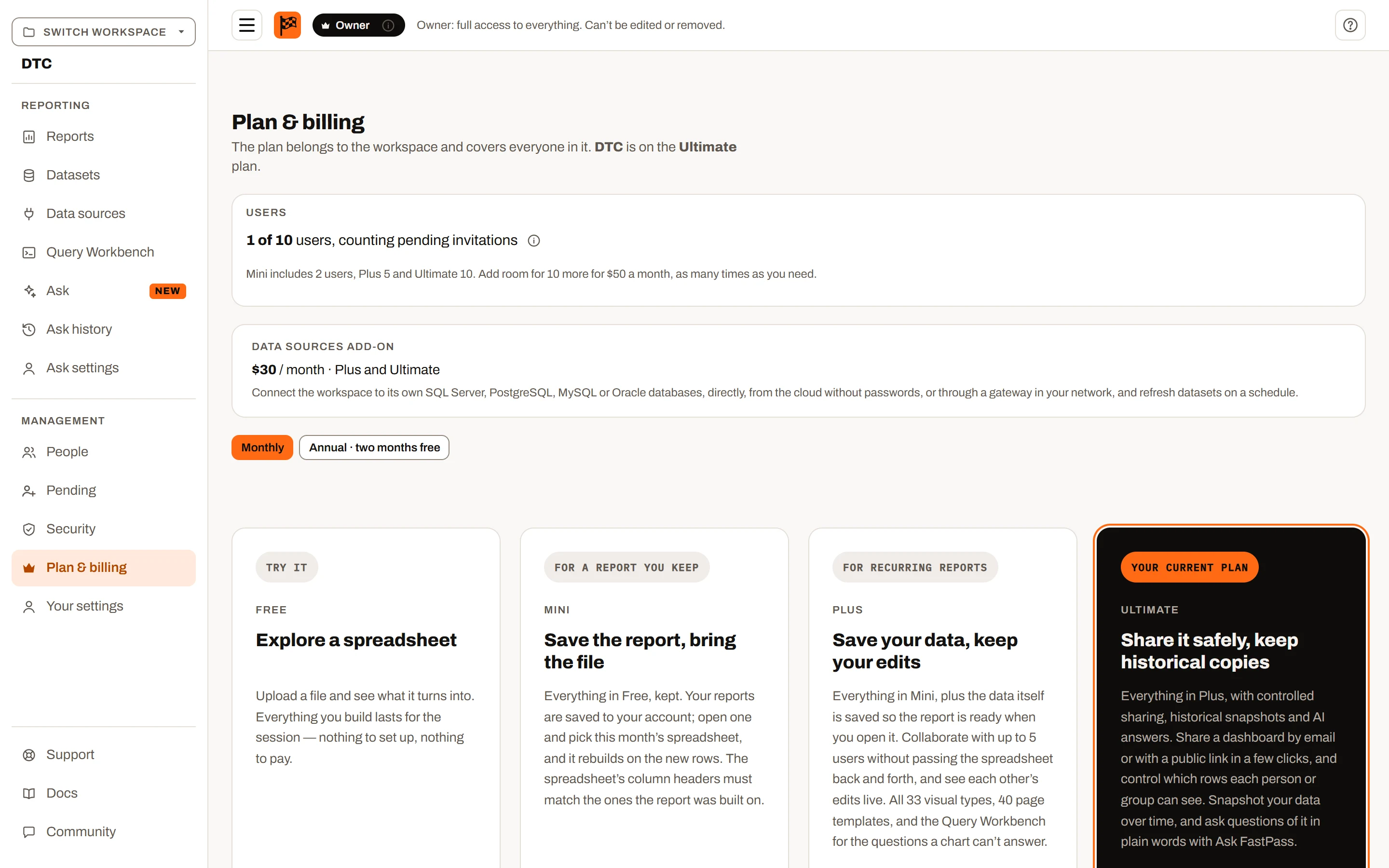
Plan & billing: the plans, with the workspace’s current one marked.
- If you're not the owner, a note says only the owner (named) can change the plan. You can still compare plans.
- If you're the owner, a note says: "Upgrading and downgrading here isn't available yet: billing is still being set up."
- Users panel (paid plans only): "N of M users, counting pending invitations", the extra-users summary, and for the owner an Increase limit by 10 users · $50 / month button.
- Storage panel (Plus and Ultimate only): the storage meter, the included storage and packs, and for the owner Add 50 GB · $20 / month and Remove 50 GB (see Storage).
- Plan cards for Free, Mini, Plus, Ultimate and Custom, the same as the pricing page. Your plan's card is marked Your current plan. The others show Upgrade to … or Downgrade to …. The card highlighted as the next step is Plus for Free and Mini workspaces, and Ultimate for Plus and Ultimate workspaces. The Custom card's Visit MVPFastPass.com opens that site in a new tab.
- Compare plans table with the monthly and annual prices, the current plan tagged Current.
What changes when a workspace upgrades#
- The new plan applies to everyone in the workspace straight away; there's nothing for members to do.
- Everyone's report session is refreshed, so the server applies the new plan within about a minute (open screens pick it up on their next refresh).
- Features unlock at once: for example, moving to Plus starts saving rows for up to 10 datasets on the next upload, edits included, and turns on sharing with members, groups and row access; moving to Ultimate turns on sharing by email, public links, saved versions and snapshots.
- An upgrade never deletes anything and is never refused for the number of users (the limit only goes up).
- If the workspace was previously on Ultimate, guests' access to its shared reports comes back, and public links work again.
What a downgrade deletes, and the 30-day grace period#
Before a downgrade goes through, the owner sees Downgrade to Plan? with a warning of what will be deleted 30 days after the downgrade, then can Keep current plan or Downgrade to Plan. The dialog also says "Export anything you want to keep before then. Everyone in the workspace moves to the Plan plan straight away."
What the warning lists, depending on the move:
| From → To | Deleted 30 days after the downgrade |
|---|---|
| Mini → Free | Saved reports |
| Plus → Mini | Saved reports past the first 10; the data saved in its datasets; row access settings; groups and the folder and report access given to members and groups; dataset connections only the removed reports used |
| Plus → Free | Saved reports; the data saved in its datasets; row access settings; groups and the folder and report access given to members and groups; dataset connections |
| Ultimate → Plus | Saved reports past the first 20; the data saved in datasets past the first 10; saved versions; reports shared with guests and public links. Groups, member and group access, row access and dataset connections stay. The included storage drops to 15 GB (storage over that pauses writes; nothing is deleted for it) |
| Ultimate → Mini | Saved reports past the first 10; the data saved in its datasets; saved versions; reports shared with guests and public links; row access settings; groups and the folder and report access given to members and groups; dataset connections only the removed reports used |
| Ultimate → Free | Saved reports; the data saved in its datasets; saved versions; reports shared with guests and public links; row access settings; groups and the folder and report access given to members and groups; dataset connections |
What stops immediately on a downgrade (enforced by the server):
- Creating new reports beyond the new plan's limit, and saving any report on Free.
- Saving rows to more datasets than the new plan allows (on Mini and Free, none).
- Editing stored rows, sharing with members and groups, groups, row access changes and adding or changing dataset connections (when going below Plus).
- Saved versions, sharing by email and public link changes (when leaving Ultimate).
- Public links stop opening, and the workspace disappears from guests' Shared Reports (when leaving Ultimate).
A move to Mini or Free also ends the workspace's storage packs, and a move from Ultimate to Plus lowers the included storage to 15 GB. Storage over the new limit is never deleted; it pauses new writes until it is back under (see Storage).
Nothing is changed or deleted at the moment of the downgrade: member access set up on Plus or Ultimate keeps applying, and existing reports and stored rows remain readable.
Choosing what to keep#
A move to a lower paid plan, or removing an extra user pack, that would leave the workspace holding more than the lower plan allows opens Choose what to keep before the confirmation. It compares the workspace with the lower plan:
| Over the limit | Counted from | Limit |
|---|---|---|
| People | the owner, members and pending invitations | the lower plan's users, plus 10 per pack |
| Saved reports | the Reports page | 10 on Mini, 20 on Plus |
| Datasets with saved rows | the Datasets page | none on Mini, 10 on Plus |
Each section that is over is a checklist with a running count ("Keep 4 of 5 people"); Continue stays off until every section fits. The owner is always kept. The boxes start ticked by the shield rule: shielded reports and datasets first, then the most recently opened, then, for items never opened, the most recently created. Moving to Mini keeps no saved rows, so the datasets are listed under Removed with no choice with the other features the lower plan lacks. An unticked dataset keeps its columns; reports using it ask for the spreadsheet.
People left unticked lose access at the end of the paid period, when the lower plan starts, and are removed 30 days later. Invitations left unticked are withdrawn at once. Reports and data left unticked are deleted 30 days after the period end. Until then the owner can reopen the dialog with Change what to keep on Plan & billing, or keep the current plan. A cancellation has nothing to choose: Free keeps only the owner and no saved reports or data, and the cancel dialog says who loses access and what is deleted, and when.
The development plan switch (when billing isn't set up) still refuses a downgrade that leaves too many users, with Remove users first, and so does a new owner picking a smaller plan while accepting an ownership transfer.
The /try trial#
/try lets anyone build a report from a spreadsheet without an account. It runs the Free plan's builder with less, so signing up for a free account adds something:
- up to 2 spreadsheets in a report (Free: 5);
- 2 basic page templates, Explore and Category Breakdown (Free: 5);
- the 10 core visuals, a read-only grid, no Save and no Export: the toolbar shows Sign up for Save and Export, which opens registration in a new tab;
- "No account, nothing saved. Up to 2 spreadsheets in a report, and your file stays on your computer." There's no workspace, so nothing about sharing, saved data or people applies.
Ticking a third tab shows "The trial can use up to 2 spreadsheets in a report. Untick one to swap another in, or sign up free for up to 5."
Signed in on a Free workspace, New report opens the same builder with Free's limits instead (up to 5 spreadsheets, 5 basic page templates).
Large datasets#
When you open a report on a stored dataset with more than 500,000 rows (counting only the rows you're allowed to see), and the report has no snapshot window set, the app asks first: "Dataset is large — This dataset has N rows (across S snapshots). Loading all of it may take a while." The options:
- Load the last N weeks/months/years → Load these (snapshot datasets only): loads only the snapshots dated in that window, counted back from today. The choice is saved with the report and can be changed in the Data pane.
- Purge old snapshots… (only for people who can change the dataset): stops opening and takes you to the dataset's retention rule on the Datasets page.
- Load everything: loads it all, and is remembered for the rest of your browser session.
- Cancel (or closing the dialog): doesn't open the report.
Because only Plus and Ultimate store rows, this prompt only appears on those plans; the snapshot options only on Ultimate. See Snapshots and versions.
Plan limits summary#
| Feature | Free | Mini | Plus | Ultimate |
|---|---|---|---|---|
| Price per month / year | $0 | $5 / $50 | $39 / $390 | $99 / $990 |
| Saved reports | 0 (session only) | 10 | 20 | Unlimited |
| Datasets with saved rows | 0 | 0 (columns only) | 10 | 50 |
| Data storage | None | None | 15 GB | 50 GB |
| Datasets per report | 5 | 10 | Unlimited | Unlimited |
| Saved data edits | No | No | Yes | Yes |
| Grid editing | No | Yes (export only) | Yes (saved with Save changes) | Yes (saved with Save changes) |
| Write-back (key fields, write actions, history) | No | No | Yes | Yes |
| Replay datasets, replay and FPQL write actions | No | No | No | Yes |
| Export data / visuals / package | No / No / No | Yes / No / No | Yes / Yes / Yes | Yes / Yes / Yes |
| Visual types | 10 | 33 | 33 | 33 |
| Page templates | 5 | 9 | 40 | 40 |
| Printable reports (design, PDF and Excel) | Yes (not saved) | Yes | Yes | Yes |
| Scheduled delivery of printable reports | No | No | No | Yes |
Upload .pbit, .pbip and .rdl report files | No | Yes | Yes | Yes |
| Snapshots, saved versions | No | No | No | Yes |
| Query Workbench (FPQL) | No | No | Yes | Yes |
| Ask FastPass (questions per billing period) | No | No | No | 100 |
| Sharing with members and groups, groups, row access, dataset connections, the grant rule | No | No | Yes | Yes |
| Sharing by email (guests), public links, embedding | No | No | No | Yes |
| Users included | 1 | 2 | 5 | 10 |
| Extra user packs (+10, $50/month) | No | Yes | Yes | Yes |
| Data sources add-on ($30/month) | No | No | Yes | Yes |
| Storage packs (+50 GB, $20/month) | No | No | Yes | Yes |
| Large-dataset prompt (over 500,000 rows) | n/a | n/a | Yes | Yes (with snapshot window) |
See also: Workspaces, User management, Datasets, Snapshots and versions, Report builder, Saved reports, Visual types, Sharing.