
Docs › Start here
Getting started with Insight FastPass
Insight FastPass turns a spreadsheet into an interactive dashboard in minutes. This guide covers trying it without an account, looking at the live examples, creating an account, signing in and out, resetting a forgotten password, and finding your way around once you are signed in.
What Insight FastPass is#
You give Insight FastPass an Excel workbook or a CSV file, and it builds a report from it: pages of KPI cards, charts, tables and filters that you can rearrange, restyle and print. Signed-in users keep their work in a workspace, which holds its own saved reports, datasets (the spreadsheets reports read) and the people it is shared with, all on one subscription plan.
There are three ways in:
| Way in | Account needed | What is kept |
|---|---|---|
| Try it free (the trial builder) | No | Nothing. Your file never leaves your browser and the report is gone when you leave the page. |
| Examples and the demo pages | No | Nothing. They are read-only demos on sample data. |
| Your account | Yes | Depends on your workspace's plan. See Plans and limits. |
| The desktop app | No (optional) | Your reports, saved as .ifpr files on your computer with their data. Signed in to a Plus or Ultimate workspace, also a library on your computer. See The desktop app. |
Try it free (no account)#
Every Get started button on the public site, and the Try it for free link on the sign-in page, opens the trial builder. The page is headed Try it for free / Drop a file, get a report, and says "No account, nothing saved. Up to 2 spreadsheets in a report, and your file stays on your computer."
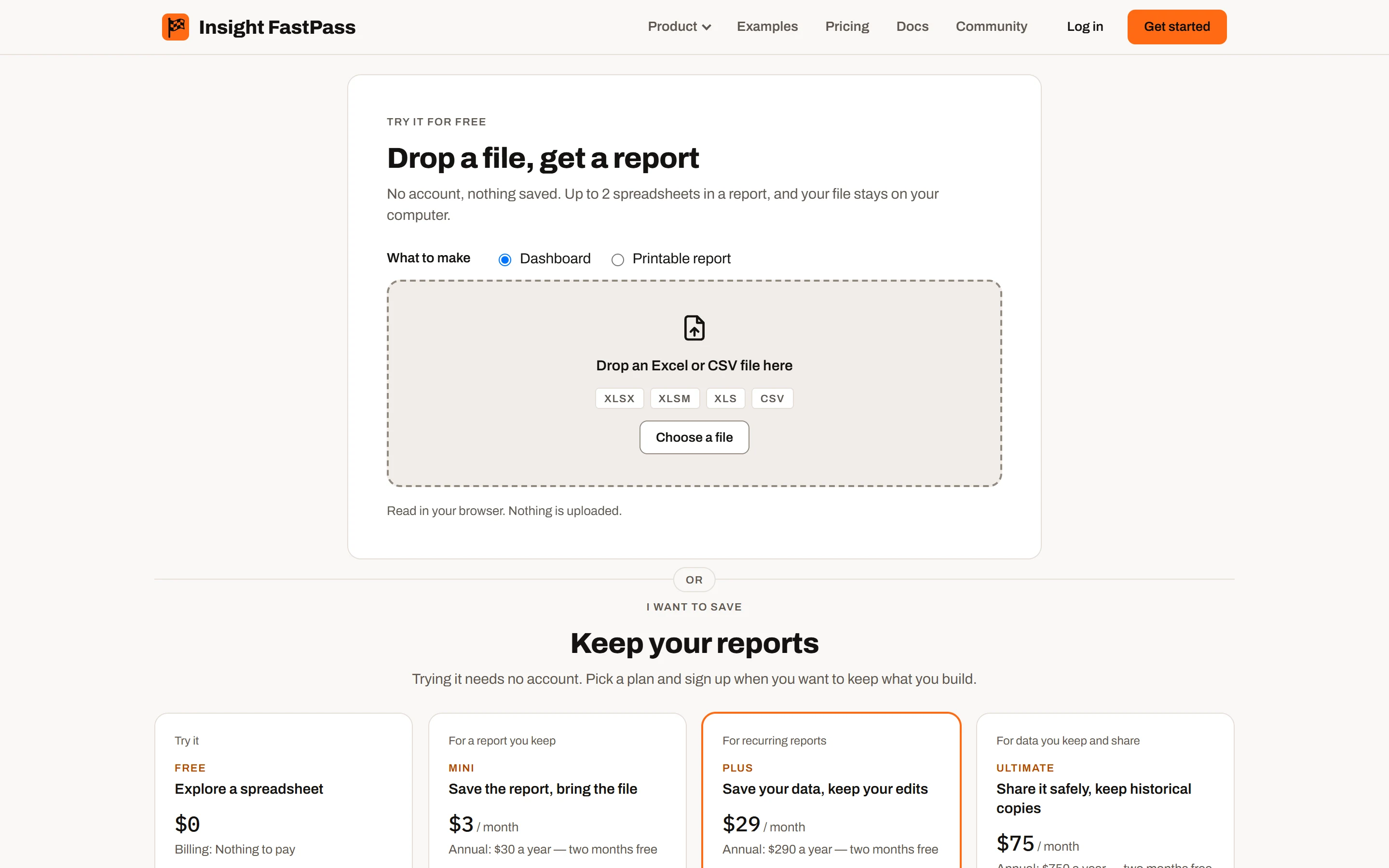
The Try it free page: the drop area, with the plans under it.
Loading a file#
- Drag a file onto the box labelled Drop an Excel or CSV file here, or click Choose a file. You can pick several files at once.
- Accepted file types: .xlsx, .xlsm, .xls, .csv, and also .tsv and .txt text files. For text files the separator (comma, semicolon, tab and so on) is detected automatically, and a first line of
sep=;is honoured as it is in Excel. - While a file is read you see Reading filename…. Large workbooks can take a few seconds.
How it works: the file is read entirely inside your web browser. Nothing is uploaded to Insight FastPass, which is why nothing can be saved.
What happens next depends on the file:
- A CSV or a workbook with one tab opens straight in the report builder.
- A workbook with several tabs shows a picker: "You have N tabs. Which should we include?" Each tab lists its column and row counts (and the file it came from if you loaded more than one). Tabs start ticked up to the limit (2 on the trial), and the rest are listed unticked. Untick any you don't want, then click Open the report.
- Hidden tabs are ignored. A workbook with no visible tabs shows "file has no visible tabs."
- A file that isn't a spreadsheet shows "file doesn't look like a spreadsheet. Save it as .xlsx or .csv and try again." A file that can't be opened shows "We couldn't read file. Check it opens in Excel and try again." Tabs you already loaded stay in place.
- If two tabs (from different files) have the same name, the later one is renamed so every tab name is unique.
Building the report#
Once the tabs are confirmed, the whole page becomes the report builder, and a starter report is built for you from the first tab (it is named after the first file). Each tab you included becomes a dataset in the report. See The report builder for how to use it.
After the first file is read, the drop box folds up into the page header as an Upload more area. Drop more files there, or click it, to add their tabs to the same report. If you loaded more than one tab, a strip above the builder says Using X of Y tabs; click Change tabs to go back to the picker (your ticks are kept, and tabs that stay in the report keep any edits).
The header on the trial also shows Log in and Sign up and Upgrade.
The trial is a smaller version of the Free plan: up to 2 spreadsheets in a report and two page templates (Explore and Category Breakdown), core visuals, a read-only grid, and no Save or Export. In their place the toolbar shows Sign up for Save and Export, which opens registration in a new tab so your report stays open. A workbook with more than two tabs opens the picker with the first two ticked; ticking a third shows "The trial can use up to 2 spreadsheets in a report. Untick one to swap another in, or sign up free for up to 5." See Plans and limits.
Leaving the trial (the leave guard)#
Because nothing is saved, the trial warns you before your work is lost, but only once a file has been loaded:
- Clicking a link inside the site (header, menu, footer, or the browser Back button) opens a dialog: Leave this page? "You will lose your changes. The file you loaded isn't saved anywhere, so you'd have to load it again." It offers three choices:
- Stay here: cancels the navigation. Pressing Escape or clicking outside the dialog does the same.
- Open in new tab: opens the page you were going to in a new tab and keeps your report open here.
- Leave and lose changes: goes to the new page. The report and its data are cleared.
- Reloading or closing the tab shows your browser's own "Leave site?" prompt instead (its wording is set by the browser).
Before any file is loaded there is nothing to lose, so neither warning appears. When you come back to the trial later it always starts empty, because the file has to be loaded again.
Choosing a plan from the trial#
Below the drop box (before you load a file) is an I want to save / Keep your reports section with a card for each plan, the same as the pricing page. Each plan's button takes you to registration with that plan noted (see Registering with a plan in mind). The custom-build card (MVP FastPass) opens an external page in a new tab. Compare all plans opens the pricing page.
Examples and demo reports#
The public site has live, read-only demos built on sample data. No account is needed. Each one is labelled Demo, with the note that every report on the site is a demo built on sample datasets, using the same visuals you get in the app.
- Examples (main menu): a featured dashboard with KPI cards and a column chart, followed by example visuals such as a grid, a matrix, a stacked column chart, a report table, a bar chart and a Gantt chart. Each card links to the matching live demo.
- Reporting examples demo (opened from the example cards): every visual type wired to the same sample sales orders, one at a time. Pick a visual to see it, change its grouping and measure, try its own options (a Reset button puts them back), and try the colour choices. On the Grid example you can sort, filter, double-click a row to edit it and export to Excel; edits stay in your browser and reset when you reload.
- Visual library demo: a single page showing the chart kit on one fictional quarter of business data.
Older demo addresses (credit history, production tracking, project info) now redirect to the reporting examples.
The other public pages are How it works, Write-back, Sharing, Pricing, Privacy and Terms.
Creating an account#
Open Register your account from the sign-in page, or any plan's sign-up button. The page is headed Create your account ("Free to start. Upload a spreadsheet and build your first report in minutes.").
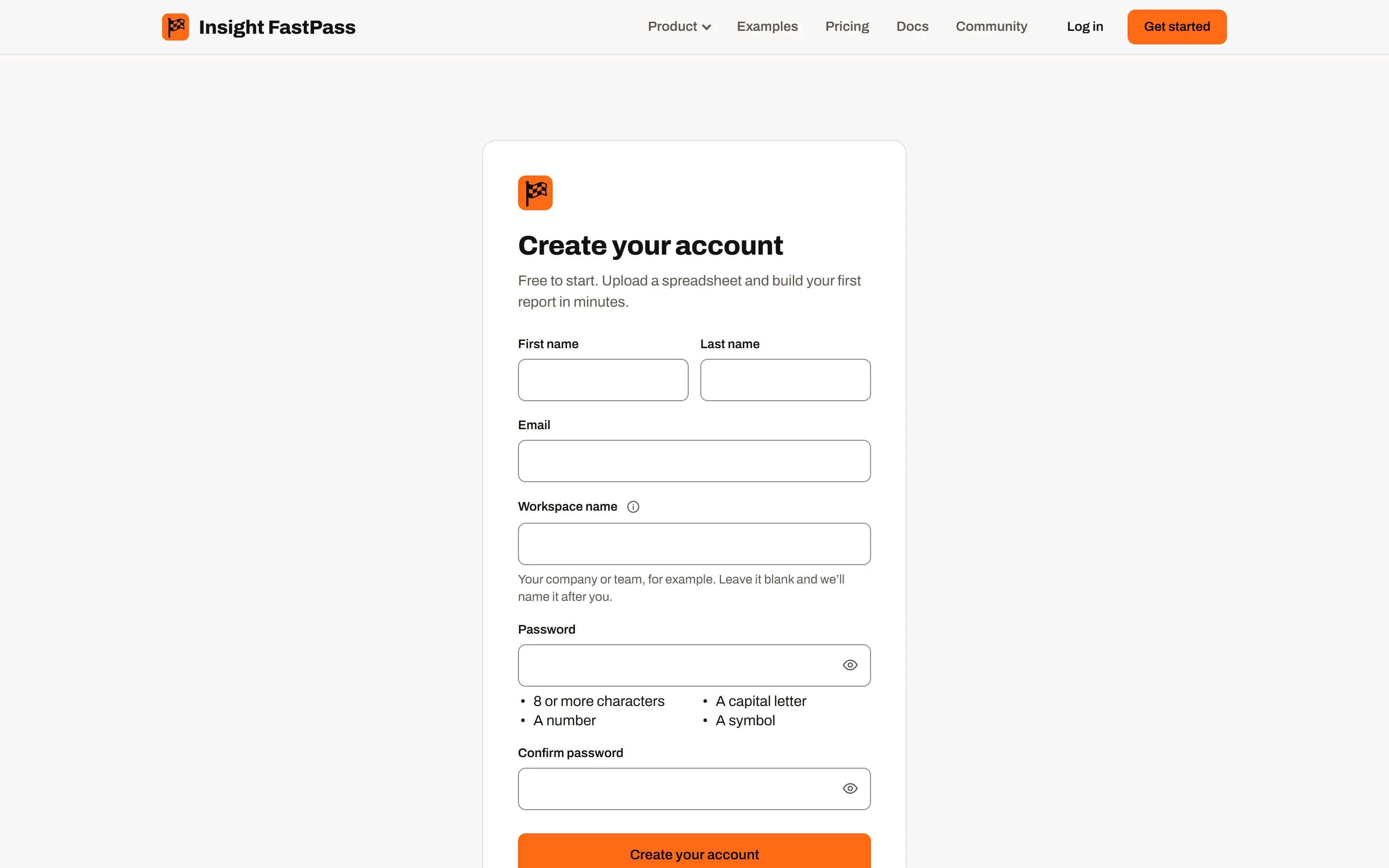
The Create your account form.
| Field | Required | Rules |
|---|---|---|
| First name | Yes | Up to 255 characters. |
| Last name | No | Up to 255 characters. Your display name is your first and last name together. |
| Yes | Must look like name@company.com. Up to 255 characters, no spaces. | |
| Workspace name | No | Up to 255 characters. "Your company or team, for example. Leave it blank and we'll name it after you." A blank name becomes "Your Name's workspace" (or your email address's, if you have no name). |
| Password | Yes | See Password rules. A checklist under the field ticks off each rule as you type and disappears once all are met. |
| Confirm password | Yes | Must match. "The two passwords don't match." shows if not. |
The eye button beside each password field shows or hides what you typed. By creating an account you agree to the Terms and Privacy Policy linked under the button.
Click Create your account. Your email and password are encrypted in your browser before they are sent.
What you get: a new account and your first workspace, which you own, on the Free plan. You can create more workspaces later (see Workspaces).
After you register, a welcome email is sent containing a six-digit code, and you go to the Check your email page. Entering the code finishes sign-up and signs you in. See Verifying your email.
If the email is already registered#
For privacy, the form never reveals whether an address already has an account. If it does, the screen behaves exactly as for a new sign-up and moves to Check your email, but no code is sent. Instead the inbox receives an email titled "Your Insight FastPass account" saying that someone tried to create an account with that address, and pointing to sign-in or Forgot your password?. If you are waiting for a code that never arrives, check for that email and log in instead.
If you were invited before you registered#
If someone invited your email address to a workspace, or shared a report with it, before you had an account, registering with that same address picks all of that up. The invitations appear on Notifications on the menu, and shared reports appear under Shared Reports.
Registering with a plan in mind#
The plan buttons on the pricing page and the trial page open registration with the plan in the address (for example ?plan=plus). The form then says "You picked Plus." For a paid plan it adds "Your account starts on Free; paid plans are set up after sign-up."
How it works: the choice is only remembered in your browser for the current visit (it survives a reload or a trip to the sign-in page and back). It is not sent to Insight FastPass, and every new account starts on Free. Online payment is not available yet. See Plans and limits for how a workspace's plan is changed today.
Registration errors#
- A problem with what you entered (weak password, mismatched passwords, a name over 255 characters) shows the server's message at the top of the form.
- "Too many attempts from this connection. Wait a minute, then try again." See Limits on attempts.
- "We couldn't create that account right now. Try again in a moment." or "We couldn't reach Insight FastPass. Check your connection and try again." for other failures.
Password rules#
A password must have:
- 8 to 128 characters
- at least one capital letter
- at least one number
- at least one symbol
The same rules apply when you register, reset a forgotten password and change your password.
To be safe, use a capital letter from A to Z and one of these symbols: ! @ # $ % ^ & * ( ) _ + - = [ ] { } ; ' : " \ | , . < > / ?
Logging in#
Sign-in has two steps: your password, then a six-digit code sent to your email. This means someone who learns your password still cannot sign in without access to your inbox.
- Click Log in (top right of the public site). The page says "We'll email you a six-digit code to finish signing in."
- Enter your Email and Password and click Log in.
- If they match, a code is emailed (subject "Your Insight FastPass verification code") and you go to Check your email.
If the email and password don't match, you see "That email and password don't match an account." The message is the same whether the email is unknown or the password is wrong.
The login email warns: if you did not try to log in, someone else entered your password correctly, and you should reset your password straight away.
Links on the sign-in page: Forgot your password?, Register your account and Try it for free.
Verifying your email (the six-digit code)#
The Check your email page is used both to finish registering and to finish logging in. It says which address the code went to.
- Type the six digits into Verification code and click Continue.
- A code lasts 15 minutes.
- A code allows five wrong tries. After the fifth wrong guess it stops working and you need a new one.
- A code works once.
- Sending a new code replaces the old one. Only the newest code works.
- Send a new code: a new code can be sent once a minute. After you click it the page says "A new code is on its way." and the link stays greyed out on that page.
- Use a different email goes back to the sign-in page.
If the code is wrong or expired you see: "That code didn't work. A code lasts 15 minutes and allows five tries — send a new one if it has expired."
How it works: the verification page only works straight after the login or registration form, because it needs to know which address it is checking. If you reload it, bookmark it or open it in a new tab, it sends you to the sign-in page. Log in again and a fresh code is sent.
Never share a code. Every code email says not to share it with anyone, especially someone claiming to work for Insight FastPass.
Where you land after signing in#
- Normally you land on your workspace's Reports page.
- If you were sent to sign in from a link to a page that needs an account (for example the button in an email telling you a report was shared with you), you go straight to that page once the code is accepted. This carries through to registration too, if you follow Register your account from that sign-in page.
- When you are already signed in, opening the Insight FastPass home page takes you to your Reports page, and the logo in the header takes you there too. The public site's menu links are hidden while you are signed in.
- The workspace that opens is the one you used last in this browser. The first time, it is the first workspace in your list (the ones you own come first).
Staying signed in, and signing out#
How it works: signing in sets a secure session in your browser.
- The session stays valid while you keep using the app, and ends after 90 days without use.
- However active you are, a session ends 180 days after you signed in, and you then sign in again with a new code. (These are the default settings.)
- Each browser and device has its own session.
Ways to sign out (all on Your settings):
| Action | What it does |
|---|---|
| Log out | Signs this browser out and returns you to the sign-in page. Other browsers stay signed in. |
| Sign out everywhere | Signs out every browser and device, this one included. Other devices are signed out within about a minute. |
| Change password with Sign out of all other devices ticked | Signs out every other device; this browser stays signed in. |
| Delete my account | Ends every session and removes your sign-in. |
If your session has ended and you open a page that needs an account, you are taken to the sign-in page, and after signing in you return to the page you wanted.
Forgot or reset your password#
- On the sign-in page click Forgot your password?
- Under Reset your password, enter the email you signed up with and click Send reset code.
- Check your inbox for "Insight FastPass password reset" with a six-digit code.
- The page changes to Choose a new password. Enter:
- Reset code: the six digits.
- New password and Confirm new password: see Password rules.
- Sign out of all other devices (optional checkbox): tick it if you think someone else may be signed in as you.
- Click Save and log in. Your password is changed and you are signed in on this browser, landing in your account.
Details:
- The reset code follows the same rules as a sign-in code: it lasts 15 minutes, allows five wrong tries and works once. A reset code can only reset a password; it cannot be used to sign in.
- For privacy, the page always moves to the second step, even if the email has no account. In that case no code is sent.
- If you ask again within a minute, no new code is sent; use the one you already have.
- Use a different email goes back to the first step; Back to log in returns to sign-in.
- Without Sign out of all other devices, any other browser that was signed in stays signed in.
- Errors: "That code didn't work. A code lasts 15 minutes and allows five tries — ask for a new one if it has expired." for a bad code; the password rule or "The passwords don't match." for a password problem.
Limits on attempts#
To protect accounts from guessing, sign-in screens limit how often they can be used from one internet connection:
| What | Limit |
|---|---|
| Logging in, entering a code, finishing a password reset | 10 tries a minute per connection |
| Anything that sends an email (registering, Send a new code, Send reset code) | 5 a minute and 20 an hour per connection |
| Codes sent to one email address for one purpose | 1 a minute |
Going over a limit shows "Too many attempts from this connection. Wait a minute, then try again." (or "Too many requests…"). Wait and try again. These limits apply to your connection, so people sharing an office network share them.
There is no lock on the account itself after wrong passwords: a wrong password only counts against the connection's limit.
Finding your way around your account#
Once signed in you work in the workspace area. On the left is a menu (the "rail"); along the top is a bar showing your role.
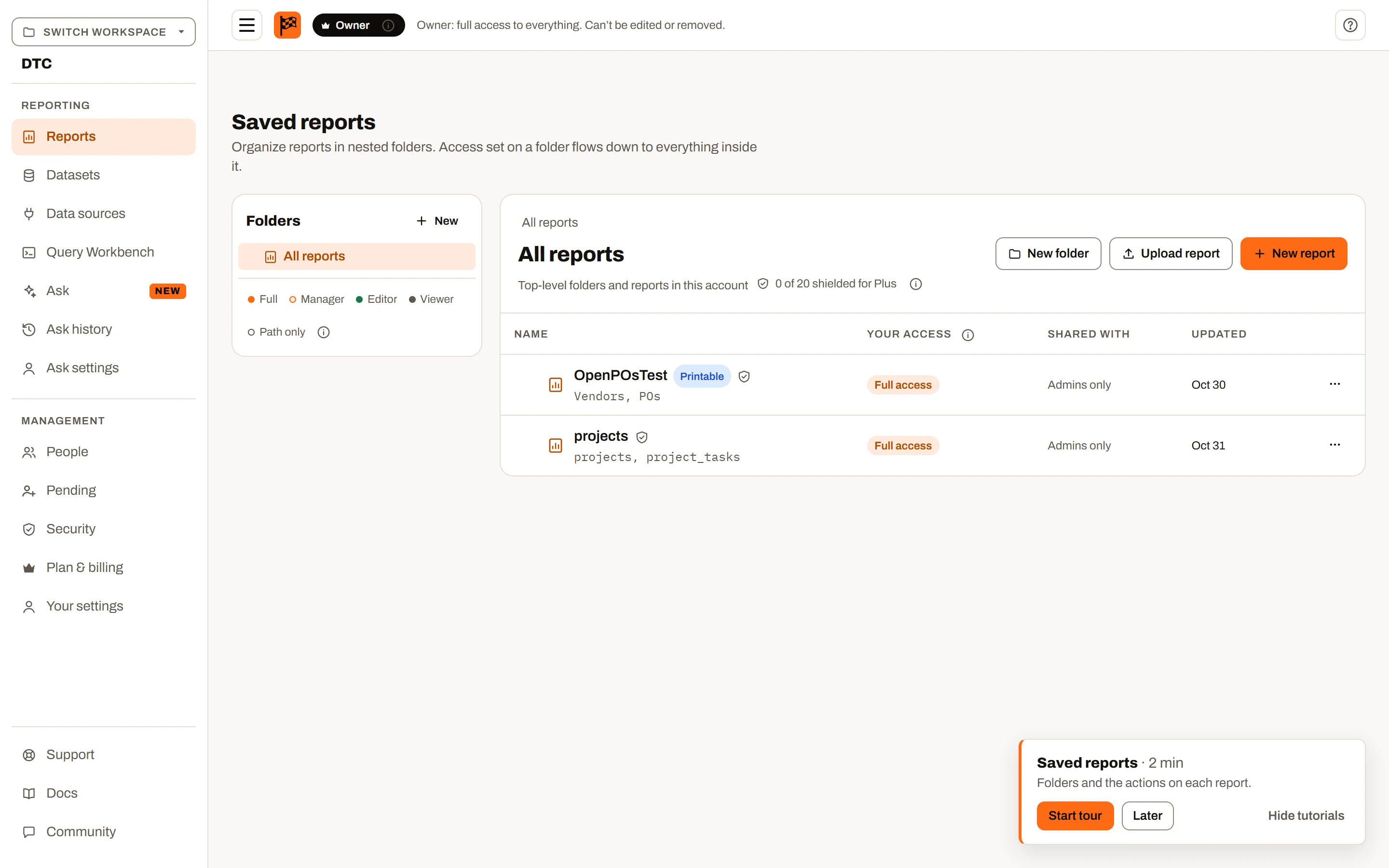
A workspace, signed in: the switcher and the sections on the left, your role in the top bar, and the Saved reports page.
The workspace switcher#
At the top of the rail, Switch workspace opens a list of:
- every workspace you work in (yours and any you have joined), each with your role in it;
- Shared Reports ("Shared with you by email"): reports other workspaces have shared with you personally. You can view them but take no seat in those workspaces;
- Create new workspace: opens Create a workspace ("It starts on the Free plan, with you as its owner. Each workspace is a separate subscription."). Enter a Workspace name (up to 255 characters) and click Create workspace. The new workspace opens on its Reports page.
The name of the open workspace (or "Shared Reports", or "No workspace") shows under the switcher. Your choice is remembered in this browser. See Workspaces.
The sections on the rail#
| Section | What it is | Shown |
|---|---|---|
| Reports | The workspace's saved reports, in folders, your Favorites, and New report. See Saved reports. | Always |
| Datasets | The spreadsheets the workspace's reports read. See Datasets. | In a workspace |
| People | Who is in the workspace and their roles. See User management. | In a workspace |
| Pending | Invitations you have sent and ownership transfers you have offered. See User management. | In a workspace, for owners and admins only |
| Upgrade | What each plan includes, with the workspace's current plan marked. See Plans and limits. | In a workspace |
| Notifications | Invitations and workspace offers waiting for your answer. A number beside it counts them. See Notifications. | Always |
| Your settings | Your profile, workspaces, tutorials, password and sign-out. See Account settings. | Always |
In Shared Reports, or when you have no workspace, only Reports and Your settings are shown; opening any other section takes you to Reports.
The menu button (three lines) at the top left of the bar shrinks the rail to icons or expands it again. Your choice is remembered in this browser. The report builder opens full-screen without the rail.
The top bar#
- A role chip shows your role in the open workspace (Owner, Admin, Manager, Editor or Viewer), with a one-line explanation beside it, for example "Viewer: read-only, and only what's shared with you." In Shared Reports it shows Guest, with "Reports shared with you by email. Read-only." Roles are explained in User management.
- The ? button lists the guided tours for the screen you are on. See In-app tutorials.
The first time you sign in#
On a desktop-sized screen, your first visit to the workspace shows a Welcome dialog offering a two-minute tour. See In-app tutorials.
If you have no workspace#
If you have given your workspace away and left it, or were removed from every workspace you were in, the Reports page says You have no workspaces assigned to you and lets you create one (it starts on the Free plan, with you as owner). If invitations are waiting, it links to Your settings so you can accept one instead, and if reports were shared with you by email it links to Shared Reports.
Starting a report on the Free plan#
On the Free plan, New report opens the same drop-a-file builder as the trial, headed Reports / New report: "Up to 5 spreadsheets in a report. Nothing is saved on the Free plan, and your file stays on your computer." It works like the trial with these differences: there are no plan cards, the Free plan's features apply, and at most 5 spreadsheet tabs can be ticked. Extra tabs are listed unticked, with "A free workspace can use up to 5 spreadsheets in a report. Untick one to swap another in, or upgrade for more." The same leave warning protects your work. On paid plans, New report starts a saved report instead. See Saved reports.
Plan availability
| Trial (no account) | Free | Mini | Plus | Ultimate | |
|---|---|---|---|---|---|
| Spreadsheets in one report | 2 | 5 | 10 | No limit | No limit |
| Report kept after you leave | No | No | Yes (up to 10 reports) | Yes (up to 20) | Yes |
See Plans and limits for the full comparison.
Plan limits summary#
| Feature in this guide | Trial (no account) | Free | Mini | Plus | Ultimate |
|---|---|---|---|---|---|
| Account, sign-in, verification, password reset, sessions | Not applicable | Same on every plan | Same | Same | Same |
| Plan chosen at sign-up | Not applicable | Every account starts on Free | Noted only; starts on Free | Noted only; starts on Free | Noted only; starts on Free |
| Spreadsheets in one report | 2 | 5 | 10 | No limit | No limit |
| Work kept after leaving the builder | No | No | Saved reports (10) | Saved reports (20) and saved datasets | Saved reports and saved datasets |
| Workspace sections on the rail | Not applicable | All sections shown on every plan (Pending only for owners and admins) | Same | Same | Same |