
Docs › Start here
Use an authenticator app
An authenticator app makes a new six-digit code every 30 seconds, on your phone or in your password manager. Once you add one to your account, signing in and confirming important changes ask for a code from the app instead of a code sent to your email, so someone who gets into your inbox can no longer get into your account. It's optional, free, and works with any authenticator app.
Why use one#
Without an authenticator app, the second step of signing in is a code we email you. That means whoever can read your email can sign in, and can reset your password too. With an authenticator app:
- The code comes from your app, not your inbox. It works offline and arrives instantly.
- Resetting a forgotten password also needs a code from the app, or a recovery code.
- Changing your password, deleting your account, transferring a workspace and billing changes ask for a code from the app.
Nothing changes for you until you add one.
Which app to use#
Any app that makes six-digit codes that change every 30 seconds works. You can add up to three, for example a phone app and a password manager as a backup.
| App | Notes |
|---|---|
| Microsoft Authenticator (recommended) | Free for iPhone and Android. Can back up your codes to your Microsoft account. |
| Google Authenticator | Free for iPhone and Android. Can sync your codes to your Google account. |
| A password manager | 1Password, Bitwarden, Apple Passwords, Proton Pass and others can store the code beside your password. |
| Authy, 2FAS, Aegis or another app | Any standard authenticator app works. |
Set one up#
Open Your settings, find Security, and choose Set up an authenticator app (or Add another authenticator app). Setup takes about two minutes.
- Choose your app from the list. The name you give it (for example "Microsoft Authenticator on my Pixel") is shown when you sign in, so you know where to look.
- Confirm it's you. Enter your current password. For your first authenticator, choose Email me a code and enter the code we send. To add another, enter a code from an authenticator you already use.
- Add Insight FastPass to the app. Scan the QR code with your phone, or type or paste the setup key shown under it. On a phone, Add to authenticator app opens your app directly.
- Enter the code your app now shows for Insight FastPass, and choose Confirm.
- Save your recovery codes (first authenticator only). Copy them, download them as a text file or print them, tick I've saved these recovery codes somewhere safe, and continue.
When you finish, your other browsers and devices are signed out, and we email you that an authenticator was added.
Steps for each app#
Microsoft Authenticator
- Open Microsoft Authenticator.
- Tap +, then choose Other account.
- Scan the QR code.
Google Authenticator
- Open Google Authenticator.
- Tap +, then Scan a QR code.
- Scan the QR code.
A password manager
- Open the login for Insight FastPass in your password manager.
- Add a one-time password (it may be called a verification code or TOTP).
- Scan the QR code, or paste the setup key.
Authy, 2FAS, Aegis or another app
- Open your authenticator app.
- Add an account (often a + button).
- Scan the QR code, or type the setup key. Choose a time-based code if the app asks.
Sign in with your authenticator#
After your email and password, the sign-in page asks for the code from your app. If you have more than one authenticator, pick the one you're using; a code from any of them works.
- Don't ask for a code on this device remembers this browser for up to 30 days, so signing in here needs only your password. A workspace can shorten this or ask for a code anyway.
- Use a recovery code if you don't have your app with you. Each recovery code works once.
- There is no "email me a code instead": that would let your inbox in again.
Five wrong codes in 15 minutes pause codes on your account for 15 minutes, and we email you.
Recovery codes#
You get ten recovery codes when you add your first authenticator. Each one signs you in once instead of a code from your app, and works anywhere a code is asked for. Keep them away from your phone, for example printed or in a password manager.
Your settings shows how many you have left. When two or fewer are left, make a new set with Make new recovery codes: it asks for a code from your app, and the old codes stop working.
Confirming important changes#
Some changes ask you to confirm it's you, even though you're signed in: changing your password, deleting your account, transferring or claiming a workspace, billing changes, making someone an admin, and changing a workspace's security. A window asks for a code from your authenticator app (or, if you don't have one, a code we email you), then the change goes ahead. One confirmation covers every change for the next 10 minutes.
Manage your authenticators#
Under Security on Your settings:
- Rename an authenticator.
- Remove one: enter your password and a code from any of your authenticators, or a recovery code. Removing your only authenticator turns authenticator sign-in off and signs out your other devices, and any workspace that requires one stops opening until you add one again.
- Remembered devices lists the browsers where you chose not to be asked for a code, with Forget and Forget all. Removing an authenticator, changing your password or signing out everywhere forgets them all.
If you lose your phone#
- Use a recovery code to sign in, then remove the lost authenticator and add a new one.
- No recovery codes? On the sign-in page choose I can't use my authenticator. We email you a code to confirm the request. For your security the request takes effect after 7 days; we email you when it's made, after a day, and the day before, each with a Cancel this, it wasn't me link.
- Signing in with an authenticator app or a recovery code at any time cancels the request.
- After 7 days, sign in with your password and an emailed code. Your authenticators and recovery codes are removed, and you're asked to set up a new one.
Support can't shorten the wait or remove an authenticator for you.
Workspaces that require an authenticator#
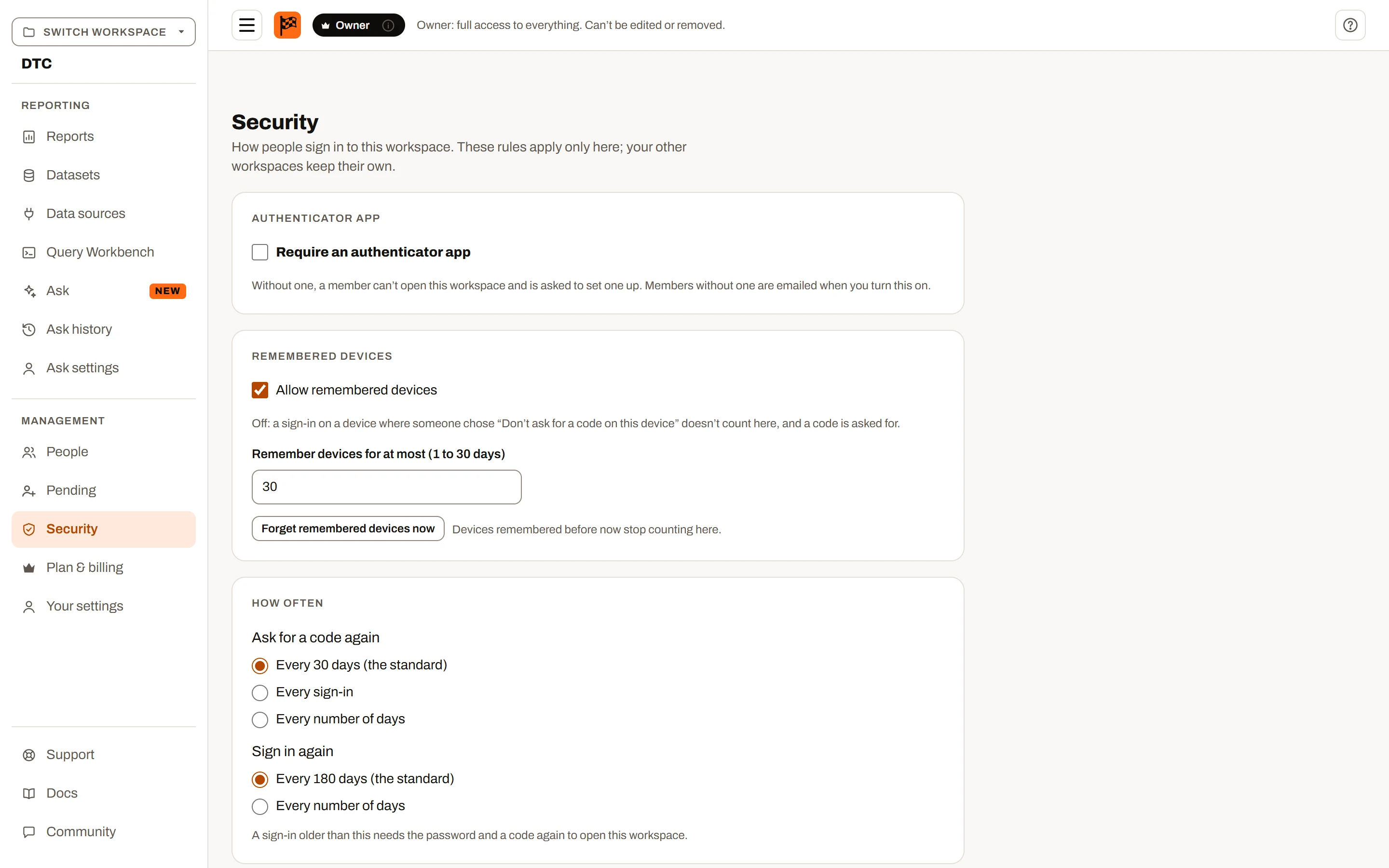
The Security page: the workspace’s sign-in rules.
A workspace's owner and admins can require every member to use an authenticator app, on the workspace's Security page. They can also limit remembered devices, ask for a code again every so often, and ask people to sign in again after a number of days. These rules apply only in that workspace.
- If a workspace you belong to requires one and you don't have one, it shows in the workspace switcher as Needs an authenticator app, with Set up an authenticator.
- If it wants a fresher code, choose Confirm with your authenticator.
- If it wants a new sign-in, choose Sign in again.
Owners and admins see on the People page whether each member has an authenticator (yes or no, never which app). A workspace with live data connections always requires one.
Plan limits summary#
No plan differences. Authenticator apps work the same on every plan, and any workspace's owner or admins can require one on any plan.