
Docs › Start here
Your settings
Your settings is where you manage your own account: the workspaces you belong to, the guided tours, your password, signing out, and deleting your account. Open it from Your settings at the bottom of the menu on the left of the workspace area. Invitations and workspace offers waiting for you have their own page, Notifications, just above it on the menu.
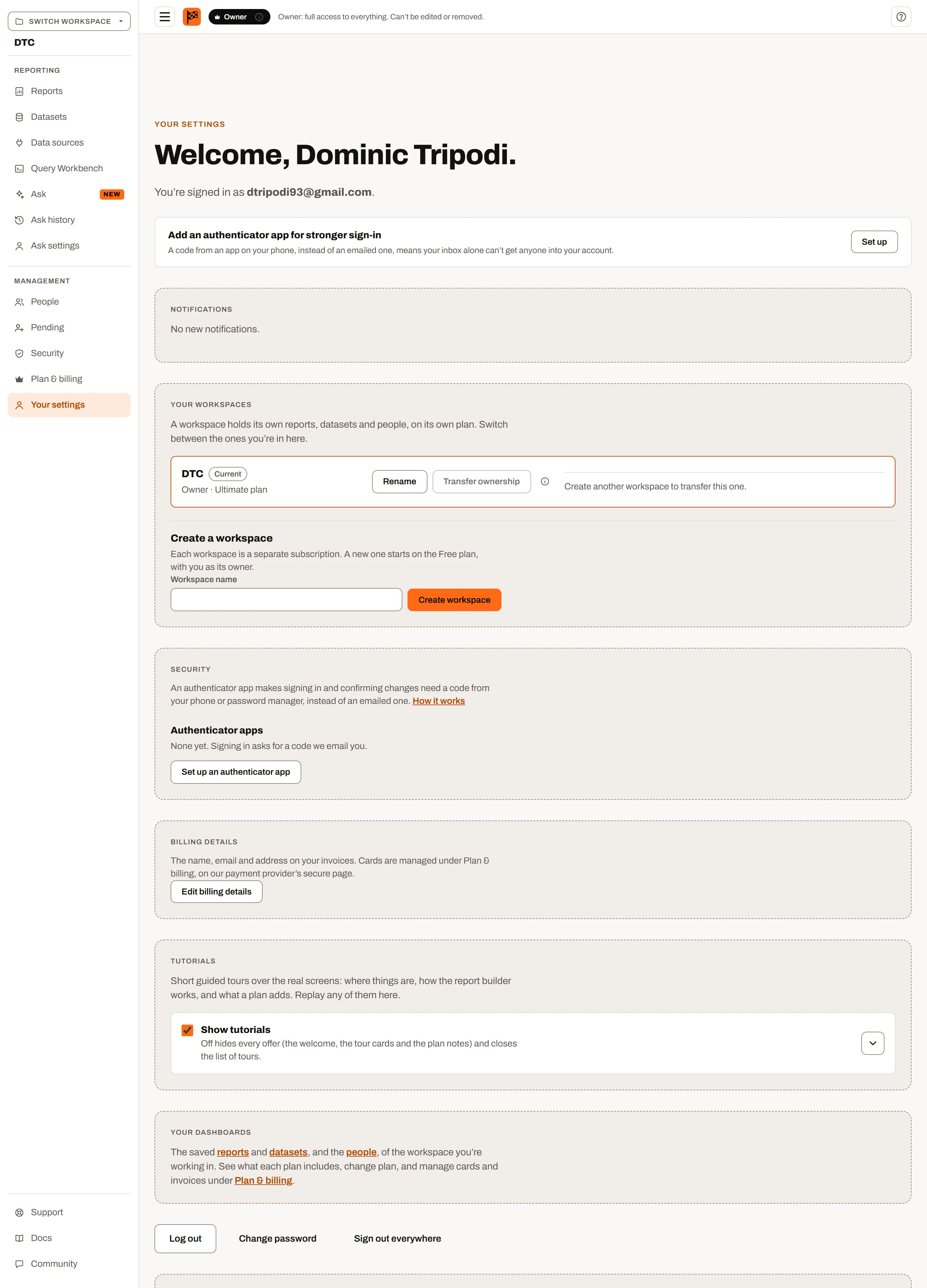
Your settings, top to bottom.
What's on the page#
The page is the same for everyone, whatever their role or plan. From top to bottom:
- Welcome, your name. and "You're signed in as your email."
- Your workspaces: every workspace you work in, with switching, renaming, creating and transferring.
- Security: your authenticator apps, recovery codes and remembered devices. See Use an authenticator app. Until you add an authenticator app, a small card near the top of the page suggests one; afterwards it reads "Authenticator app: on".
- Tutorials: the guided tours switch and the list of tours.
- Your dashboards: quick links into the open workspace.
- The sign-out buttons: Log out, Change password, Sign out everywhere.
- Delete your account.
If you work in Shared Reports or have no workspace, Your settings and Notifications are still available; with Reports they are the sections always on the menu.
Your profile#
The top of the page shows your display name (your first and last name as entered when you registered) and the email address you sign in with.
- Your email address is your identity in Insight FastPass and cannot be changed.
- Your name is shown to other people in workspaces you share, for example in invitations and on the People page.
Your plan#
Plans belong to workspaces, not to people. There is no account-wide plan to look at on this page: each workspace in Your workspaces shows its own plan ("Owner · Free plan"), and a workspace's plan is shown and changed on its Upgrade page. See Plans and limits.
How it works: behind the scenes your account also has a "default plan", which is the plan of the oldest workspace you own (Free if you own none). It is used as a starting point when you sign in, but what you can do on any screen is always decided by the plan of the workspace that is open.
Notifications#
Notifications has its own item on the menu, just above Your settings. The page lists things waiting for your answer. When there are none it says "No new notifications." While anything is waiting, a number beside Notifications on the menu counts the items (a small badge on its icon when the menu is folded), and the page refreshes each time you open it.
Invitations to join a workspace#
Each invitation reads "Name invited you to join Workspace" and "You'd join as an admin / an editor / a viewer. It costs you nothing: the workspace's plan covers what you do in it."
- Accept: you join the workspace with that role. The message says "You joined Workspace. Pick it in the workspace switcher to open it." The workspace appears in the switcher and under Your workspaces straight away.
- Decline: the invitation is removed. "You declined the invitation to Workspace."
Invitations are sent to your email address, so you also see invitations that were sent before you had an account. See User management for how invitations are sent.
Workspaces offered to you (ownership transfers)#
When a workspace owner wants to hand a workspace to you, it shows as "Name wants to make you the owner of Workspace" and "Nothing changes until you accept."
- Review opens the details:
- You become the owner, with full access to everything in it.
- The previous owner stays in the workspace as an admin.
- Each workspace is a separate subscription. The panel names the workspace's current plan, and as owner the plan becomes yours to manage.
- "The workspace keeps its current plan when you accept. Payment methods aren't set up here yet."
- Accept ownership: you become the owner. The message says "You now own Workspace. Name is still in it as an admin." Any separate sharing permissions you held as a member are cleared, since the owner has full access anyway.
- Decline (in the list or in the details): the offer is withdrawn. "You declined ownership of Workspace."
- Not now closes the details and leaves the offer waiting.
If an offer has been withdrawn in the meantime, you see "That transfer is no longer available."
Your workspaces#
"A workspace holds its own reports, datasets and people, on its own plan. Switch between the ones you're in here." Each workspace in the list shows:
- its name, with a Current tag on the one that is open;
- a Subscription cancelled tag if its subscription has been cancelled (see Deleting your account);
- your role and its plan, for example "Admin · Plus plan", and for workspaces you don't own, "owned by Name".
The actions depend on your role in that workspace:
| Action | Who sees it | What it does |
|---|---|---|
| Switch to this workspace | Everyone, on every workspace except the open one | Opens that workspace. "You're now working in Workspace." Same as picking it in the switcher. |
| Rename | Owner | Opens a Workspace name box (up to 255 characters). Save renames it ("Renamed to name."), Cancel closes it. A blank name is refused: "Give the workspace a name." |
| Transfer ownership | Owner | Offers the workspace to someone already in it. See below. |
| Cancel transfer | Owner, while an offer is waiting | Withdraws the offer. "The transfer of Workspace was cancelled." |
Transferring ownership#
"The new owner takes over the subscription and the workspace. You stay in it as an admin."
- Click Transfer ownership.
- Choose a person under Transfer to ("Choose someone in this workspace"). Only current, active members are listed: not people whose invitation is still pending, and not guests who only have reports shared with them by email.
- Click Send request. They get an email and a notification on their Notifications page. "Nothing changes until they accept; you then stay in the workspace as an admin."
- While you wait, the workspace shows "Waiting for Name to accept ownership. You stay the owner until they do." with Cancel transfer.
Rules:
- You must keep at least one workspace you own. If this is the only workspace you own, the button is greyed out with "Create another workspace to transfer this one."
- The new owner must already be in the workspace. If nobody else is, you see "A workspace can only go to someone who is already in it. Invite them from People first."
- Only the owner can transfer a workspace.
- If the email could not be sent, the request still waits in their settings: "The request is waiting in Name's settings, but the email couldn't be sent. Send it again from Pending."
See Workspaces and User management for more on owners, admins and the Pending page.
Creating a workspace#
Under Create a workspace: "Each workspace is a separate subscription. A new one starts on the Free plan, with you as its owner." Type a Workspace name (up to 255 characters) and click Create workspace (or press Enter). "Name was created on the Free plan." A blank name is refused with "Give the new workspace a name." There is no limit on how many workspaces you can create. You can also create one from Create new workspace in the workspace switcher.
Tutorials#
The Tutorials panel switches the guided tours on or off and lists every tour you can take, with Start, Resume, Restart, Mark as done and Reset all progress…. It is described in full in In-app tutorials.
Your dashboards#
A short panel with links to the reports, datasets and people of the workspace you're working in, and to Upgrade, where you can see what each plan includes.
Signing out#
Three buttons sit together near the bottom of the page.
Log out#
Signs this browser out and takes you to the sign-in page. Any other browsers or devices you are signed in on stay signed in.
Sign out everywhere#
Use this if you signed in on a shared or lost device.
- Click Sign out everywhere.
- Confirm: "Sign out of every browser and device, this one included? Other devices are signed out within about a minute." Click Sign out everywhere again, or Cancel.
How it works: every session your account has, in every browser, is cancelled at once, including your access to open reports. Other devices notice within about a minute. You are taken to the sign-in page and need a new emailed code to sign back in. If it fails you see "We couldn't sign you out everywhere. Try again in a moment."
Change password#
Change password opens the Change your password page.
- Current password: the password you use now.
- New password: must meet the password rules. A checklist under the field ticks off each rule as you type.
- Confirm new password: must match. "The two passwords don't match." shows if not.
- Sign out of all other devices (optional checkbox).
- Click Save new password.
This browser stays signed in and you return to Your settings. Back to your settings leaves without changing anything.
What the checkbox does:
| Checkbox | Result |
|---|---|
| Ticked | Every other browser and device is signed out within about a minute. This browser stays signed in. |
| Not ticked | Other browsers and devices stay signed in with their existing sessions. Only future sign-ins need the new password. |
If you are changing your password because you think someone else knows it, tick the box.
Errors:
- "Your current password isn't right." The current password was wrong. Nothing was changed.
- "Your password couldn't be changed. Try again in a moment."
You don't need your current password if you have forgotten it: log out and use Forgot your password? on the sign-in page instead. See Getting started.
Password rules#
Passwords must have 8 to 128 characters, at least one capital letter, at least one number and at least one symbol. To be safe, use a capital A to Z and one of ! @ # $ % ^ & * ( ) _ + - = [ ] { } ; ' : " \ | , . < > / ?. See Getting started for details.
Deleting your account#
The Delete your account panel: "Removes your sign-in and your details. Transfer any workspace that should carry on first: deleting your account cancels the subscription of every workspace you own."
- Click Delete my account…
- Read Before you delete your account. If you own workspaces, they are listed by name ("You own this workspace:" / "You own these workspaces:"), followed by what will happen:
- The subscription of every workspace you own is cancelled at the end of its current subscription period.
- When it ends, the workspace stops working for everyone in it, unless you transfer it to someone else first (Transfer ownership, under Your workspaces).
- Reports, datasets and everything else in a workspace are deleted once its subscription has been inactive for more than 30 days.
- You'll be signed out everywhere and won't be able to sign in. Workspaces you're only a member of are not affected.
- Enter your Current password.
- Click Delete my account, or Keep my account to back out.
If the password is wrong: "That password isn't right. Your account was not deleted." Any other failure: "Your account couldn't be deleted. Try again in a moment."
What is deleted, and what is kept#
| Deleted straight away | Kept |
|---|---|
| Your password, so nobody can sign in as you | Your email address, as a placeholder linked to your past activity |
| Any sign-in or reset codes waiting to be used | Your memberships in other people's workspaces |
| Your first name, last name and phone number | Workspaces you own (with their subscription cancelled) and everything in them |
| Your tutorial progress and your Show tutorials setting | Reports and folders shared with you, and your permissions in each workspace |
| Every open session, in every browser | Invitations and ownership offers involving you |
You are signed out and taken to the sign-in page.
How it works: your account becomes an unregistered placeholder tied to your email address. People in your workspaces can still see that the address was a member.
If you register again with the same email#
If the same email address registers again later, it gets back the same identity: your memberships, the reports shared with you and the workspaces you owned all become yours again, and any workspace you own that was marked as cancelled has the cancellation removed. Your tutorial progress does not come back; the tours start fresh. A new first workspace is only created if you no longer own one.
Transfer first#
If a workspace should carry on after you leave, transfer it before deleting your account. See Transferring ownership. Once you are gone you cannot accept or send transfers.
Full erasure on request#
Deleting your account keeps your email address as a placeholder. If you want to be completely forgotten, you can email the address given in the Privacy Policy under "Your choices". Insight FastPass then removes your email address, your memberships, pending invitations to you, ownership offers, your report shares and the emails sent to you. Invitations, shares and links you created inside workspaces are re-attributed to each workspace's owner, so the workspace's history stays intact without naming you. Workspaces you own are not deleted by this; transfer them first.
Security behaviours you may notice#
| What happens | Why |
|---|---|
| Every sign-in asks for a code from your email, or from your authenticator app once you've added one. | Sign-in has two steps, so a stolen password alone is not enough. See Use an authenticator app. |
| Changing your password or deleting your account asks you to confirm it's you with a code. | Sensitive changes need a fresh code from your authenticator app (or an emailed code if you have none); one confirmation lasts 10 minutes. |
| You are signed out on other devices about a minute after Sign out everywhere, or after a password change or reset with Sign out of all other devices ticked. | Your account's sessions are cancelled together, and each device checks about once a minute. |
| A password change or reset without the checkbox leaves other devices signed in. | Only the checkbox ends other sessions. |
| You must sign in again after 90 days without using the app, or 180 days after signing in. | Sessions expire (default settings). |
| "Too many attempts from this connection. Wait a minute, then try again." | Sign-in, code and reset screens are limited per internet connection. See Getting started. |
| Deleting your account asks for your current password even though you are signed in. | So that someone using a device you left signed in can't delete your account. Changing your password asks for the current one for the same reason. |
There is no lock on an account after wrong passwords; the per-connection limits apply instead.
Plan limits summary#
No plan differences. Everything on Your settings works the same on every plan. A workspace's plan only affects what you can do inside that workspace (see Plans and limits), and a newly created workspace always starts on Free.